

Apple has improved the Lock Screen on iPhones in recent years, making it more customizable than ever and able to display information-rich widgets. This article shows you how to add select widgets your iPhone's Lock Screen in iOS 16 and later.
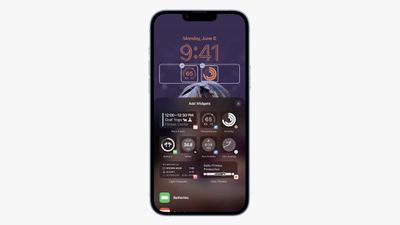
Lock Screen Widgets used to be the sole preserve of Android phones, but in 2022 Apple finally added them to iPhone when it overhauled the Lock Screen. Now you can customize the Lock Screen with unique fonts, colors, and of course widgets, providing you with glanceable information that you can check without having to open your iPhone's Home Screen or the Today view.
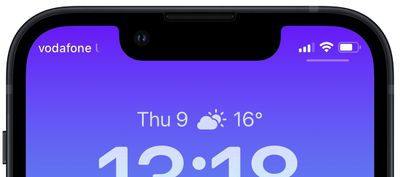
The widgets that you can add above the time on the Lock Screen include another time zone, a set alarm, the next calendar event, a weather condition, your activity rings, the next reminder, and a chosen stock. These widgets sit alongside the date above the digital clock.
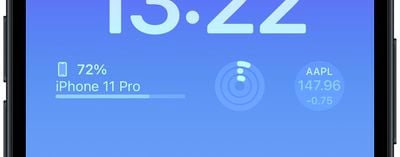
Widgets that can be placed below the time are more information-rich and include device battery levels, Calendar, Clock, Fitness, Home, News, Reminders, Stocks, and Weather. Many third-party apps installed on your iPhone will also include handy widgets that you can use. You can add up to four square symbol-based widgets below the time, or up to two rectangular widgets with more information, or alternatively a combination of two square widgets and one rectangular widget.
To get started adding widgets, all you need to do is unlock your iPhone with Face ID or Touch ID, and then long press on the Lock Screen to enter the Lock Screen gallery. The following steps guide you through the rest of the process.
Adding Widgets to Your Lock Screen
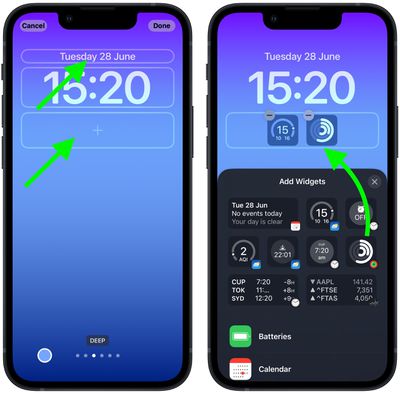
- In the Lock Screen gallery, tap Customize below the Lock Screen you want to add widgets to.
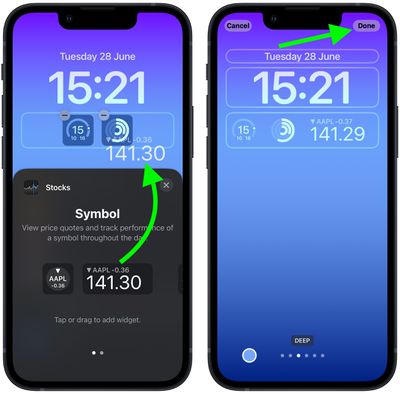
- Tap the frame either above or below the time to bring up the widgets selector.
- Tap any of the suggested widgets at the top of the widgets selector to add them to the frame.

- You can also tap from the column list of apps to choose from a range of widgets available for each app. Swipe to the one you want, then tap it or drag it to the frame to place it where you want.
- When you're finished arranging your widgets, tap Done in the top-right corner of the screen.
- Tap the current Lock Screen in the wallpaper gallery to activate it.
Developers often create Lock Screen widgets for third-party apps using Apple's WidgetKit API, so whenever you install a new app, be sure to check out the Lock Screen widgets list to see if new ones have been added.



















