How to Back Up Your iPhone or iPad to a Windows PC - MacRumorsOpen MenuShow RoundupsShow Forums menuVisit ForumsOpen Sidebar
Skip to Content

How to Back Up Your iPhone or iPad to a Windows PC

by

Not everyone who owns an iPhone or iPad has a Mac, which is why Apple made its mobile devices compatible with Windows PCs, too. Using USB, you can you can connect an iPhone or ‌iPad‌ to a Windows PC to set up the device, charge its battery, share its internet connection, transfer files, and sync content. This article shows you how to back up your iOS device on a Windows PC.
windows icloud hero pc iphone

Make Sure You Have the Correct USB Cable

As long as your PC has a USB port and is running Windows 7 or later, you can back up your iPhone or ‌iPad‌ to it. However, you'll need to make sure that you have a USB cable that terminates in the correct way to fit your PC's USB port.

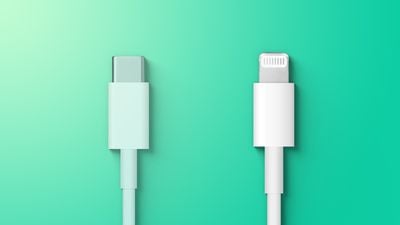
If your iPhone or ‌iPad‌ came with a Lightning to USB Cable and your computer has a USB-C port, you'll need to connect the USB end of the cable to a USB-C to USB Adapter (sold separately), or use a USB-C to Lightning Cable (sold separately).
Apple Prefer Lightning Over USB C Feature
If your iPhone or ‌iPad‌ came with a USB-C to Lightning Cable and your computer has a USB port, you'll need to use a Lightning to USB Cable (sold separately).

If your ‌iPad‌ came with a USB-C Charge Cable and your computer has a USB port, use a USB-C to USB Adapter and a USB-A cable.

How to Back Up iPhone or iPad to a Windows PC

  1. On your computer, go to the Microsoft Store to download and install the latest version of iTunes for Windows.
  2. Connect your iPhone or ‌iPad‌ to your computer using a compatible USB charging cable (see above).
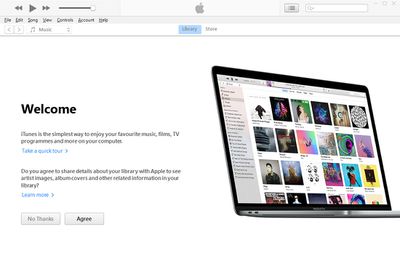
  3. Launch the iTunes app on your PC.
    itunes windows

  4. Click the iPhone button near the top-left of the iTunes window.
  5. Click Summary in the sidebar.
  6. Below "Backups," click Back Up Now.
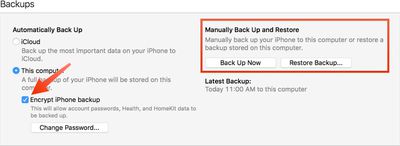
  7. To encrypt your backup, select Encrypt local backup, type a password, then click Set Password.
    encryptedbackup

If you want to see the backups stored on your computer, choose Edit -> Preferences, then click Devices. Encrypted backups have a lock icon in the list of backups.


Related Forum: Mac Apps

Popular Stories

MacBook Neo and Lenovo IdeaPad Slim 3x Feature

New Study Highlights Advantages of $549 Windows Laptop Over MacBook Neo

Wednesday May 13, 2026 10:38 am PDT by
Microsoft has responded to the MacBook Neo by commissioning a study that highlights advantages of some Windows laptops. Market research firm Signal65 evaluated four Windows laptops:Lenovo's IdeaPad Slim 3x Lenovo's Yoga 7i HP's OmniBook 5 HP's OmniBook X FlipWith a starting price of $549.99 on Best Buy's online store in the U.S. at the time of this writing, the IdeaPad Slim 3x is the only ...
Apple Card iPhone 16 Pro Feature

Apple Card Promo to Offer Free AirPods Pro 3

Friday May 15, 2026 8:59 am PDT by
Starting as early as next week, customers who sign up for an Apple Card at Apple's retail stores in the U.S. will receive $249 cash back when they purchase AirPods Pro 3, according to Bloomberg's Mark Gurman. The promotion has yet to be officially announced by Apple, so exact terms and conditions are not available at this time. AirPods Pro 3 are priced at $249 in the U.S., so customers who...
Apple WWDC25 iOS 26 CarPlay Light mode 250609

Six Popular iPhone Apps Now Available on CarPlay

Thursday May 14, 2026 9:10 am PDT by
Apple's CarPlay system for accessing iPhone apps on a vehicle's dashboard screen has received six popular apps in recent weeks: ChatGPT, Perplexity, Grok, Google Meet, WhatsApp, and the indie artist streaming platform Audiomack. Make sure you have the latest version of each app and they will automatically appear on CarPlay. ChatGPT Starting with iOS 26.4, CarPlay supports voice-based...