

If your iPhone or iPad storage space is dwindling at an alarming rate or your device feels like it's getting slower, then you could benefit from clearing the cache that apps use.
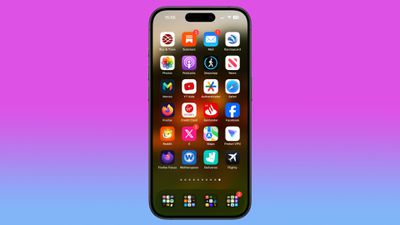
Cached data includes all the files and images that are kept in your device's memory, which is meant to help apps avoid having to request the same data repeatedly and thereby keep things speedy – in theory.
In fact, it's possible for an overzealous app to fill up your iPhone's cache to the point where overall performance takes a hit. So it's good practice to spring-clean the cache now and again to ensure your device isn't bogged down unnecessarily. Here's how.
How to Clear iPhone and iPad Cache
The following steps clear all cookies and web data cached on your device by Safari, although AutoFill information remains unchanged. Note that when you clear Safari browsing history, the same logs are cleared on any other devices signed into the same iCloud account.
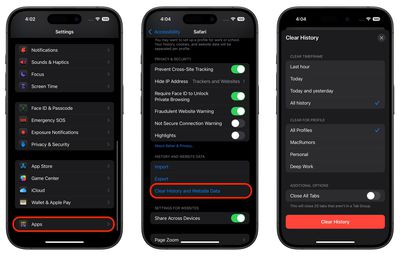
- Open the Settings app on your iPhone or iPad, scroll to the bottom of the list, then tap Apps.
- Select Safari in the list, either by scrolling through the alphabetical list or by typing "Safari" into the search field at the top.
- Scroll to the "History and Website Data" section and tap the blue Clear History and Website Data option near the bottom of the menu. (Note that this setting might be grayed out if there's already no history to clear or if parental controls are set for websites.)
- Choose a "Clear Timeframe," then select a profile to clear from or choose All Profiles.
- Tap Clear History at the bottom, then confirm your choice if prompted.
How to Clear iPhone Cache for Third-Party Apps
The way to clear the cache used by third-party apps on your iPhone varies from app to app. For example, there's a cache reset option for Slack in the main Settings app (Settings -> Apps -> Slack -> Reset cache on next launch), while you can control the storage that individual WhatsApp conversations use from within the chat app (Settings -> Data and Storage Usage -> Storage Usage).
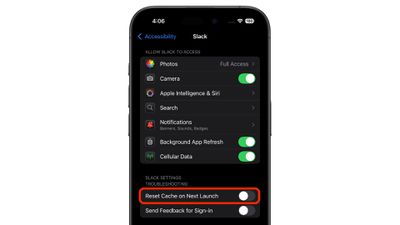
If there's an app that you suspect is unnecessarily hoarding data on your iPhone but you can't find an equivalent option to clear its cache, then the best alternative is to check the iOS iPhone Storage screen.
- Launch the Settings app on your iPhone or iPad.
- Tap General.
- Tap iPhone Storage.
- A list of all the apps (including stock apps) on your iOS device will load in order of size, with the largest apps listed first. Tap an app in the list that is taking up an unnecessary amount of space.
- Two uninstall options are presented on this screen. Tap Offload App to unload the app but preserve any documents and data (these are reinstated if you later reinstall the app) or tap Delete App to remove the app and all related data from your device.
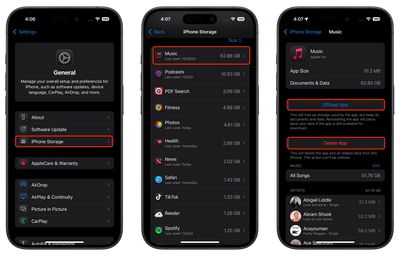
It's worth scrolling down the iPhone Storage list and looking at the Last Used: date underneath the title of each app. If it's been several weeks or months since you opened an app, or it says Never Used, then consider uninstalling it.
If you tend to download a lot of apps that often get left unused, consider enabling the iPhone Storage menu recommendation to automatically Offload Unused Apps when you're low on storage. If you uninstall a purchased app but later decide that you want to use it (and it's still available in the App Store) simply follow the steps below.
How to Reinstall Deleted Apps
If you uninstall an app but later decide that you want to use it (and it's still available in the App Store) simply follow the steps below to reinstate it.
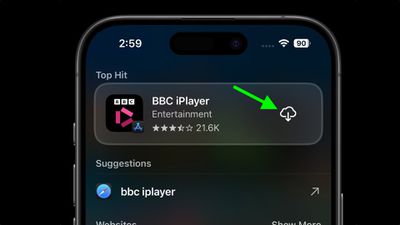
- Swipe down on your Home Screen to invoke search.
- Type in the name of the app you're looking for.
- Tap the Redownload button (the cloud icon with the arrow pointing out of it) to download the app once again.
Need to free up more storage? Check out our dedicated iPhone storage saving guide for more tips.



















