

Whenever you browse the web in Safari, the browser stores website data so that it doesn't have to download it again each time you revisit a site. In theory this should speed up your browsing experience, but there are some scenarios where you might want to clear the cache and start anew. Keep reading to learn how it's done on Mac, iPhone, and iPad.
There are a couple of situations where you might benefit from clearing Safari's cache.
If a site you regularly frequent has elements that have stopped working, or if a site has stopped loading completely, there may be a conflict between an older version of it that Safari has cached and a newer one.
Or perhaps you simply want to protect your privacy by wiping the slate clean and removing all the data associated with websites you've visited. Either way, here's how it's done on macOS and iOS.
How to Clear Safari's Cache on Mac
There are two ways to clear Safari's cache on a Mac. The first method outlined below deletes everything relating to a website you've visited, including not only the cached versions of the site, but also cookies and any other related data. The second method described offers a more targeted approach and clears only Safari's cache, but it does involve enabling a hidden menu.
Method 1:
- Launch Safari browser on your Mac.
- Select Safari -> Settings... in the menu bar.
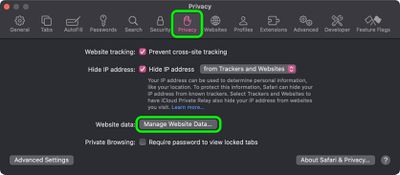
- Click the Privacy tab, then select Manage Website Data....

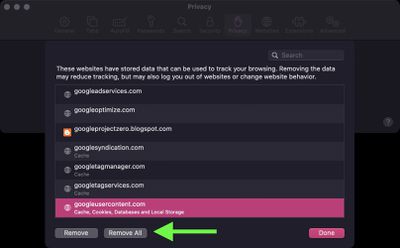
- Select a website that is listed, then click Remove. To remove all website data from Safari, click Remove All.
Method 2:
- Launch Safari browser on your Mac.
- Select Safari -> Settings... in the menu bar.
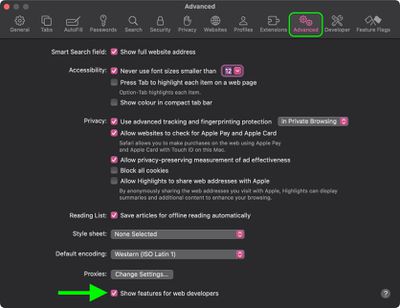
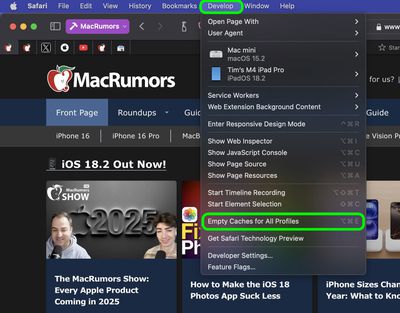
- Click the Advanced tab and check the box next to Show features for web developers.
- From the menu bar, select Develop -> Empty Caches for All Profiles.
How to Clear Safari's Cache on iPhone and iPad
Note that the following steps clear all history, cookies and website data on your device, regardless of when the sites were accessed.
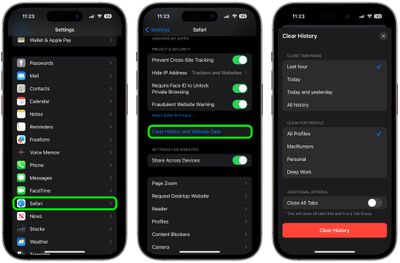
- Launch the Settings app on your iOS device.
- Swipe to the bottom of the menu and select Apps, then find Safari in the list and tap it.
- Scroll down and select Clear History and Website Data.
- Choose the time frame to clear (Last hour, Today, Today and yesterday, or All history), choose the profile or select All Profiles, then tap Clear History.
- Tap Clear History and Data in the pop-up menu to confirm.
For another way to protect your privacy while browsing the web, be sure to check out our guide on how to use Safari's Private Browsing Mode.



















