In Apple's Safari browser for iOS and Mac, the built-in Reading List feature is a great way to save web pages that you want to read at a later time. Pages added to your Reading List are synced over iCloud to any other devices logged in to your Apple account, and Safari also includes an option that lets you to access pages in your Reading List even when you're offline.
But how do you remove a web page from your Reading List after you're done reading it? And what do you do if you want to get rid of all the articles in the list? Whether you're using Safari on iPhone, iPad, or Mac, this article provides answers to both of these questions. Keep reading to learn how to gain complete mastery over your Safari Reading List.
- How to Remove Items From Safari's Reading List on iPhone and iPad
- How to Clear Safari's Reading List on iPhone and iPad
- How to Remove Items From Safari's Reading List on Mac
- How to Clear Safari's Reading List on Mac
How to Remove Items From Safari's Reading List in iOS
- Launch Safari on your iOS device.
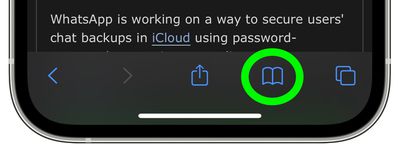
- Tap the Bookmarks button at the bottom of the interface.

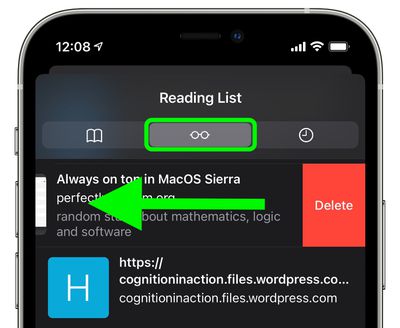
- Tap the Reading List tab at the top, find the web page you want to remove, then swipe left and tap the red Delete button.
How to Clear Safari's Reading List in iOS
- Launch Safari on your iOS device.
- Tap the Bookmarks button at the bottom of the interface.
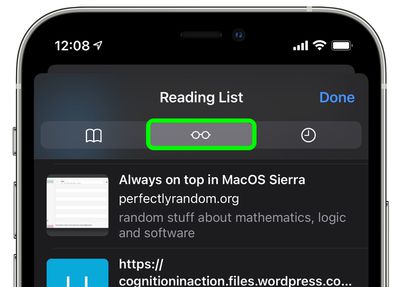
- Tap the Reading List tab at the top.
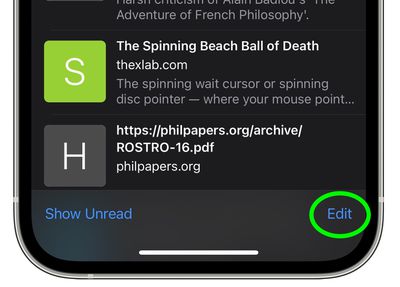
- Tap Edit in the bottom-right corner of the screen.
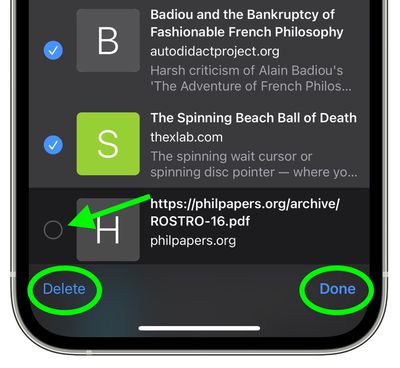
- One by one, tap all of the pages in your Reading List that you want to remove so that the boxes beside them are ticked, then tap Delete in the bottom-left corner of the screen.
- Tap Done in the bottom-right corner to finish.
How to Remove Items From Safari's Reading List on Mac
- Launch Safari on your Mac.
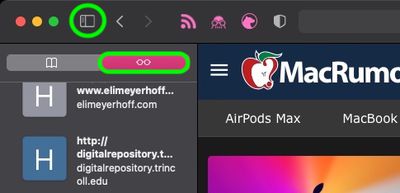
- Click the Sidebar icon in Safari's task bar, then click the Reading List tab at the top of the sidebar if it isn't already showing.
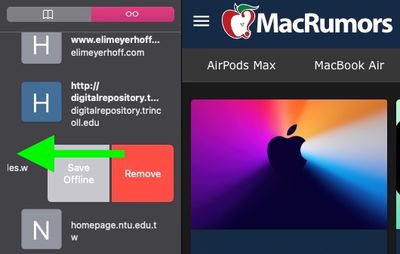
- If you're using a trackpad, two-finger swipe leftwards on the web page you want to remove from the Reading List, then click the red Remove button. Alternately, right-click (Ctrl-click) on it and select Remove Item from the dropdown menu.
How to Clear Safari's Reading List on Mac
- Launch Safari on your Mac.
- Click the Sidebar icon in Safari's task bar, then click the Reading List tab at the top of the sidebar if it isn't already showing.
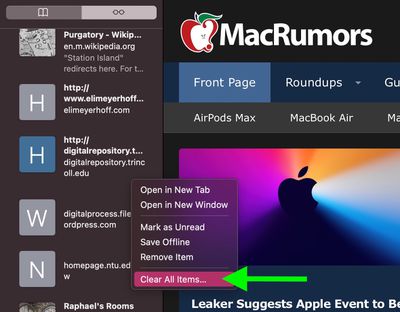
- Right-click (Ctrl-click) any item in your Reading List, then select Clear All Items... from the dropdown menu.
- Click the Clear button in the dialog prompt to confirm the action.
Remember that because your Reading List is synced over iCloud by default, any changes that you make to it on one device will be mirrored on all other devices signed into your Apple account.