

How to Close or Force Quit iPad Apps - MacRumorsOpen MenuShow RoundupsShow Forums menuVisit ForumsOpen Sidebar
Skip to Content

How to Close or Force Quit iPad Apps

by

Apple designed its iPadOS software so that you don't have to close an app when you're not using it, since most apps that are not active remain in a suspended state and don't use up any resources or eat up battery.
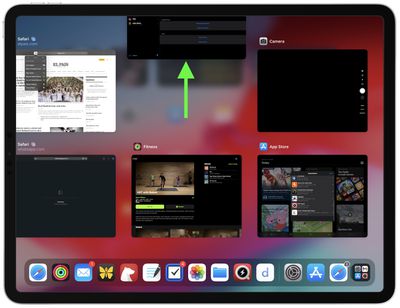
close ipad apps
However, if an iPad app becomes unresponsive, you may need to force quit the app and restart it to get it to work properly again. Here's how you can do that on both older and newer iPads.

How to Close Apps on iPads With a Home Button

  1. Double-click the Home button to show your most recently used apps.
  2. Swipe right or left in the App Switcher gallery to find the app that you want to close.
  3. Swipe up on the app's preview card to close the app.

How to Close Apps on iPads With No Home Button

On iPads without a Home button, a whole different set of gestures are used, one of which involves the App Switcher and the way open apps are found and closed.

  1. On the Home screen of the ‌iPad‌, or while in an app, swipe up from the bottom of the screen and pause for a moment while still pressing the screen, then let go when the App Switcher appears.
  2. Now swipe left and right through the rows of app cards to find the app that you want to close.
  3. Use a quick swipe upwards to close the app.

It's worth reiterating that there's generally no need to close apps that aren't playing up in order to improve performance, as Apple has built-in management systems for dealing with all of the apps that you have open on your device.

According to Apple, force quitting a working app will not improve your battery life, and it's possible that doing so can actually drain battery because it causes the ‌iPhone or ‌iPad‌ to load it all over again.

Popular Stories

macOS 27 on MacBook Pro

Apple Says macOS 27 Won't Be Compatible With These Macs

Wednesday June 3, 2026 8:29 am PDT by
During WWDC 2025, Apple revealed that macOS 26 Tahoe would be the final major macOS version for Intel-based Macs. macOS 27 will be compatible with Apple silicon Macs only, meaning that you will need a Mac with an M-series chip or a MacBook Neo with an A18 Pro chip in order to install the software update. Apple will unveil macOS 27 during its WWDC 2026 keynote this Monday, June 8, and the...
MacBook Neo on Yellow Feature

MacBook Neo is So Popular That Apple Reportedly Doubled Production

Wednesday June 3, 2026 9:24 am PDT by
On an earnings call in late April, Apple's CEO Tim Cook said that customer response to the MacBook Neo was "off the charts," and the popularity of the laptop has reportedly led the company to significantly boost production. Apple supply chain analyst Ming-Chi Kuo this week said he believes that MacBook Neo shipments to Apple were doubled from an initial target of 5 million units to 10...
iphone 18 pro blue%402x

iPhone 18 Pro: Dark Cherry, Light Blue, and Dark Gray Chassis Leaked [Update]

Thursday June 4, 2026 5:18 am PDT by
Update: Since publication, new information has come to light suggesting the images have been AI-manipulated and are not in fact iPhone 18 Pro chassis parts. The original article follows. The color options Apple is reportedly planning for the upcoming iPhone 18 Pro and ‌iPhone 18 Pro‌ Max have appeared online today in the form of images of chassis parts of unknown authenticity....














