

How to Copy and Translate Text That Appears in Videos on Your iPhone - MacRumorsOpen MenuShow RoundupsShow Forums menuVisit ForumsOpen Sidebar
Skip to Content

How to Copy and Translate Text That Appears in Videos on Your iPhone

by

In iOS 16, Apple has expanded the reach of its Live Text feature, which can recognize text in not just photos, but also videos now, too. Keep reading to learn how to use it.
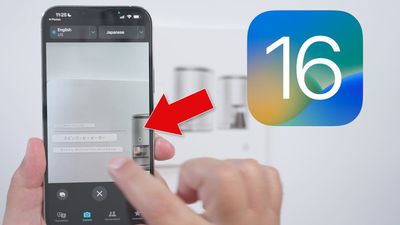
ios 16 live text
In iOS 15, Apple introduced a feature called Live Text that can recognize text when it appears in your camera's viewfinder or in a photo you've taken and let you perform several actions with it. In iOS 16, this ability now extends to videos as well.

Rather than just being able to select text in photos, you can now pause a video and interact with the text like you would in an image. Text in any paused video frame can be copied and pasted or translated, plus it works with Apple's Look Up feature.

Live Text works across the operating system in Photos, Camera, Safari, and other apps. Note that Live Text features require an iPhone with an A12 Bionic or later. The ‌iPhone‌ XR, ‌iPhone‌ XS, and ‌iPhone‌ XS Max from 2018 are equipped with an A12 Bionic, so if you have one of these devices or newer you can take advantage of Live Text. Here's how to get it working on video.

  1. Pause the video at the frame that has text showing.
  2. Touch and hold on a word in the text.
  3. Use the two blue markers to narrow or widen your selection.
  4. Next, press and hold to see options including Translate and Copy.


If you opted to translate the text, the translation will appear on the screen automatically. Live Text works with Japanese, Korean, and Ukrainian text in addition to English, Chinese, French, German, Spanish, Italian, and Portuguese.

If you chose to copy the text, switch to an app that supports text input, press and hold your finger where the cursor is located, then select Paste from the popup menu.


Popular Stories

macOS 27 on MacBook Pro

Apple Says macOS 27 Won't Be Compatible With These Macs

Wednesday June 3, 2026 8:29 am PDT by
During WWDC 2025, Apple revealed that macOS 26 Tahoe would be the final major macOS version for Intel-based Macs. macOS 27 will be compatible with Apple silicon Macs only, meaning that you will need a Mac with an M-series chip or a MacBook Neo with an A18 Pro chip in order to install the software update. Apple will unveil macOS 27 during its WWDC 2026 keynote this Monday, June 8, and the...
MacBook Neo on Yellow Feature

MacBook Neo is So Popular That Apple Reportedly Doubled Production

Wednesday June 3, 2026 9:24 am PDT by
On an earnings call in late April, Apple's CEO Tim Cook said that customer response to the MacBook Neo was "off the charts," and the popularity of the laptop has reportedly led the company to significantly boost production. Apple supply chain analyst Ming-Chi Kuo this week said he believes that MacBook Neo shipments to Apple were doubled from an initial target of 5 million units to 10...
iphone 18 pro blue%402x

iPhone 18 Pro: Dark Cherry, Light Blue, and Dark Gray Chassis Leaked [Update]

Thursday June 4, 2026 5:18 am PDT by
Update: Since publication, new information has come to light suggesting the images have been AI-manipulated and are not in fact iPhone 18 Pro chassis parts. The original article follows. The color options Apple is reportedly planning for the upcoming iPhone 18 Pro and ‌iPhone 18 Pro‌ Max have appeared online today in the form of images of chassis parts of unknown authenticity....













