

Controlling individual devices with the Home app is easy enough manually or with Siri, but sometimes you need to change the state of several devices at once. Instead of making these changes one by one, the easiest way is to create a Scene.
For example, creating a bedtime Scene could turn off all the lights in your home at once and set your thermostat to a more economical temperature.Here's how to create a custom Scene in the Home app on an iPhone or iPad:
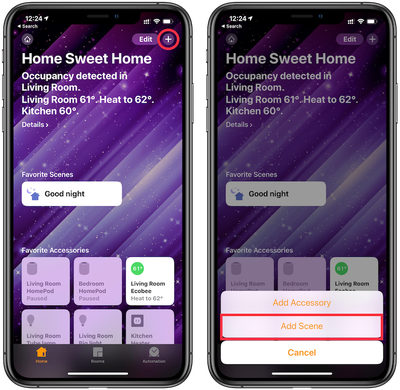
- Open the Home app and click on the '+' sign in the top right corner.
- Tap on Add Scene.
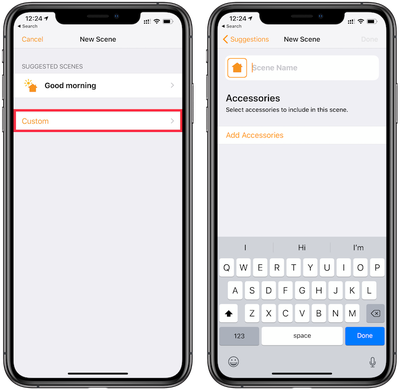
- Tap on Custom.
- Name the scene. Be sure to name it something easy to remember since you'll use this to give voice commands to Siri.

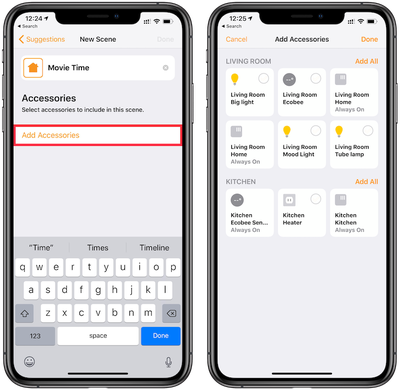
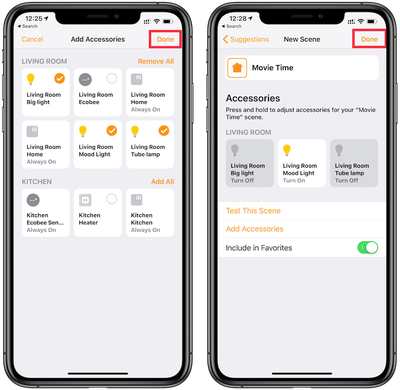
- Once you've named the Scene, tap on Add Accessories to select which devices you want to include when the Scene is activated, then tap Done in the top right corner.
- Press and hold the squares of the added accessories to set what they should do when the Scene is activated. In this example, we're creating a movie time scene that turns off the brighter lights in the living room and turns on a light strip behind the couch. If you want this Scene to be a Favorite and thus appear on the main view of the Home app, ensure that Include in Favorites is on.
- When you've finished setting the desired actions for each accessory, tap on Done in the top right corner.
Now your Scene is ready to be used. You can manually enable and disable it in the Home app or ask Siri to enable it. For our example Scene, we say, "Hey Siri, it's movie time" to activate it, which turns off all the bright lights in the living room and turns on a light strip behind the couch.
You can create Scenes to prepare your HomeKit accessories for a range of activities and settings, such as waking up in the morning, taking a nap, date nights, vacations, or any other occasion when you want multiple HomeKit accessories to do specific things at the same time.



















