How to Create a Widget Stack in iOS 14 - MacRumorsOpen MenuShow RoundupsShow Forums menuVisit ForumsOpen Sidebar
Skip to Content

How to Create a Widget Stack in iOS 14

by

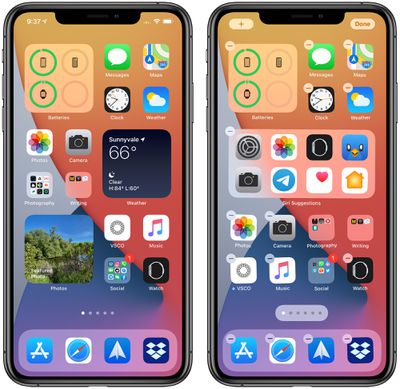
In iOS 14, Apple made some dramatic changes to the Home Screen of iPhone and iPad. In particular, it introduced the concept of ‌Home Screen‌ widgets.

ios14homescreenwidgets
Previously, use of widgets was limited to the Today View, which can be accessed by swiping from left to right on the ‌Home Screen‌. In ‌iOS 14‌, however, widgets got a design and functionality overhaul.

One new widget function is the ability to create widget stacks. In widget stacks, multiple widgets can be stacked on top of one another so you can put all of your favorites together and then swap between them.

Here's how to create your own widget stack in iOS 14.

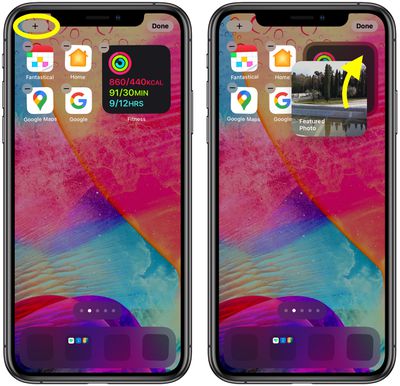
  1. Long press on a blank area of the ‌Home Screen‌ or any additional page of apps.
  2. Once in jiggle mode, tap the plus (+) button in the top-left corner of the screen.
  3. Scroll through the widgets card and press a widget that you want to include in your widget stack, then drag it onto the ‌Home Screen‌.
    widgets

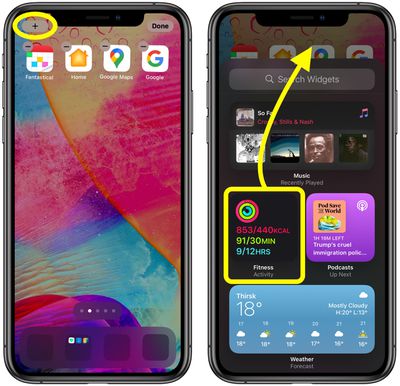
  4. Tap the plus (+) button in the corner of the screen again.
  5. Select another widget to include in your stack, but this time, drag it directly on top of the stack you just added to your ‌Home Screen‌.
  6. Repeat steps 4 and 5 to include additional widgets in your stack.
  7. Tap Done in the top-right corner of the screen when you're finished.
    widgets

You can swipe up and down on your stack to scroll through the widgets you added, or you can let iOS automatically switch between them for you.

Note that widgets in the same stack need to be the same size – you can't have one small, one medium and one large widgets in the same stack, for example.

How to Edit a Widget Stack

If you decide you want to remove a widget from your stack or change their order of appearance, here's what to do.

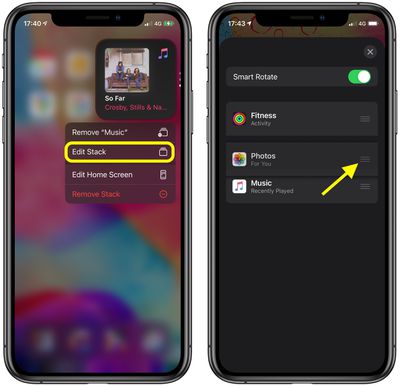
  1. Long press on the widget stack you want to edit.
  2. Select Edit Stack from the popup menu.
  3. To delete a widget from the stack, swipe left across the widget in question to reveal the Delete button.
  4. To change the order of widgets, simply drag each one up or down using the hamburger icons on the far right.
    widgets

Note that you can use the Smart Rotate toggle to control whether iOS automatically switches them for you periodically.

How to Delete a Widget Stack

To delete a widget stack you created, simply long press on the stack and select Remove Stack from the popup menu.


Related Forum: iOS 14

Top Rated Comments

WannaGoMac Avatar
77 months ago
Does anyone else miss the days when the interface wasn’t so confusing that you didn’t need extensive instructions to walk you through steps and hidden interface elements to figure out how to do stuff?
Score: 12 Votes (Like | Disagree)
crossb8 Avatar
77 months ago

Does anyone else miss the days when the interface wasn’t so confusing that you didn’t need extensive instructions to walk you through steps and hidden interface elements to figure out how to do stuff?
I still think we don't need walk throughs like this. it's pretty basic.
Score: 5 Votes (Like | Disagree)
timmyh Avatar
77 months ago

I would like to be able to add 3rd party widgets to either a stack (now I know how to do it) or to the Home Screen.
I’m sure it’s coming. Third party widgets are likely where the fun really begins.
Score: 3 Votes (Like | Disagree)
bangoperator! Avatar
77 months ago

Does anyone else miss the days when the interface wasn’t so confusing that you didn’t need extensive instructions to walk you through steps and hidden interface elements to figure out how to do stuff?
If you want a simpler interface, don't use the new features.
Score: 2 Votes (Like | Disagree)
77 months ago
I would like to be able to add 3rd party widgets to either a stack (now I know how to do it) or to the Home Screen.
Score: 2 Votes (Like | Disagree)
Apple_Robert Avatar
77 months ago
Thanks for the good article, MR. A lot of people have been seeking direction about the widgets.
Score: 2 Votes (Like | Disagree)

Popular Stories

macOS 27 on MacBook Pro

Apple Says macOS 27 Won't Be Compatible With These Macs

Wednesday June 3, 2026 8:29 am PDT by
During WWDC 2025, Apple revealed that macOS 26 Tahoe would be the final major macOS version for Intel-based Macs. macOS 27 will be compatible with Apple silicon Macs only, meaning that you will need a Mac with an M-series chip or a MacBook Neo with an A18 Pro chip in order to install the software update. Apple will unveil macOS 27 during its WWDC 2026 keynote this Monday, June 8, and the...
MacBook Neo on Yellow Feature

MacBook Neo is So Popular That Apple Reportedly Doubled Production

Wednesday June 3, 2026 9:24 am PDT by
On an earnings call in late April, Apple's CEO Tim Cook said that customer response to the MacBook Neo was "off the charts," and the popularity of the laptop has reportedly led the company to significantly boost production. Apple supply chain analyst Ming-Chi Kuo this week said he believes that MacBook Neo shipments to Apple were doubled from an initial target of 5 million units to 10...
iphone 18 pro blue%402x

iPhone 18 Pro: Dark Cherry, Light Blue, and Dark Gray Chassis Leaked [Update]

Thursday June 4, 2026 5:18 am PDT by
Update: Since publication, new information has come to light suggesting the images have been AI-manipulated and are not in fact iPhone 18 Pro chassis parts. The original article follows. The color options Apple is reportedly planning for the upcoming iPhone 18 Pro and ‌iPhone 18 Pro‌ Max have appeared online today in the form of images of chassis parts of unknown authenticity....