

We've been waiting for the fourth-generation Apple TV for at least two years now, and we've been teased with vague comments, leaks from the supply chain, and analyst predictions for several years running. We thought we’d get a look at it this year at the Worldwide Developers Conference, but Apple was still not ready to show it off.
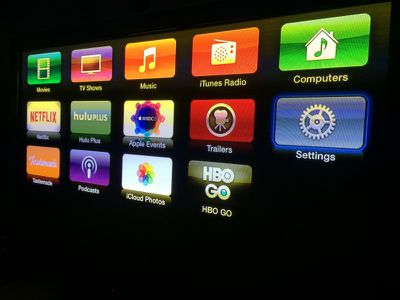
Until we get a whole new model with, hopefully, a brand new look to the operating system, we have to stick with what we've got. The number of media channels is not getting any smaller, with Apple adding new content on a regular basis. For example, Apple recently added NatGeo TV. Content options are great, but sifting through dozens of channels can be a pain sometimes.
If you're tired of scrolling through the nearly seven dozen channels looking for the ones you use most, you can hide everything you don’t want to access, making it much easier to get to the content you want. We've got a quick tutorial to show you how.
Customizing Channels on the Main Menu
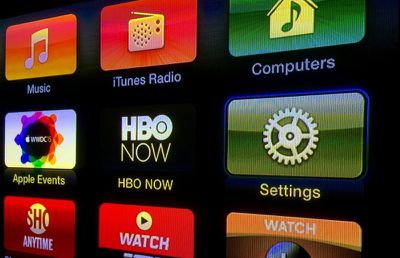
- On Apple TV, go to your Settings app, which is always in the second row below your iTunes and shared computer channels.
- Select Main Menu from the list.
- Select "Hide" for every channel that you don't want showing by selecting the channel and clicking the center select button on the Apple TV remote. Channels that will be visible on the Apple TV are listed as "Show," while channels that will no longer show up are listed as "Hide."
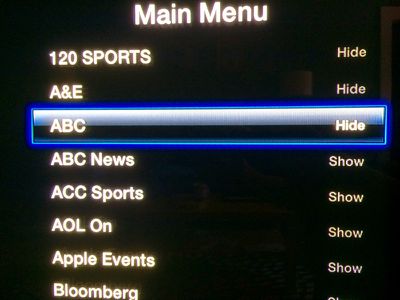
New channels will appear on the Main Menu whenever they are added to Apple TV. If you don't want to see them, follow the steps above for the new channel.
You can also go back and add channels to Main Menu whenever you like by clicking on it until it has "Show" next to it instead.
Troubleshooting
If your Apple TV is running slowly, shuts off randomly, or is otherwise working poorly, one way to fix it is to restart it.
- Unplug the connection to your television set.
- Unplug the power cable from the box.
- Plug the TV cable back in.
- Plug the power cable back in.
- Wait for Apple TV to finish reloading.
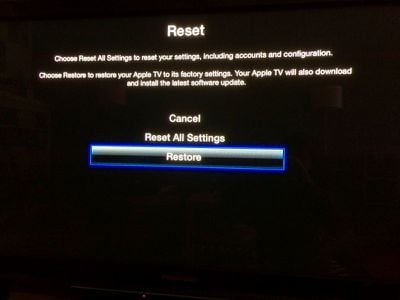
There may be deeper issues with your set-top box that a simple restart can't fix. If so, you may need to reset it to factory settings.
- On Apple TV, go to the Settings app.
- Select General.
- Scroll down to select Reset.
- Select Restore.
This will restore Apple TV to its factory settings, removing all passwords you have entered for all of your channels. The restoration will take a while. Don't unplug your Apple TV during the process.
If you can't restore Apple TV to its factory settings from the Main Menu (like, if your box is frozen and just stops working altogether), you can perform the process via iTunes by connecting your Apple TV to your computer.
You will need a micro-USB cable and the latest version of iTunes running on your Internet-connected computer for this process.
- Disconnect the power and television cables from Apple TV.
- Open iTunes on your computer. Then connect Apple TV to your computer using the micro-USB cable. If you have the third-generation Apple TV, you will also need to plug the box into a power source.
- Once connected, Go to the Apple TV summary page in iTunes and select "Restore Apple TV."
- When the restoration process is finished, disconnect Apple TV from your computer and reconnect it to your television set.
Hopefully, we wont be waiting around for too much longer before Apple finally presents us with the next big thing for television. But, until then, at least we can organize our channels the way we want to.
















Top Rated Comments
An easier way to hide channels is to simple stay on the home screen - Hold down the middle button - they'll start to "jiggle" - then hit "play" and you'll be prompted to hide the channel.
This way is much quicker.