In iOS, the ubiquitous Share Sheet is a powerful feature that lets you share the content you're viewing in an app with people in your contacts or with other apps on your iPhone or iPad.
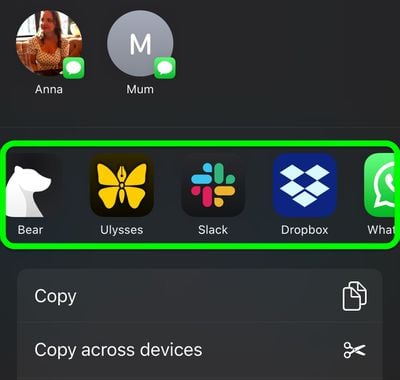
The first row of icons in the Share Sheet shows suggestions for conversations that you might want to share something to, while the second row offers a quick way to export what you're viewing to other apps, such as Mail, Messages, and some third-party apps, too.
The steps in this article show you how to customize the second row of apps, enabling you to include and exclude the apps you want in it, and arrange them in the order you prefer. Bear in mind that third-party app developers must provide specific support for their apps to appear in the Share Sheet, otherwise you won't be given the option to include them.
- Launch an app containing shareable content, such as Safari, Photos, or the Files app.
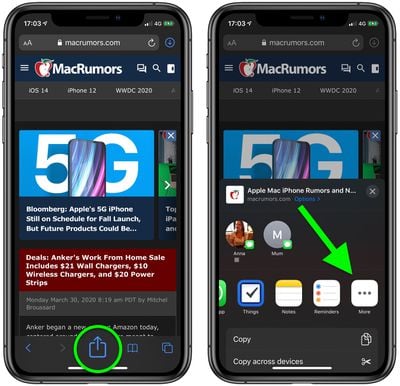
- View some content in the app, then tap the Share icon (it looks like a square with an arrow pointing out of it).

- Scroll right to the end of the row of app icons (the second row in the Share Sheet).
- Tap the More icon at the end of the row, indicated by an ellipsis.
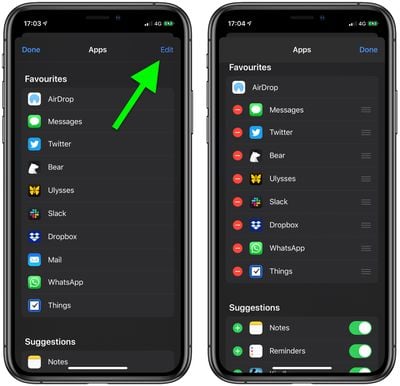
- Tap Edit in the top-right corner of the screen.
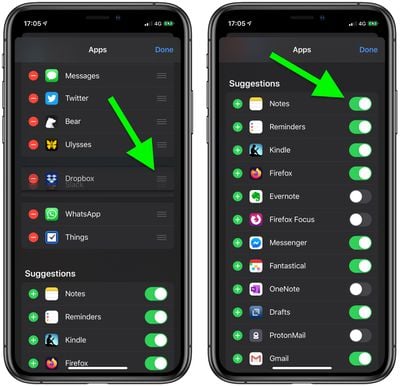
- The apps listed under Favorites are the ones that currently get priority in the second row of your Share Sheet. Tap the red minus button beside an app to remove it from your Favorites; conversely, tap the green plus button next to an app listed under Suggestions to add it to your Favorites.
- Use the "hamburger" icons (the three lines) to the right of the apps in your Favorites to re-arrange them. Apps moved near the top of the list will take priority in the row of apps in your Share Sheet.
- Under Suggestions, you can add/remove an app from the Share Sheet by toggling the switch next to it.
- Tap Done in the top-right corner of the screen when you're finished editing the app selection.
- Tap Done in the top-left corner of the screen to return to the Share Sheet.
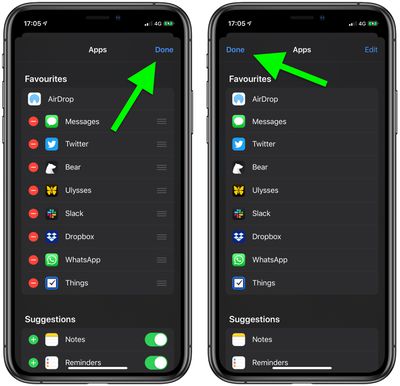
Note that the first option in the app row is always AirDrop, Apple's proprietary wireless sharing feature, and it can't be removed from the row of apps in the Share Sheet.