How to Customize Apple's Magic Mouse - MacRumorsOpen MenuShow RoundupsShow Forums menuVisit ForumsOpen Sidebar
Skip to Content

How to Customize Apple's Magic Mouse

by

While the Magic Mouse has been around for quite some time, Apple recently updated the accessory with an integrated rechargeable battery and other changes, so some MacRumors readers deciding to give the device a try may be new to it. If you're coming from a more traditional mouse, you should know there's a lot the Magic Mouse can do that might not be obvious. Rather than merely serving as a point and click device, the Magic Mouse and Magic Mouse 2 use swiping and tapping gestures along with the traditional clicks.

Because the Magic Mouse incorporates taps and swipes, some of its features may be hidden or confusing to someone that's never used one before. We've created this quick how-to guide for readers who are new to the Magic Mouse, covering the ins and outs of the device to help you get the most out of it.
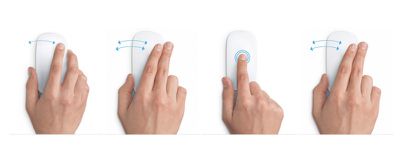
Magic Mouse 5
First off, we want to note that tapping is not the same as clicking. The latter, as with traditional mouse buttons, requires that you press on the mouse until you hear a clicking noise or feel a clicking action.

Tapping is not a common feature on a traditional mouse, but is one of Apple's Magic Mouse specialties. When you tap on the mouse lightly, as if you were tapping on your iPhone screen, you are triggering a different action than clicking.

The Magic Mouse supports tapping or double tapping with one finger and tapping or double tapping with two fingers, all of which trigger different actions, depending on what you have enabled.

The Magic Mouse also supports swiping gestures with one or two fingers. Swiping up or down with one finger triggers the scrolling function. When enabled, swiping left or right with one finger allows you to switch between pages that you've visited in Safari, and lets you swipe between full screen apps when using two fingers.

For those who have recently begun using a Magic Mouse for the first time, it is possible to "right-click." The feature isn't missing. It's just not enabled by default.

You can also reverse the direction of the scrolling action that your finger uses. If you are used to scrolling up to move the content on the screen up, you will want to enable natural scrolling.
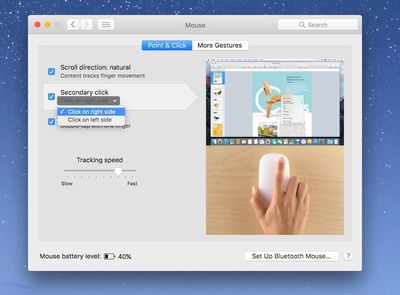
Magic Mouse 2
To enable right-clicking and natural scrolling:

  1. Click on the Apple logo in the upper left corner of the screen and select System Preferences from the drop down menu.
  2. Click on Mouse.
  3. Select the Point & Click section.
  4. To enable natural scrolling, check the box next to "Scroll direction: natural."
  5. To enable right clicking, select "Secondary click." Once enable, you can switch from right to left click if you prefer that option.

In this section, you can also enable Smart Zoom, which lets you zoom into compatible documents and apps by double tapping the mouse with one finger in compatible applications. For example, you can double tap to zoom in Safari and Chrome, but it does not work with Pages or Mail.

If you find that your pointer doesn't seem to move as fast as you'd like, you can adjust the tracking speed in this section as well. This will make the pointer move across the screen faster or slower, depending on your preference.

To enable additional swiping and tapping features:
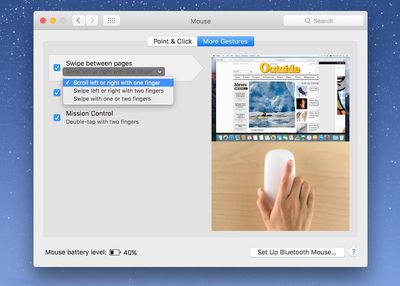
Magic Mouse 3

  1. Click on the Apple logo in the upper left corner of the screen and select System Preferences from the drop down menu.
  2. Click on Mouse.
  3. Select the More Gestures section.

You can enable the ability to swipe between web pages in Safari by checking the box next to "Swipe between pages." You can also choose to swipe left or right with one finger, two fingers, or both. If you want the option to swipe between full-screen apps, chose the one finger option.

When enabled, you can swipe between full screen apps. If you have multiple apps open in full screen, swipe with two fingers on the Magic Mouse to switch from one to another.

You can also enable the ability to quickly access Mission Control by double tapping the Magic Mouse with two fingers.

Magic Mouse 7
With the double-tap feature enabled, you can further execute Mission Control commands by double tapping a specific open app in the Dock. If a window is already displayed on your screen, double tap the app's icon in the dock to select it in Mission Control. That window will appear on screen and you can click on it to bring it to the front of your working area.

Being a new Magic Mouse user, you may find that some of these swiping and tapping features accidentally get in the way of your computing experience. For example, you might accidentally tend to tap on the mouse, causing it to zoom in on a website when you didn't want it to, or double tap on an app icon in the dock.

If these gestures cause you more harm than good, simply disable them by following the instructions above and unchecking the boxes for the gestures you no longer wish to use.
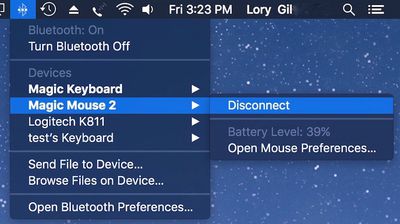
Magic Mouse 4
Incidentally, if you're wondering how to tell how much charge your Magic Mouse (and keyboard and trackpad) have left, you can see the battery percentage by clicking on the Bluetooth icon on the Menu bar in the upper right corner of the screen. Then, click on the peripheral you wish to check to see the remaining battery percentage.

The Magic Mouse takes a bit of getting used to when you've been working with a more traditional mouse for most of your life, but once you get the hang of it, the added swiping and tapping features will likely become something you don't want to live without.


Top Rated Comments

joshwenke Avatar
143 months ago
Next up in your MacRumors Tutorials, how to use a toaster!
Score: 4 Votes (Like | Disagree)
Markoth Avatar
142 months ago
Next up in your MacRumors Tutorials, how to use a toaster!
Do you honestly think that using a toaster is easy? https://www.embeddedarm.com/software/arm-netbsd-toaster.php
A toaster with a login prompt! It also toasts bread!
Score: 2 Votes (Like | Disagree)
Morod Avatar
143 months ago
Using a Mighty Mouse and Trackpad with my iMac for years.

The Magic Mouse never felt comfortable to me.
Score: 1 Votes (Like | Disagree)
groovyd Avatar
143 months ago
love the magic mouse... hard to appreciate any other mouse after using it for over 5 years now. tapping to zoom in and out of web page sections and it's speed and sensitivity to scroll swipes is without equal.
Score: 1 Votes (Like | Disagree)

Popular Stories

apple pro tell logo

Apple Launching Five New Products Today

Thursday November 5, 2026 12:59 am PST by
Apple is launching five new products on Friday, November 6, following pre-orders that opened last week, including its first touchscreen MacBook Pro models. The following new products will be available from today: iPad mini with OLED display and A20 Pro chip iMac with M6 chip 14-inch MacBook Pro with M6 chip 14-inch MacBook Pro with OLED touchscreen 16-inch MacBook Pro with OLED...
duo aquarium

More Fun iPhone Duo Apps: 30 New Picks to Try

Friday November 6, 2026 3:27 pm PST by
When the iPhone Duo launched, we shared a list of some of the fun apps developers created for the new form factor. Two weeks out, developers are continuing to come up with fresh ideas, so we thought we'd share some of our favorites. Games Marbles Unhinged ($2.99) - Marbles Unhinged is a marble maze designed for the Duo. When you fold it, the floor turns into a ramp. If you stand the top...
silver iphone 18 pro

Apple Rumored to Drop the iPhone's Action Button Next Year

Friday November 6, 2026 6:07 am PST by
Apple plans to merge the iPhone's Action button with the Camera Control starting next year, according to the leaker known as "Instant Digital." In a new post on Weibo, the leaker claimed that a single press of the combined button would open the camera, while a long press would trigger the function assigned to the Action button. They explicitly clarified that the dedicated Action button would ...
Latest Stories
Early Apple Black Friday Deals on Apple Watch, MacBook Air, and More
17 hours ago
'Backglow' Lets You Customize New MacBook Pro's Glowing Apple Logo
17 hours ago
Top Stories: Apple Product Launches, iOS 27.3 Beta, and More
23 hours ago
More Fun iPhone Duo Apps: 30 New Picks to Try
2 days ago
Hands-On With Apple's New OLED Touchscreen MacBook Pro
2 days ago
Apple Store With All-New Design Opening Soon in Southern California
2 days ago
Control the Glowing Apple Logo on Your New MacBook Pro
2 days ago
Apple Shares New 'Apple Card: Apply and Use in Minutes' Ad
2 days ago
Apple Says More Than 100,000 Apps Optimized for iPhone Duo, Here's What's Still Missing
2 days ago
Early Black Friday Deals Kickoff With Steep Discounts on Apple Watch Ultras and More
2 days ago
The MacRumors Show: iOS 27.3 Looks Like a Huge Update
2 days ago
Best Buy's Black Friday Event Begins With Sitewide Savings on Apple, TVs, More
2 days ago
Apple Releasing Yet Another Two New Products Next Week
2 days ago
MacBook Air Drops to Lowest Price in Months With Amazon's $250 Discount
2 days ago
Apple Rumored to Drop the iPhone's Action Button Next Year
2 days ago
Apple's Extended Return Policy Now in Effect for 2026 Holiday Season
2 days ago
Apple Music Classical Updated With New Icon and Refreshed Design
2 days ago
OLED iPad Mini, M6 iMac, and New MacBook Pros Available From Today
2 days ago
Apple Surveys iPhone Duo Buyers About Crease and Camera
3 days ago
Apple's First Touchscreen Mac is Now Arriving to Customers
3 days ago
Claude Gets Personal Finance Feature With Bank Account Linking
3 days ago
Apple Arcade Adds Crossy Road Rush and NBA 2K27
3 days ago
Apple's New HomeView Smart Home Hub: Here's How Much RAM It Has
3 days ago
iPad Mini vs. iPad Air Buyer's Guide: Now Just $50 Apart
3 days ago
First iOS 27.3 and macOS Golden Gate 27.3 Public Betas Now Available
3 days ago
Apple Announces a New Mac Sales Record
3 days ago
Paid $200 for Logic Pro? Apple Says You Won't Get This New Feature
3 days ago
Instagram's Edits Video Editor is Now Available on Mac
3 days ago
Prevent Siri and Search From Accessing Specific iPhone Apps
3 days ago
Best Early Black Friday Deals on iPhone 18 Pro and iPhone Duo
3 days ago