

Time to Walk and Time to Run are two features for Apple Fitness+ subscribers that offer audio stories from influential people that Apple Watch users can listen to with AirPods or other wireless headphones while walking or running. Got no time for Fitness+ Audio Workouts? Here's how to get rid of them.

In the Workout app on Apple Watch, Fitness+ subscribers automatically receive Audio Workout episodes, which appear at the top of the menu as they are released. Each episode includes a story from a guest and songs they've chosen, and in some cases, photos that are meaningful to them appear on your Apple Watch during the Time to Walk or Time to Run workout.
It's easy to see why these Audio Workouts aren't to everyone's liking. If you're not interested in them and want to start a proper workout, their appearance is annoying and they get in the way. Fortunately, you can remove new episodes pretty easily, and even disable Audio Workouts completely if you want to. The following steps show you how.
How to Delete Fitness+ Audio Workouts on Apple Watch
- On your Apple Watch, open the Workout app.
- Swipe left across the Audio Workouts card.
- Tap the red X button that appears.
- Tap Remove to confirm.
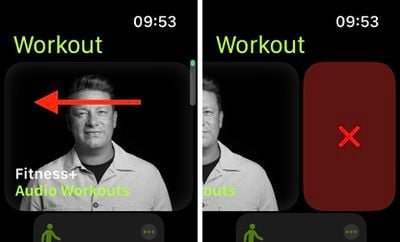
The Time to Run and Time to Walk audio workouts will be deleted from your Apple Watch. You can add them back to the Workout list at any time by tapping Add Workout at the bottom of the list.
How to Disable Fitness+ Audio Workouts via iPhone
- On your iPhone, launch the Watch app.
- Tap the My Watch tab if it isn't already selected.
- Scroll down and tap Workout.
- Scroll down, then under "Time to Walk," toggle off the switch next to Add New Workouts to Watch.
- Under "Time to Run," toggle off the switch next to Add New Workouts to Watch.
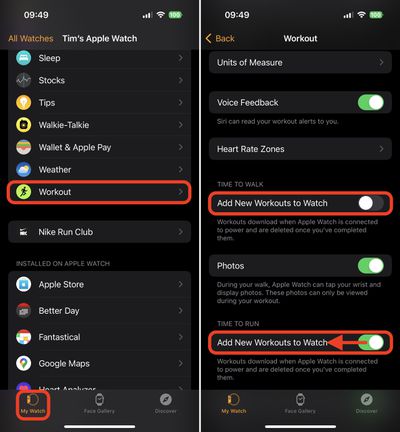
That's all you need to do to prevent Audio Workouts from appearing in the Workout app on your Apple Watch.















