

iOS 17.2: How to Disable iPhone Inline Predictive Text - MacRumorsOpen MenuShow RoundupsShow Forums menuVisit ForumsOpen Sidebar
Skip to Content

iOS 17.2: How to Disable iPhone Inline Predictive Text

by

Apple in iOS 17 added inline predictive text for iPhones, but did not include a way to turn it off independently of predictive suggestions above the keyboard. In the latest iOS 17.2 update, that's changed.
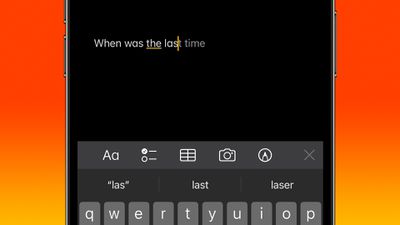
inline predictive text
Apple has improved its machine learning technology on iPhones in an effort to make iOS a lot more helpful, and one of the features in which this tech has been deployed is inline predictive text.

Predictive text does just what it says - it predicts what you're going to type next, and offers to autocomplete it. As you type, the predicted text appears ahead of the cursor. If it has accurately predicted what you intend to type, all you need to do is tap the spacebar and iOS fills it in for you.

In previous versions of iOS 17, you could only disable inline predictive text by turning off predictive text wholesale – which meant you would also lose the predicted words that appear above the keyboard as you type. Fortunately, in iOS 17.2 you can now toggle off inline predictive text separately without disabling the predictive suggestions.

Turning Off Inline Predictive Text

  1. Open Settings on your iPhone.
  2. Tap General.
  3. Under "All Keyboards," toggle off the switch next to Show Predictions Inline.
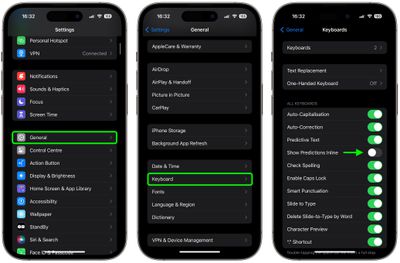
settings

That's all there is to it. The new option is likely to be welcomed by those who prefer a more manual typing experience or find inline predictive text suggestions distracting. Of course, if you find yourself missing the help that inline predictive text can provide, simply use the above steps to re-instate the feature.


Top Rated Comments

32 months ago
I find predictive text very interruptive to thought flow.
Score: 10 Votes (Like | Disagree)
eicca Avatar
32 months ago
“Predictive” text and “autocorrect” have gotten even worse despite all the hype. Autocorrect is barely even worth having turned on anymore.

I guess that’s to be expected with Apple these days.
Score: 9 Votes (Like | Disagree)
Mockletoy Avatar
32 months ago

I find predictive text very interruptive to thought flow.
Yeah, it was super distracting to me. You can turn it off on the Mac, too.

System Settings -> Keyboard -> Input Sources -> Edit -> All Input Sources -> Show inline predictive text

I don't know how anyone can stand it. It's like a bunch of flies buzzing around my cursor while I'm trying to write.
Score: 8 Votes (Like | Disagree)
32 months ago
Works great for me - it's a real time saver. The prediction aspect works well, especially anticipating likely multi-word phrases, and is usually what I would be needing to type one character at a time.

I realize I'll not be earning any forum cred stating the above. So, how about... Apple likes profits! Ooooooh...
Score: 7 Votes (Like | Disagree)
carlsson Avatar
32 months ago
I think it works quite well.
Score: 5 Votes (Like | Disagree)
32 months ago

I can see utility in text prediction when texting and other situations in which you're communicating in short spurts. But it is not useable, to me, for writing anything long. The mechanics of it interrupting thought is like this: every time a prediction comes up, you have to switch brain activity to evaluating whether what it is that it is indicating is accurate. This interrupts one's flow of thought for long things.

Even then, many of my texts with friends are long because we're engaged in long conversations. In that situation I don't find text prediction helpful.
Sorry it's not for you. It's very fluid and natural for me.

If I'm going to write something long, I generally use a device with a standard full-size mechanical QWERTY keyboard; a laptop or desktop computer.
Score: 3 Votes (Like | Disagree)

Popular Stories

macOS 27 on MacBook Pro

Apple Says macOS 27 Won't Be Compatible With These Macs

Wednesday June 3, 2026 8:29 am PDT by
During WWDC 2025, Apple revealed that macOS 26 Tahoe would be the final major macOS version for Intel-based Macs. macOS 27 will be compatible with Apple silicon Macs only, meaning that you will need a Mac with an M-series chip or a MacBook Neo with an A18 Pro chip in order to install the software update. Apple will unveil macOS 27 during its WWDC 2026 keynote this Monday, June 8, and the...
MacBook Neo on Yellow Feature

MacBook Neo is So Popular That Apple Reportedly Doubled Production

Wednesday June 3, 2026 9:24 am PDT by
On an earnings call in late April, Apple's CEO Tim Cook said that customer response to the MacBook Neo was "off the charts," and the popularity of the laptop has reportedly led the company to significantly boost production. Apple supply chain analyst Ming-Chi Kuo this week said he believes that MacBook Neo shipments to Apple were doubled from an initial target of 5 million units to 10...
iphone 18 pro blue%402x

iPhone 18 Pro: Dark Cherry, Light Blue, and Dark Gray Chassis Leaked [Update]

Thursday June 4, 2026 5:18 am PDT by
Update: Since publication, new information has come to light suggesting the images have been AI-manipulated and are not in fact iPhone 18 Pro chassis parts. The original article follows. The color options Apple is reportedly planning for the upcoming iPhone 18 Pro and ‌iPhone 18 Pro‌ Max have appeared online today in the form of images of chassis parts of unknown authenticity....















