iOS 15: How to Drag and Drop Screenshots - MacRumorsOpen MenuShow RoundupsShow Forums menuVisit ForumsOpen Sidebar
Skip to Content

iOS 15: How to Drag and Drop Screenshots

by

In iOS 15, Apple has expanded support for drag and drop functionality across apps on iPhone, allowing you to move files, images, and selected chunks of text from place to place.
ios 15 home screen icons yellow
Cross-app drag and drop has actually been available on the iPad since 2017, but now Apple has extended the feature to the iPhone with iOS 15. In addition to apps, the multi-finger action also works with screenshots. The following steps show you how it works.

  1. Take a screenshot in the usual way, by pressing the Side button and the Volume Up button at the same time.
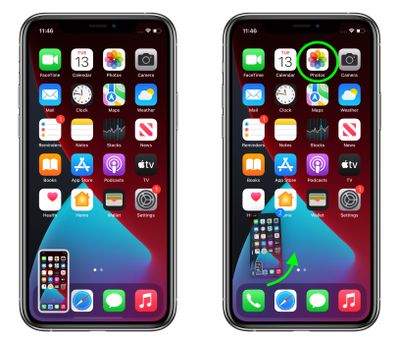
  2. Press and hold on the screenshot thumbnail in the bottom-left corner of the screen, and wait a moment for the white frame around it to disappear.
  3. With another finger, tap the app that you want to use the screenshot in. We're opening the Photos app in our example, but you could open Files, Messages, Mail, Notes, or something else.
    screenshots

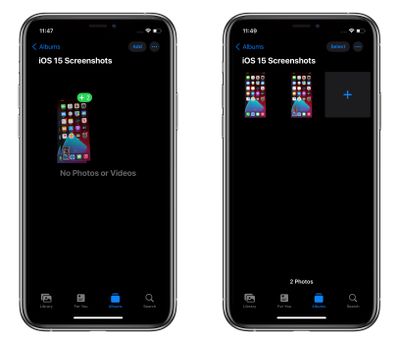
  4. Navigate to where you want to use the screenshot. We're selecting a specific album we created, called "iOS 15 screenshots."
  5. Move the screenshot into the area you want it, then let go with your finger to drop it in place. In our example, the screenshots are instantly saved in the specified location.
    screenshots

You may have noticed that we've dragged two screenshots in our example – that's just a "meta" result of capturing screenshots of the screenshot-taking process (the thumbnail of the earlier screenshot remains in the next). However, it also serves to highlight that drag and drop supports the selection of multiple items by tapping them with another finger.

It's worth noting that drag and drop results in duplication rather than movement of content, so the screenshot still gets automatically saved in your camera roll. But in iOS 15 you have the ability to immediately pick up a copy of the image and do something more specific with it, like save it to a newly created album, which is useful if your workflow involves lots of screenshots.

The first public beta of iOS 15 is available now, and the official release should come to all compatible iPhones in September.


Related Forum: iOS 15

Top Rated Comments

Mac Fly (film) Avatar
63 months ago
Dragging the screenshot to a messaging app may have been a better example, considering screenshots are already automatically saved to a folder called screenshots in photos.
Score: 9 Votes (Like | Disagree)
contacos Avatar
63 months ago
wow like ... how is anyone supposed to figure this out on their own O.o "it just works"
Score: 8 Votes (Like | Disagree)
IIGS User Avatar
63 months ago

The Konami code was easier to figure out.
Or the Da Vinci code. Or the Enigma Code, or the Drogan's decoder wheel code.

I used it to decode a static-filled triple-scrambled microwave transmission between two soldiers talking in Mandarin Chinese.

It was easy since they were only using a simple polyphonetically-grouped twenty-square-digit key transposed from boustrophedonic form with multiple nulls.

The message said "BE SURE TO DRINK YOUR OVALTINE"....
Score: 3 Votes (Like | Disagree)
63 months ago

wow like ... how is anyone supposed to figure this out on their own o_O "it just works"
The Konami code was easier to figure out.
Score: 3 Votes (Like | Disagree)
63 months ago
This just proves that iOS was a lot easier to use when it did not have all the features Android has had for a while.

Add features and inevitably you have to make compromises and everything become a mess.

It def was easier for Apple to keep a clean os without lots of features.

I.e. "Take a screenshot in the usual way, by pressing the Side button and the Volume Up button at the same time."

I find much easier Xiaomi 3 finger swipe from top to bottom and then the little send button under the thumbnail.
Score: 2 Votes (Like | Disagree)
mattopotamus Avatar
63 months ago
much easier to just take the screenshot and then open your photos be it in messenger, mail, etc.
Score: 2 Votes (Like | Disagree)

Popular Stories

Apple Card iPhone 16 Pro Feature

Apple Card Promo to Offer Free AirPods Pro 3

Friday May 15, 2026 8:59 am PDT by
Starting as early as next week, customers who sign up for an Apple Card at Apple's retail stores in the U.S. will receive $249 cash back when they purchase AirPods Pro 3, according to Bloomberg's Mark Gurman. The promotion has yet to be officially announced by Apple, so exact terms and conditions are not available at this time. AirPods Pro 3 are priced at $249 in the U.S., so customers who...
Apple WWDC25 iOS 26 CarPlay Light mode 250609

Six Popular iPhone Apps Now Available on CarPlay

Thursday May 14, 2026 9:10 am PDT by
Apple's CarPlay system for accessing iPhone apps on a vehicle's dashboard screen has received six popular apps in recent weeks: ChatGPT, Perplexity, Grok, Google Meet, WhatsApp, and the indie artist streaming platform Audiomack. Make sure you have the latest version of each app and they will automatically appear on CarPlay. ChatGPT Starting with iOS 26.4, CarPlay supports voice-based...
ipad mini 7 blue

OLED iPad Mini: Release Date, Pricing, and What to Expect

Thursday May 14, 2026 5:08 am PDT by
According to the latest rumors, Apple is close to launching its next-generation iPad mini. So what should we expect from the successor to the iPad mini 7 that Apple released over a year ago? Read on to find out. Processor and Performance Apple is working on a next-generation version of the iPad mini (codename J510/J511) that features the A19 Pro chip, according to information found in code...