

How to Enable iOS 12's New Do Not Disturb at Bedtime Feature - MacRumorsOpen MenuShow RoundupsShow Forums menuVisit ForumsOpen Sidebar
Skip to Content

How to Enable iOS 12's New Do Not Disturb at Bedtime Feature

by

There's nothing worse than waking up in the middle of the night, glancing over at your iPhone to check the time, and seeing a bunch of notifications that demand your attention and distract you from getting back to sleep.

Apple is aiming to prevent this in iOS 12 with a new Do Not Disturb at bedtime feature that prevents notifications from being displayed on the iPhone's Lock Screen during your downtime, removing the temptation to start opening up apps in the middle of the night.

Enabling Bedtime Mode
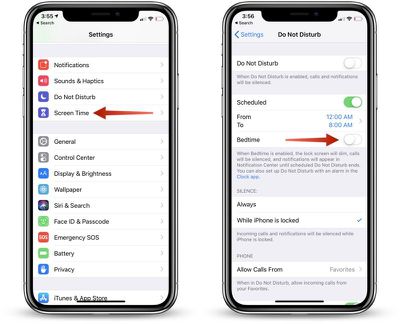
turningonbedtimemode

  1. Open up the Settings app.
  2. Scroll to the "Do Not Disturb" section and tap on it.
  3. In the Do Not Disturb section, tap on "Scheduled" to toggle it on.
  4. Select your Do Not Disturb time period, which, for most people, should be from when you go to bed until when you typically wake up.
  5. Tap on Bedtime Mode to toggle it on.

With Bedtime Mode enabled, when you activate the display on your device, the entire screen is dimmed and black, offering up only the time, the current device charge, and a notice that Bedtime Mode is turned on.
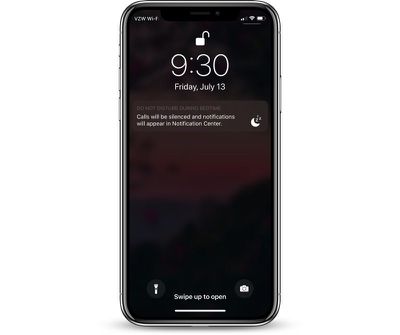
iphonebedtimeon
In this mode, all incoming calls are silenced as are all incoming notification messages. Your notifications are still listed in the Notification Center, accessible by swiping down from the top of the display, but you won't see them on the Lock Screen.

Bedtime Mode vs. Do Not Disturb

With Do Not Disturb turned on without Bedtime Mode, all of your incoming calls and notifications are still silenced, but the notification messages themselves will all be visible right on the Lock Screen.

Enabling Calls From Certain People

If you want family members to be able to contact you even with Do Not Disturb and Bedtime Mode turned on in case of emergency, there's a setting for that.
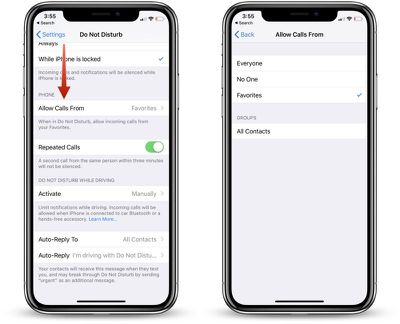
adjustingbedtimesettings

  1. Open the Settings app.
  2. Tap "Do Not Disturb."
  3. Scroll down to the Phone section where it says "Allow Calls From."
  4. Select Everyone, No One, or "Favorites," which can be set up in the Contacts app.

You can also toggle on "Repeated Calls" in the same section of the Settings app so a second call from the same person within three minutes won't be silenced. This is an ideal way to screen out unwanted calls while still allowing for potential emergencies as most people will try again if you're unreachable in a crisis.

Waking Up

When it's time to wake up, and when Bedtime Mode is scheduled to go off, your iPhone or iPad will display a "Good morning!" message and it will let you tap to reveal all of the notifications that were silenced during the night.
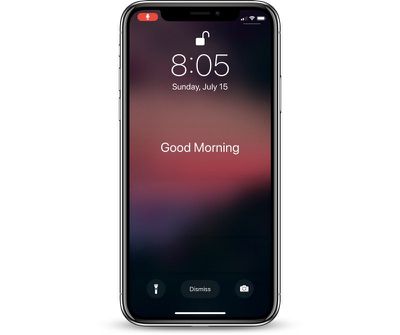
iphonebedtimeoff

Turning Off Bedtime Mode

If Bedtime Mode isn't for you, you can turn it off in the Settings app where it was enabled.

  1. Open the Settings app.
  2. Tap on "Do Not Disturb."
  3. If you want to turn off your scheduled Do Not Disturb session entirely, toggle off "Scheduled."
  4. If you want to leave Do Not Disturb on but disable Bedtime Mode, tap the Bedtime Mode toggle to turn it off.

Note: To quickly access Do Not Disturb settings, swipe to open up the Control Center and then 3D Touch or long press on the little moon icon.

This will provide you with options to enable Do Not Disturb for an hour, a few hours, until the end of an event, or until you leave a specific location, and it also offers up a "Schedule" option at the bottom that opens straight into the Do Not Disturb toggles in the Settings app.


Related Forum: iOS 12

Top Rated Comments

marvz Avatar
104 months ago
The first arrow is pointing at "Screen Time" and not at "Do Not Disturb" - kind of wrong. :p
Score: 5 Votes (Like | Disagree)
102 months ago
[doublepost=1532119285][/doublepost]
Ok...I got it to work the way that I want it to. I opened the clock app to the Bedtime feature. Then tapped options in the upper left corner. Then turned on the "Do Not Disturb During Bedtime" option. I'm not sure if that's new, or not.
I kind of feel like it's not. I can't remember why I didn't want to use that option, but, I forgot it existed. My habits have changed, and I want the DND schedule to mirror my Bedtime schedule. I also turned off the Scheduled option under DND in Settings. My bad...:confused:
This may be the most poorly implemented idea from apple in a while. Too many places to turn it off and on and to many options that are misleading. Why even have a bedtime toggle switch under the schedule if you still have to manually adjust the time to match the bedtime???? Make those options independent or don’t have the bedtime option on that screen at all.
Score: 2 Votes (Like | Disagree)
MacWanker Avatar
104 months ago
Can you use this without 'scheduled' being toggled, just by toggling 'bedtime' on when required?

If so, great. Not everyone has such a predictable schedule...
Score: 2 Votes (Like | Disagree)
TwoBytes Avatar
102 months ago
The article is wrong MacRumors. There are two DND modes. The bedtime is the second one so going back to your guide, you don’t have to set DND for hour sleep time. You do that in the clock app.
Score: 1 Votes (Like | Disagree)
104 months ago
[doublepost=1532119285][/doublepost]
You know, I thought that. But. I have mine set to DND for bedtime until 530am. Reason is where I work, we open at 6. I’d like to not be bothered until I need to wake up, but, if something comes up I don’t want to be that person who didn’t answer multiple phone calls.

But. Alarm is set for 7am.
Ok...I got it to work the way that I want it to. I opened the clock app to the Bedtime feature. Then tapped options in the upper left corner. Then turned on the "Do Not Disturb During Bedtime" option. I'm not sure if that's new, or not.
I kind of feel like it's not. I can't remember why I didn't want to use that option, but, I forgot it existed. My habits have changed, and I want the DND schedule to mirror my Bedtime schedule. I also turned off the Scheduled option under DND in Settings. My bad...:confused:
Score: 1 Votes (Like | Disagree)
104 months ago

There's nothing worse than waking up in the middle of the night, glancing over at your iPhone to check the time, and seeing a bunch of notifications that demand your attention and distract you from getting back to sleep.
Actually; there is: Being actively woken by your iPhone at 01:30am with a prompt to install the latest iOS release, because Apple have evidently reasoned that there's a better chance you'll (mistakenly) accept if you're not fully awake.
Score: 1 Votes (Like | Disagree)

Popular Stories

iCloud iPhone 17 Pro

iPhone Users Who Pay for iCloud Storage Get Two New Perks on iOS 27

Thursday July 2, 2026 6:10 am PDT by
If you pay for certain iCloud+ storage plans beyond the 5GB that Apple offers for free, you will receive two more perks on iOS 27 at no additional cost. A summary of the two new iCloud+ perks on iOS 27:Increased daily usage limits for some new Apple Intelligence features, including image generation in the revamped Image Playground app. HomeKit Secure Video cameras receive generated video...
iPhone 4 on Black Feature

Apple Facing One of Its Worst Leaks Since the iPhone 4

Thursday July 2, 2026 9:53 am PDT by
Apple supplier Tata Electronics recently suffered a cyberattack that resulted in thousands of confidential files being published on the dark web, and this reportedly included some photos and documents related to the upcoming iPhone 18 Pro. We have elected not to share any of the leaked photos in this story due to the illegal nature in which they were obtained, but they can easily be found...
American Express Gold Apple Pay Feature

American Express Announces New Apple Pay Feature

Tuesday June 30, 2026 10:27 am PDT by
American Express today announced that you can now redeem Membership Rewards points when checking out with Apple Pay on the web and in apps on the iPhone and iPad. When checking out with Apple Pay on iOS 18 or iPadOS 18 or later, tap on your eligible American Express card (Platinum, Gold, Green, and others) and select the Membership Rewards points option. You can use points to cover all or...















