

Lockdown Mode is an optional security feature designed by Apple to provide maximum protection against highly sophisticated digital threats. When enabled on your Apple device, it greatly reduces exposure to complex attacks by restricting certain features and network connections. Keep reading to learn how to use it across iPhone, iPad, and Mac.
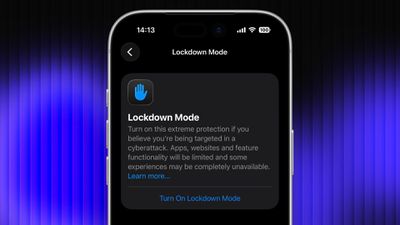
For most users of Apple devices, the standard iOS, iPadOS, and macOS security protections should be sufficient, whereas Lockdown Mode is aimed at users who could be targets of cyberattacks, such as journalists, activists, and government employees. That said, any user can enable it on their device for what Apple calls an "extreme" level of security.
Lockdown Mode Protections
When enabled, Lockdown Mode strictly limits or disables the functionality of features, apps, and websites. Lockdown Mode protections include the following:
- In the Messages app, most message attachment types other than images are blocked, and some features like link previews are unavailable.
- Incoming FaceTime calls from people you have not previously called are blocked. Incoming invitations for other Apple services from people you have not previously invited are also blocked.
- Some complex web technologies and browsing features, including just-in-time (JIT) JavaScript compilation, are disabled unless the user excludes a trusted site from Lockdown Mode. This protection applies to Safari and all other web browsers using WebKit across the iPhone, iPad, and Mac.
- Shared albums will be removed from the Photos app, and new shared album invitations will be blocked.
- When a device is locked, wired connections with other devices/accessories are blocked.
- Configuration profiles cannot be installed, and the device cannot enroll into mobile device management (MDM), while Lockdown Mode is turned on.
- Certain network protocols and services are restricted.
How to Enable Lockdown Mode on iPhone and iPad
Lockdown Mode is turned off by default on iPhone and iPad, but you can enable it by following these steps.
- Open the Settings app.
- Scroll down and tap Privacy & Security.
- Scroll to the bottom and tap Lockdown Mode.
- Tap Turn On Lockdown Mode.
- Review the information about what features are restricted, then tap Turn On & Restart.
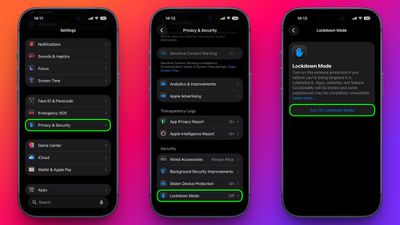
After the restart, Lockdown Mode will be active. You can confirm this by returning to Settings ➝ Privacy & Security ➝ Lockdown Mode, where a toggle will show that it's on.
How to Enable Lockdown Mode on Mac
- Open System Settings.
- Click Privacy & Security in the sidebar.
- Under the "Security" section at the bottom, click Lockdown Mode.
- Click Turn On Lockdown Mode.
- Review the protections and click Turn On & Restart.
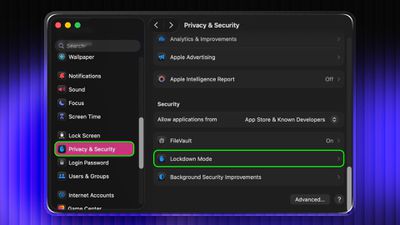
Your Mac will restart and Lockdown Mode will be enabled when it boots up.
How to Turn Off Lockdown Mode
Whether you're on iPhone, iPad, or Mac, these are the steps to follow:
- In Settings on iPhone/iPad (or System Settings on Mac) go to Privacy & Security ➝ Lockdown Mode.
- Tap or click the Lockdown Mode toggle to turn it off.
- Confirm that you want to turn it off. Your device will restart to leave Lockdown Mode.
Configuring Allowed Websites and App Exceptions
While Lockdown Mode is active, some websites and certain app features may be blocked for security. Apple allows you to add exceptions in some areas.
For example, in Safari, if a site is blocked by Lockdown Mode, you may be offered an option to allow website exceptions. This lets specific sites load normally while Lockdown Mode remains enabled.
Some third-party apps may also appear in a list in Settings ➝ Privacy & Security ➝ Lockdown Mode ➝ Configure Web Browsing, and you can turn off Lockdown Mode for those apps individually. This lets an app continue to function normally if it was being restricted by Lockdown Mode's web content limitations.




















Top Rated Comments
Maybe the only one.