

If you're planning on trading in your old iPhone for a new one, there are some steps you'll want to take beforehand to ensure it's de-linked from your accessories and accounts and that everything on it is erased.
The procedures described below shouldn't take long to follow, and at the end of it you can rest assured that you have a clean iPhone reset to default factory settings and ready to trade in. Here's what to do.
Back Up Your iPhone
Before you reset, you should back up your device. You can back up your data to iCloud, but we'd advise you connect your iPhone up to a computer and perform an iTunes backup instead, just to be sure. You can find steps to back up your iPhone by clicking here.
Transfer 2FA Accounts
If you buy a new iPhone to replace your existing one and you use an authenticator app (Google Authenticator, for example) to access online accounts protected by two-factor authentication (2FA), then you should transfer those accounts to your new phone as soon as possible, because without the 2FA codes close at hand, you could find yourself locked out of your online accounts.
Got an Apple Watch? Time to Unpair
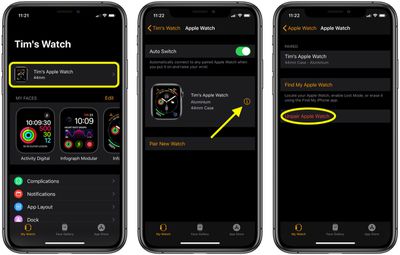
If you're trading in your iPhone and have an Apple Watch linked to it, you're going to want to unpair it first. Here's how.
- Bring your iPhone and Apple Watch close to each other.
- Launch the stock Watch app on your iPhone.
- Tap the My Watch tab.
- Select the Apple Watch you want to unpair, then tap the info button (the encircled "I") next to it on the next screen.

- Tap Unpair Apple Watch.
- Tap again to confirm.
- Enter your Apple ID password when prompted to turn off Activation Lock.
Deactivate Services and Log Out Manually
Erasing your iPhone deactivates Find My iPhone and logs you out of all your iCloud and iTunes accounts automatically – in theory. Occasionally we've heard cases of erased iOS devices still being linked to Find My iPhone or iCloud accounts.

Whatever the truth of these reports, you can always make doubly sure this won't happen by deactivating and unlinking these services yourself. To learn how to turn off Find My iPhone, click here. To sign out of iCloud and the iTunes and App Stores, launch the Settings app on your iPhone, tap on your name to open your account settings, tap Sign Out at the bottom, then enter your Apple ID password and tap Turn Off.
Factory Reset Your iPhone
Now that you've backed up your iPhone and manually deactivated services and accounts, it's time to perform a factory reset of the device. These steps will guide you through the process.
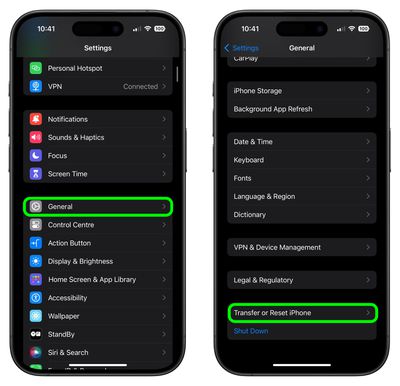
- Unlock your iPhone or iPad and launch the Settings app.
- Tap General.
- Scroll to the bottom and tap Transfer or Reset iPhone (or iPad).
- Tap Erase All Content and Settings.
- Review the details of the data about to be wiped, then tap Continue.
- Tap in your passcode if requested.
- Enter your Apple ID password to erase the iPhone and remove it from your account.
- Tap Erase.
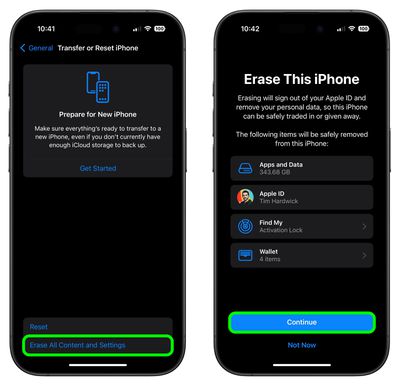
Allow the reset process to continue – it shouldn't take any longer than a couple of minutes. Once it's completed, you'll see the iOS welcome screen on your iPhone. That's your green light to trade it in.

















Top Rated Comments
https://www.lifewire.com/switch-google-authenticator-to-new-phone-4582397
Re: 2FA, as others mentioned, don't erase the phone until done. Will get codes to the old phone. Or iPad. Or Mac. Then delete the old phone via iCloud.com or appleid.apple.com from the account.
Re: erasing a device without a passcode: erase the device, go through the process of setting up as new (do not sign in to iCloud, no emails, etc), but, enter a dummy passcode. Then erase again. Storage will be encrypted, keys will be wiped from Secure Enclave. Or, add a dummy passcode before erase to encrypt everything, then erase. Again, keys are wiped and left with gibberish in storage (OCD me erases the phone, skips setup steps to verify all looks good [no data left], and then erase again).
Don’t forget to have your Apple ID password handy outside of your phone. if you use a password app like LastPass, your app won’t be live on the new phone for a bit while you do the setup and it can be a real hassle if your phone is also your Authenticator and you have 2FA turned on but can’t get to your new phone because it needs your Apple ID password.