

Macs aren't infallible, and at some point during your time using them you'll come across a situation in macOS where an app has become unresponsive, leaving you without access to its contents and functions, and only a continually revolving beachball for your troubles.

If the beachball stays on the screen for more than a few minutes and you can't interact with the app's interface, this usually indicates the app in question has crashed, which means it's time to force quit it and restart the app to see if you can pick up where you left off in the hope it won't crash again. Read on to learn how.
How to Force Quit An App - Method 1
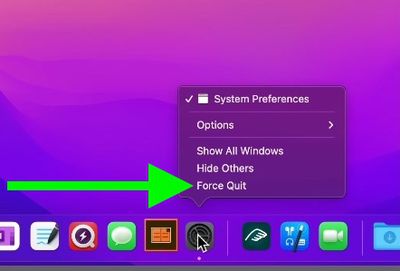
If the app is acting up, hold down the Option key and right-click its icon in the Dock to reveal a Force Quit action in the popup menu.
How to Force Quit an App - Method 2
There's a second option for quitting an unresponsive app, and it may be one of the more intuitive solutions.
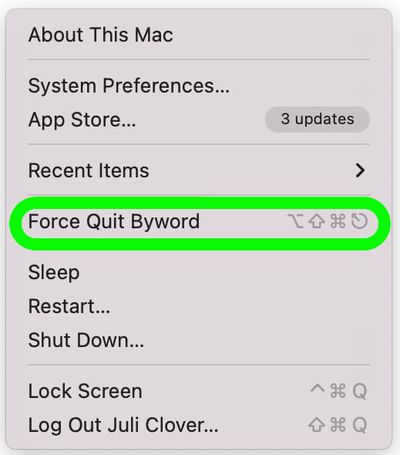
- Click on the Apple logo in the menu bar.
- Select the "Force Quit" option.

- Click the app that you want to quit. Unresponsive apps will have a "Not Responding" designation next to them.
- After selecting the offending app, click on Force Quit to shut it down.
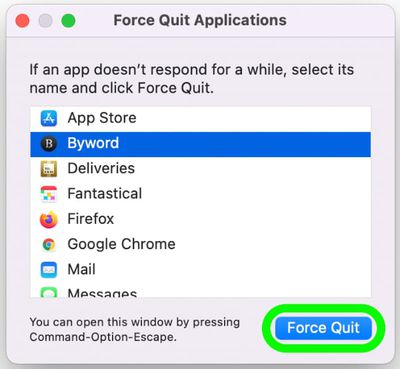
Alternatively, you can open the Force Quit applications interface by pressing Command + Option + Escape all at once.
How to Force Quit An App - Method 3
You can also force quit misbehaving Mac apps using Activity Monitor. You can find it in the /Applications/Utilities folder.
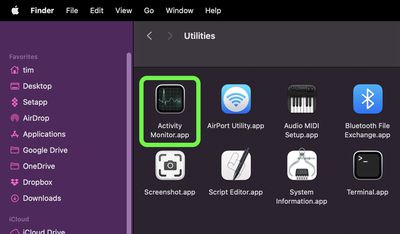
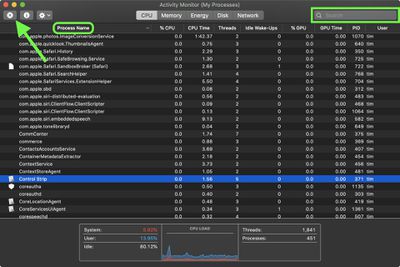
The main window lists all the apps and processes currently running on your Mac. You'll notice the order jumps around a lot. That's because you're seeing the list being updated every five seconds to show changes in individual app usage statistics.
- Under the Process Name list, select the app or process you want to quit. To make finding the culprit easier, click Process Name in the column header to sort them alphabetically, or use the Search field in the top-right corner of the window to find the app or process. Note that an unresponsive process is labelled with (Not Responding).
- Make sure the app or process is highlighted, then click the Quit (X) button in the top-left corner of the Activity Monitor window.
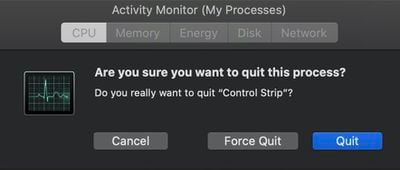
- Select Quit (this is the same as choosing File -> Quit within an app) or Force Quit, which quits the process immediately.
Note that if the app or process has files open, force quitting it may cause you to lose data. Also, bear in mind that if the process you force quit is used by other apps or processes, those apps or processes may experience issues.
If your work in the crashed app hasn't been saved recently either manually or automatically, then there's not much you can do to retrieve your work other than check Time Machine.















