How to Get Your iPhone Ready for iOS 26 - MacRumorsOpen MenuShow RoundupsShow Forums menuVisit ForumsOpen Sidebar
Skip to Content

How to Get Your iPhone Ready for iOS 26

by

Apple is scheduled to release iOS 26 and iPadOS 26 on Monday, September 15, bringing a host of new features to existing iPhones and iPads, such as a Liquid Glass design overhaul, new Home Screen customization options, a streamlined Camera app, new Phone app features, and more.
iOS 26 on iPhone Feature
This article covers some of the things you can do to prepare your ‌iPhone‌ or iPad for Apple's latest mobile operating system, including storage maintenance tips, backup advice, and a few other useful tidbits to consider before upgrading. First though, you'll need to make sure your ‌device is compatible with the new software.

Is My iPhone Compatible With iOS 26?

iOS 26 is compatible with the iPhone 11 series and newer. In other words, the following models are supported:

  • iPhone 16e
  • iPhone 16
  • iPhone 16 Plus
  • iPhone 16 Pro
  • iPhone 16 Pro Max
  • iPhone 15
  • iPhone 15 Plus
  • iPhone 15 Pro
  • iPhone 15 Pro Max
  • iPhone 14
  • iPhone 14 Plus
  • iPhone 14 Pro
  • iPhone 14 Pro Max
  • iPhone 13
  • iPhone 13 mini
  • iPhone 13 Pro
  • iPhone 13 Pro Max
  • iPhone 12
  • iPhone 12 mini
  • iPhone 12 Pro
  • iPhone 12 Pro Max
  • iPhone 11
  • iPhone 11 Pro
  • iPhone 11 Pro Max
  • iPhone SE (2nd generation and later)

Note that this compatibility list does not mean that all iOS 26 features will work with the above models. Several of the update's features are exclusive to iPhone 15 Pro and iPhone 16 models, since they rely on Apple Intelligence. You can learn more about them here.

Note that iOS 26 will come pre-installed on new iPhone 17 models when they launch in September 2025.

Is My iPad Compatible With iPadOS 26?

iPadOS 26 supports the following iPad models:

  • iPad Pro (M4)
  • iPad Pro 12.9-inch (3rd generation and later)
  • iPad Pro 11-inch (1st generation and later)
  • iPad Air (M2 and later)
  • iPad Air (3rd generation and later)
  • iPad (A16)
  • iPad (8th generation and later)
  • iPad mini (A17 Pro)
  • iPad mini (5th generation and later)

This means the only iPad model that supports iPadOS 18, but not iPadOS 26, is the lower-cost iPad (7th generation).

Note that this compatibility list does not mean that all iPadOS 26 features will work with the above models. Several of the update's features are exclusive to devices that support Apple Intelligence: these include iPad models with M1 or later chips, and the 7th generation iPad mini with A17 Pro chip.

Reclaim Device Storage Space

Before you attempt to make the leap to iOS 26/iPadOS 26, you'll first want to make sure your device has adequate space to download and install the new operating system over the air.

With that in mind, it's worth looking at what apps you currently have installed on your devices and whether you really need them. Swipe through your home screen and check inside your folders to root out any long-forgotten apps that are taking up precious storage space.
settings
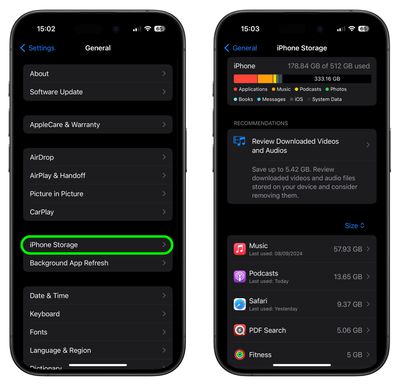
You can delete apps by holding a finger on them and tapping the X that appears at the corner of their icon. Alternatively, go to Settings ➝ General ➝ iPhone/iPad Storage, tap any apps you don't use, and select Delete App. Note that this action can't be undone, but be ruthless – you can always re-install removed apps at a later date if you change your mind.

Check on the size of any social media or messaging apps you have installed, such as Facebook and WhatsApp. These apps can often balloon in size after long periods of activity because of chat history, media caching and the like, so you might want to delete and reinstall them to start afresh.

Also, be sure to heed any personal recommendations on the ‌iPhone‌ Storage screen, like keeping high-resolution photos in iCloud and smaller-size versions on your device, or letting iOS automatically offload any apps you don't use often.

Make an Archived Backup of Your Device on Mac

It's best practice to have a local backup of your device stored on your computer in case something goes awry, or the worst happens and installation of iOS 26 fails. If you need to downgrade shortly after installing a new iOS/iPadOS update, making an archived local backup beforehand is necessary, otherwise you won't be able to revert back to ‌iOS 18/iPadOS 18 if things go wrong.

  1. Plug your iPhone/iPad into your Mac using the supplied cable.
  2. Allow the accessory to connect by clicking Allow in the dialog prompt.
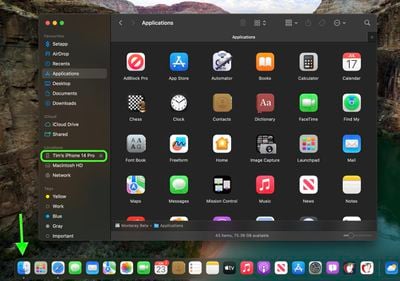
  3. Open a Finder window by clicking the Finder icon in the Dock.
  4. Click your iOS device's name in the sidebar.
    finder

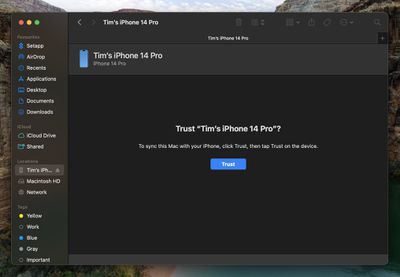
  5. If this is the first time connecting your device to your Mac, click Trust in the Finder window.
    finder

  6. Tap Trust on your device when prompted, then enter your passcode to confirm.
  7. In the General tab, click the circle next to where it says Back up all of the data on your iPhone/iPad to this Mac.
  8. If you want to encrypt the backup, check the box next to Encrypt local backup, then enter a password to protect your data.
  9. If you don't want to create an encrypted backup, or you've already set up encrypted backups, click Back Up Now. When the backup is finished, you can find the date and time of the last backup in the General tab, just above the Manage Backups button.
    finder

  10. Lastly, archive the backup: Select Manage Backups ➝ Select Backup, then right-click the backup and choose Archive. This protects it from being overwritten by the next local backup or automatically deleted if your Mac is low on storage space.
Remember that this backup will not be overwritten when you manually or automatically back up your iPhone in the future, so you can restore it at any time by using the Restore Backup... option in the same Finder screen.

Make an Archived Backup of Your Device on Windows

The Apple Devices app is now the main tool for managing a connected iPhone on a Windows PC.

  1. Plug the iPhone/iPad into your Windows PC. (You may also need to tap Trust on your Apple device.)
  2. Go to the Apple Devices app on your PC, then select your Apple device in the sidebar.
  3. Click General in the sidebar.
  4. Use the bullets to select where to back up your data. (If you want to encrypt the data, select the Encrypt local backup option and set a password.)
  5. Click Back Up Now.
  6. After the backup is complete, select Manage Backups to see the backup file.
  7. Right-click the backup you created and choose Archive. This extra step prevents the backup from being overwritten by the next local backup or automatically deleted if the computer runs low on storage space.

Installing iOS 26

When iOS 26 and iPadOS 26 become available on September 15 as an over-the-air update (likely around 10:00 a.m. Pacific Time/1:00 p.m. Eastern Time, based on past releases), make sure your device is fully charged before you start the process over Wi-Fi, as it may take some time to complete.

To check that the update is available, go to Settings ➝ General ➝ Software Update, and wait a moment for your device to contact Apple's servers. If you're in no rush, you can wait for iOS 26/iPadOS 26 to be delivered to your iPhone or iPad when you next plug it into your computer.


Related Roundups: iOS 26, iPadOS 26
Related Forum: iOS 26

Top Rated Comments

ProbablyDylan Avatar
15 months ago
Forget about getting your devices ready - get your brain ready. iOS 26 is so, so ugly. And that's ignoring the myriad of visual bugs like weird shadow behavior in Safari or constant home screen icon re-drawing.
Score: 6 Votes (Like | Disagree)
iamgalt Avatar
15 months ago

It’s really bad right now. I wouldn’t.
Your specificity is astonishing.
Score: 4 Votes (Like | Disagree)
klasma Avatar
15 months ago
My Apple devices may be compatible with whateverOS 26, but I’m afraid my eyes and UI sensibilities are not. ;)
Score: 4 Votes (Like | Disagree)
15 months ago

It’s really bad right now. I wouldn’t.
I've been using it since the first developer beta. It's absolutely fine.
Score: 3 Votes (Like | Disagree)
Plutonius Avatar
15 months ago
In the past, older iPhones were included but the new iOS didn't run well on some of them.

If you have an older iPhone that is supported, I suggest holding off on the update until you hear from others that it runs well on your model.
Score: 3 Votes (Like | Disagree)
15 months ago
Correct me if I'm wrong, but if you want health and fitness data to be included in the backup you MUST check the encrypt local backup box, correct?
Score: 3 Votes (Like | Disagree)

Popular Stories

bug security vulnerability issue fix larry

Apple Fixes Possibly Exploited CoreGraphics Flaw on Older iPhones

Tuesday October 27, 2026 5:16 am PDT by
Among the flurry of iOS 27.2 releases on Monday, Apple also pushed a wave of software updates for its older operating systems, including a fix for a CoreGraphics vulnerability that Apple says may have been exploited in targeted attacks. The releases include iOS 26.7.2, iPadOS 26.7.2, iOS 18.7.11, iPadOS 18.7.11, macOS Tahoe 26.7.2, macOS Sequoia 15.8.2, and tvOS 26.6.1. iOS 18.7.11 and...
duo aquarium

More Fun iPhone Duo Apps: 30 New Picks to Try

Friday November 6, 2026 3:27 pm PST by
When the iPhone Duo launched, we shared a list of some of the fun apps developers created for the new form factor. Two weeks out, developers are continuing to come up with fresh ideas, so we thought we'd share some of our favorites. Games Marbles Unhinged ($2.99) - Marbles Unhinged is a marble maze designed for the Duo. When you fold it, the floor turns into a ramp. If you stand the top...


apple pro tell logo

Apple Launching Five New Products Today

Thursday November 5, 2026 12:59 am PST by
Apple is launching five new products on Friday, November 6, following pre-orders that opened last week, including its first touchscreen MacBook Pro models. The following new products will be available from today: iPad mini with OLED display and A20 Pro chip iMac with M6 chip 14-inch MacBook Pro with M6 chip 14-inch MacBook Pro with OLED touchscreen 16-inch MacBook Pro with OLED...
Latest Stories
Apple Store Subscription Sign-Up Controversy Exposed
2 hours ago
Siri AI Rumored to Become 'More Like an Agent' as Early as Next Year
12 hours ago
Apple Taking New Approach to Developing iOS 28 and macOS 28
13 hours ago
Early Apple Black Friday Deals on Apple Watch, MacBook Air, and More
1 day ago
'Backglow' Lets You Customize New MacBook Pro's Glowing Apple Logo
1 day ago
Top Stories: Apple Product Launches, iOS 27.3 Beta, and More
2 days ago
More Fun iPhone Duo Apps: 30 New Picks to Try
2 days ago
Hands-On With Apple's New OLED Touchscreen MacBook Pro
2 days ago
Apple Store With All-New Design Opening Soon in Southern California
2 days ago
Control the Glowing Apple Logo on Your New MacBook Pro
2 days ago
Apple Shares New 'Apple Card: Apply and Use in Minutes' Ad
3 days ago
Apple Says More Than 100,000 Apps Optimized for iPhone Duo, Here's What's Still Missing
3 days ago
Early Black Friday Deals Kickoff With Steep Discounts on Apple Watch Ultras and More
3 days ago
The MacRumors Show: iOS 27.3 Looks Like a Huge Update
3 days ago
Best Buy's Black Friday Event Begins With Sitewide Savings on Apple, TVs, More
3 days ago
Apple Releasing Yet Another Two New Products Next Week
3 days ago
MacBook Air Drops to Lowest Price in Months With Amazon's $250 Discount
3 days ago
Apple Rumored to Drop the iPhone's Action Button Next Year
3 days ago
Apple's Extended Return Policy Now in Effect for 2026 Holiday Season
3 days ago
Apple Music Classical Updated With New Icon and Refreshed Design
3 days ago
OLED iPad Mini, M6 iMac, and New MacBook Pros Available From Today
3 days ago
Apple Surveys iPhone Duo Buyers About Crease and Camera
3 days ago
Apple's First Touchscreen Mac is Now Arriving to Customers
3 days ago
Claude Gets Personal Finance Feature With Bank Account Linking
3 days ago
Apple Arcade Adds Crossy Road Rush and NBA 2K27
3 days ago
Apple's New HomeView Smart Home Hub: Here's How Much RAM It Has
3 days ago
iPad Mini vs. iPad Air Buyer's Guide: Now Just $50 Apart
3 days ago
First iOS 27.3 and macOS Golden Gate 27.3 Public Betas Now Available
3 days ago
Apple Announces a New Mac Sales Record
3 days ago
Paid $200 for Logic Pro? Apple Says You Won't Get This New Feature
3 days ago