

 In macOS, the System Preferences app located in the Applications folder is where you can adjust various settings to customize your Mac. Most system preference panes are native to macOS and cannot be removed – although they can be hidden. In this article, we'll show you how it's done.
Occasionally, third-party apps installed on your Mac will insert their own preference panes in the bottom row of the System Preferences panel. Sometimes these panes will pointlessly stick around even after you've uninstalled the associated app. Thankfully though, they can be removed separately. To jump to our instructions on how to do that, click here.
How to Hide a Native System Preferences Pane
- Launch System Preferences from your Mac's Dock, from the Applications folder, or from the Apple menu bar ( -> System Preferences...).

- From the System Preferences menu bar, select View -> Customize.... Alternatively, click and hold the Show All button located to the right of the forward and back arrow buttons at the top of the System Preferences window.
- A blue checkbox will appear next to each pane in the System Preferences window. Uncheck the panes that you wish to hide.
- Press Done.
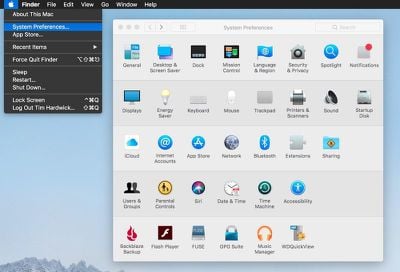
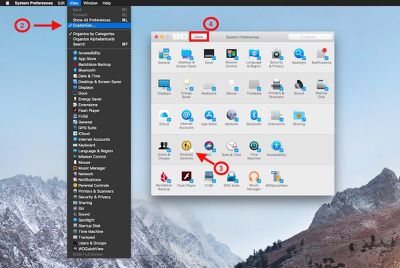
Tip: The View menu includes an option to change the preference pane arrangement from the default Organize by Categories to Organize Alphabetically, and vice versa.
How to Remove Third-Party Preference Panes
- Launch System Preferences from your Mac's Dock, from the Applications folder, or from the Apple menu bar ( -> System Preferences...).
- Locate the third-party pane in the bottom row of System Preferences that you wish to remove.
- Right-click (or Ctrl-click) the third-party pane and select the pop-up option Remove "[name of pane]" Preference Pane.
- Enter your admin password if requested to do so.
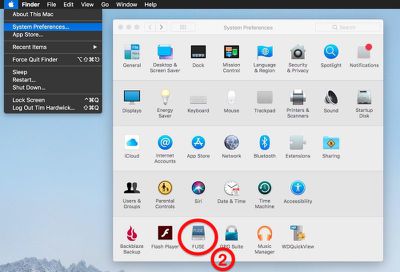
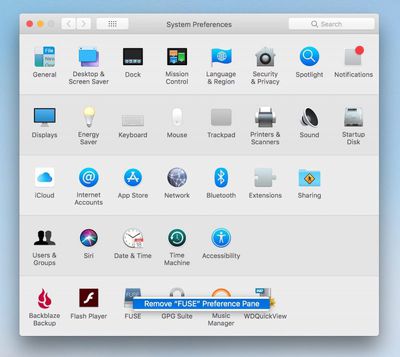
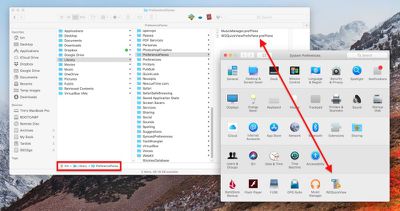
The above steps should work for most third-party preference panes, but if you want to manually delete a preference pane file from your Mac, here's how.
How to Remove Preference Pane Files Manually
- Open a Finder window.
- From the Finder menu bar, click the Go menu, hold down the Option (⌥) key, and then select Library in the dropdown menu.
- In the Library folder, open the PreferencePanes subfolder.
- Identify the .prefPane file for the specific preference pane that you want to remove. (If you can't see it, you may need to look in the global system library folder. To open the folder from the Finder menu bar, select Go -> Go to Folder..., type /Library/PreferencePanes and click the Go button.)
- Right-click (or Ctrl-click) the file and select Move to Trash.
- Restart your Mac.
















Top Rated Comments
EDIT: For the truly lazy, there's no need to go that far. It's covered in the second paragraph of the OP's summary above you.