How to Use the HomePod's Physical Controls - MacRumorsOpen MenuShow RoundupsShow Forums menuVisit ForumsOpen Sidebar
Skip to Content

How to Use the HomePod's Physical Controls

by

As a smart speaker, HomePod comes with built-in Siri support, so you can use it without ever touching it, but Apple did include a touch panel at the top of the device that supports several gestures.
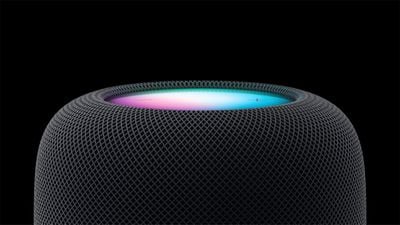
HomePod 2023
‌HomePod‌ gestures can activate ‌Siri‌, control the volume of what's playing, skip to the next song, pause/play and more. All of the touch gestures you can use with the ‌HomePod‌ are below.

Volume

Volume up - Tap on the "+" button to raise volume by one level, or touch and hold to increase the volume by several levels.

Volume down - Tap on the "-" button to lower the volume by one level, or touch and hold to decrease the volume by several levels.

Playback

Pause or resume playback - Tap in the middle of the ‌HomePod‌ to pause your music and tap it again to unpause.

Go to the next track - When a song is playing, double tap in the middle of the ‌HomePod‌ to skip a song.

Replay the previous track - When a song is playing from a playlist or an album, triple tap in the middle of the ‌HomePod‌ to go back to the previous song that was playing.

Siri

To activate ‌Siri‌, place a place a finger on the top of the ‌HomePod‌ and hold it there until the visual ‌Siri‌ waveform appears. From there, you can speak your ‌Siri‌ command.

Other Available Gestures

Dismiss an alarm - If an alarm is going off on the ‌HomePod‌, tap in the middle of it to stop it.

Activate VoiceOver - If you have VoiceOver enabled in the Accessibility settings, double tap to activate it. With VoiceOver enabled, all other gestures will require one extra tap, so pausing, for example will require two taps.

End a call - When using your HomePod as a speakerphone, you can end a call by tapping on the green light on top of the ‌HomePod‌.

Switch calls - If you're using ‌HomePod‌ as a speakerphone on a call and a second call comes in, you can touch and hold on the green light to put a hold on call. Switch between calls by double tapping.
Related Roundups: HomePod, HomePod mini

Top Rated Comments

myscrnnm Avatar
110 months ago
Am I the only one who finds these controls unintuitive and confusing? They put a display on the top of the HomePod. Why not just utilize a proximity sensor to display context-specific controls when you approach the device?
Score: 5 Votes (Like | Disagree)
110 months ago
Am I the only one who finds these controls unintuitive and confusing? They put a display on the top of the HomePod. Why not just utilize a proximity sensor to display context-specific controls when you approach the device?
Pretty sure you are the only one lol. Apple has used these controls for years on the headphones and iPods.... simple enough.
Score: 4 Votes (Like | Disagree)
Brookzy Avatar
110 months ago
I get that they are the same controls but I'm with you... why not just have some of the options on the display? I feel the display is not used at all... Such a beautiful display and all it does is display + and - I mean really?
It isn’t really a display, it’s just a small LED array in the centre, covered by a panel that blurs the light to make it look like a nice glowing orb.

The volume controls are simply one LED each.

So only a very small area of the top of the HomePod has the potential to illuminate, and even then it can only display vague shapes and colours rather than symbols.

(Fun fact: I noticed today that there must be an ambient light sensor hidden somewhere because the brightness of the volume controls changed to the room lighting. That’s a really nice touch!)
Score: 3 Votes (Like | Disagree)
Arran Avatar
110 months ago
It isn’t really a display, it’s just a small LED array in the centre, covered by a panel that blurs the light to make it look like a nice glowing orb.

The volume controls are simply one LED each.

So only a very small area of the top of the HomePod has the potential to illuminate, and even then it can only display vague shapes and colours rather than symbols.

(Fun fact: I noticed today that there must be an ambient light sensor hidden somewhere because the brightness of the volume controls changed to the room lighting. That’s a really nice touch!)
You're right. On close inspection it's not a screen at all. Just a few colored LEDs and a diffuser.

That's a bit limiting. I was secretly hoping a future software upgrade might support coverflow. I like visuals. No chance of that happening now.
Score: 2 Votes (Like | Disagree)
Arran Avatar
110 months ago
...Apple has used these controls for years on the headphones and iPods.... simple enough.
True, but that was through necessity: There was only one mechanical button, so it was necessary to learn morse code click combinations.

That all seems inappropriate on a device with a big color touchscreen. And since this is a shared device intended for common areas, what if your houseguests don't know about the secret click combos? Seems user-hostile. Seems like a wasted opportunity.
Score: 2 Votes (Like | Disagree)
110 months ago
True, but that was through necessity: There was only one mechanical button, so it was necessary to learn morse code click combinations.

That all seems inappropriate on a device with a big color touchscreen. And since this is a shared device intended for common areas, what if your houseguests don't know about the secret click combos? Seems user-hostile. Seems like a wasted opportunity.
I agree, seems like they could have easily had Skip Forward and Skip back on the North/South portions of the screen (assuming you consider +/- the East and West) and Play/Pause as one button in the center.

I also wish they would have used the standard figure 8 power cable like they do on the Apple TV, Airport Express, Airport Extreme, etc. Would have been nice to be able to buy a shorter cable so I don't have 4' of it wrapped up in a coil next to the speaker on my kitchen counter.

That said I am pretty impressed with the sound and am overall happy with it. I probably won't bother buying any more until I see what kind of firmware updates are made etc. Then I could see picking up a couple more for my kids' rooms. Would also be nice if they made a bit smaller/cheaper version better suited for bathrooms etc.
Score: 1 Votes (Like | Disagree)

Popular Stories

HomePodandMini feature green

iOS 27 Brings New Functionality to HomePod

Wednesday June 10, 2026 3:02 am PDT by
With the launch of iOS 27 and HomePod Software 27, Apple is adding support for AutoMix, Apple's AI-powered Apple Music feature that blends songs using matching key and tempo. Apple says it has improved AutoMix's underlying algorithms to generate new transition types, making for more seamless blends between tracks, so this should also benefit the newly introduced feature for HomePod....
apple price hike

Apple Just Increased Prices on MacBooks, iPads, and More

Thursday June 25, 2026 5:44 am PDT by
Apple today dramatically increased device prices across multiple product lines. Subscribe to the MacRumors YouTube channel for more videos. After temporarily taking it down earlier today, Apple's online store is back up with a series of product price increases. The changes are as follows: HomePod mini: $129, up from $99 (+$30) HomePod: $349, up from $299 (+$50) Apple TV: $199, up from...
HomePod mini and Apple TV Sage

Apple TV and HomePod Just Went Up in Price Amid Wait for New Models

Thursday June 25, 2026 8:04 am PDT by
While the Apple TV, HomePod, and HomePod mini have not been updated in several years, all three products received price increases worldwide today. Here is a summary of the price changes for these products in the United States:Apple TV (Wi-Fi): $129 → $199 Apple TV (Wi-Fi + Ethernet): $149 → $249 HomePod: $299 → $349 HomePod mini: $99 → $129Apple also raised prices on Macs, iPads, and more,...