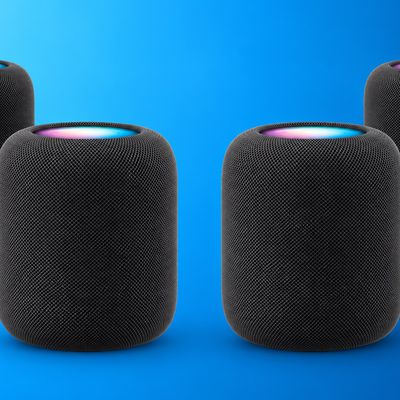
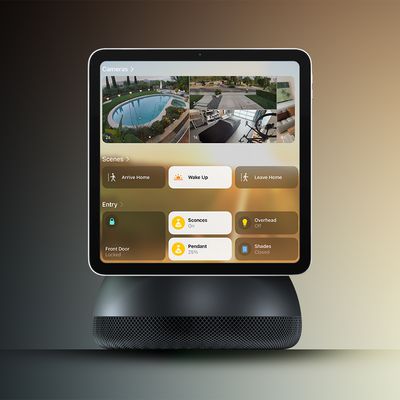
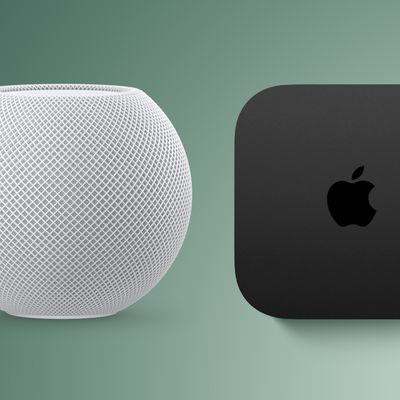
Apple released HomePod software version 16.3 in January 2023, which brings a number of new features to its HomePod lineup, including the ability to include ambient sounds in automations. This article explains how it's done.
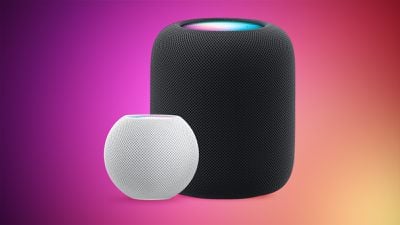
The arrival of Apple's HomePod software version 16.3 adds a number of new features to new and existing HomePods that are well worth checking out.
The update activates temperature and humidity sensing for both the second-generation HomePod and the HomePod mini, adds the ability to set up recurring automations using Siri, and brings remastered ambient sounds that can be added to scenes, automations, and alarms.
Apple says the new ambient sounds have been remastered to sound more immersive, so it's worth giving them a listen. The available ambient sounds include Fireplace, Forest, Night, Ocean, Rain, Stream, and White Noise.
Let's look at how that how the ambient sounds work with automations. Once you've made sure your HomePod software is up-to-date, you can set up an automation to use one of the new, more immersive ambient sounds in the following way.
How to Use HomePod Ambient Sounds in Automations
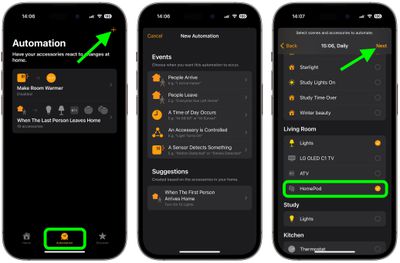
- In the Home app on your iPhone or iPad, tap the Automation tab, then tap the + in the top-right corner of the interface.
- Tap Add Automation.
- Choose the event that will be the trigger for this automation to occur.
- In the next screen, set up your event options, then tap Next.
- Choose a scene or accessories to include in this automation, then tap Next. If it's a scene you're choosing, making sure it includes a HomePod. If you're choosing accessories, make sure at least one is a HomePod.

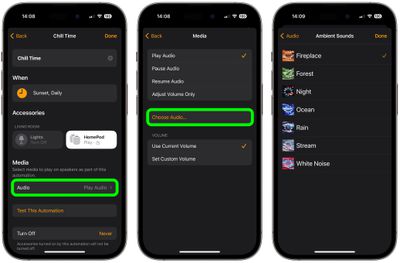
- In the next screen, give your automation a name. Then under "Media," tap Audio, then select Choose Audio....
- Tap Ambient Sounds, choose the one you want to use on the next screen, then tap Done.
- Tap back twice to the automation options menu, then tap Done.
Your automation featuring an immersive ambient sound is not set up. You can edit or delete the automation at any time from the Automation tab in the Home app.