

iCloud Photo Library was introduced with iOS 8, but with the launch of the Photos for OS X app, it's now available on the Mac. In a nutshell, iCloud Photo Library is Apple's newest photo service that lets you sync all of your images across all your devices and to iCloud.
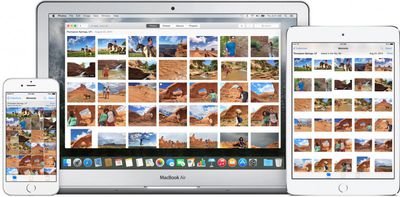
iCloud Photo Library supports several photo and video formats, storing photos in their original format, and it makes all of your media available on any device that has iCloud Photo Library turned on. This how-to will walk you through how to turn iCloud Photo Library on for each of your devices and how to minimize the space your photos take up on each device.
Tips Before Getting Started
In order to fully take advantage of iCloud Photo Library, you should turn it on for multiple computers, if necessary, as well as your iPhone, iPad or iPod touch. It is compatible with iOS 8.3 or later and OS X Yosemite 10.10.3 or later.
You must be connected to the Internet via Wi-Fi in order to begin the iCloud Photo Library upload process. Additionally, your device batteries must be fully charged, or at least connected to a power source.
Apple provides 5GB of iCloud storage for free. It is highly likely you will need more than that to store all of your pictures and videos. If you go over the 5GB limit, Apple will prompt you to upgrade to a larger storage capacity before continuing. iCloud storage starts at $0.99 per month for 20 GB of storage. The 200GB storage plan costs $3.99 per month, while the 500GB plan costs $9.99 per month and the 1TB plan costs $19.99 per month.
Be sure that all devices you wish to sync photos and videos on are signed in using the same Apple ID.
Turning on iCloud Photo Library
On OS X Yosemite:
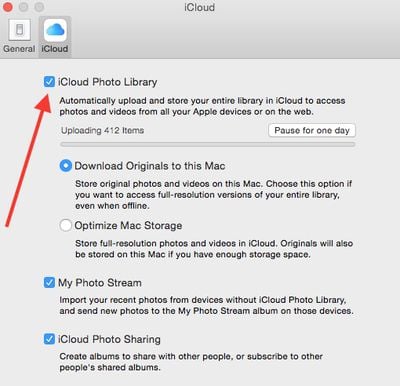
- Open Photos for OS X.
- Select Photos from the menu bar.
- Select Preferences from the available options.
- Click on the iCloud tab in the pop up window.
- Check the box titled "iCloud Photo Library."
Uploading of photos may take a long time, depending on the number of photos in your library and the speed of your Wi-Fi network. Some users have also found photo upload affecting overall performance of their Wi-Fi networks, so if you need to temporarily pause upload, you can do so for one day in preferences, with the option to manually resume uploading sooner than that if you wish.
Follow the steps above for any computer you wish to store and access the iCloud Photo Library from.
On iOS:
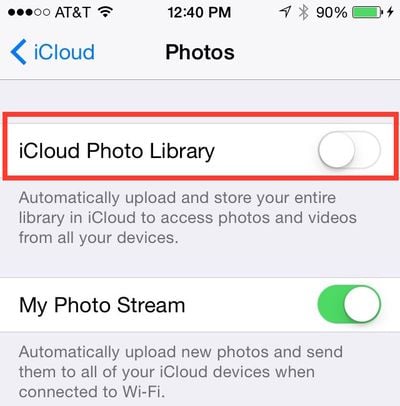
- Open the Settings app.
- Tap iCloud.
- Select Photos.
- Toggle iCloud Photo Library to the On position.
Now all of your photos and videos (not just the most recent 30 days worth, or 100 photos) will be available across all of your devices. You will also see all folders, albums, and smart albums. You will be able to search for keywords and find people based on Faces tags.
Additional features such as creating books, cards, calendars, and slideshows, last imported albums, and Faces Tiles and data will only be available on computers they were originally created on.
You can keep the amount of pictures stored on a mobile device or computer with limited storage to a minimum. Although you have complete access to all pictures and videos, you don't have to store them all on your device thanks to Apple's "optimized storage" option, which places recent, favorite, and frequently accessed images on your iPhone, iPad, or Mac and stores older, less accessed ones in iCloud. That way, you are only storing full resolution images of the most important pictures on your device.
Turn on Optimize iPhone Storage
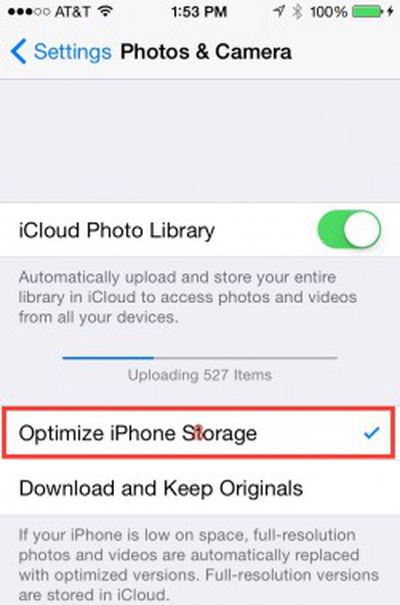
- Open the Settings app.
- Select Photos & Camera from the list.
- Tap "Optimize iPhone Storage." This will also de-select "Download and Keep Originals," which will help keep the amount of space you use on your iPhone or iPad to a minimum.
Turn on Optimize Mac Storage
- Open Photos on OS X Yosemite
- Select Photos from the menu bar.
- Click on Preferences from the available options.
- Click the iCloud tab in the pop up window.
- Select Optimize Mac Storage.
With iCloud Photo Library turned on across all of your devices, you have access to every picture you've ever taken and stored in iCloud, including older photos, pictures you've uploaded to the Photos app from a DSLR camera, and videos you've taken since your baby’s birth.
















Top Rated Comments
I wanted to warn our forum members of an isolated, but significant, bug that I (and some others) encountered.
When I started the upload process, my Internet died and would not respond until I reset my modem. It only took a couple of times for me to link this problem to my new iCloud/Photo settings.
And, no, it has nothing to do with my upload speed or internet connection.
I found a post in Apple Support Communities (https://discussions.apple.com/thread/6992427) that speaks to this and one of the users offered a workaround (https://mayallit.wordpress.com/2015/04/23/how-to-fix-apple-photos-icloud-photo-library-upload-using-network-link-conditioner/).
Definitely worth visiting if you run into this issue and can't figure out what the heck is going on! It was maddening for me (still is, honestly).
Walt Mossberg ran into the exact same bug, detailed in his Photos review (https://recode.net/2015/04/14/review-photos-apples-replacement-for-iphoto/). Comments about the bug are near the end, under the section on iCloud Photo Library.
This isn't a bug, it's your provider not allowing you to use the service you're paying for. As the link regarding Network Link Conditioner states, "It appears that some ISPs (mine is Comcast) heavily throttle your connection if your computer is hitting the limit."
That's not a description of a bug, it's a description of an internet service provider ripping you off.
No.
You cannot consolidate photos into one plan that is then shared by everybody who joins. You can only share individual photos by either right-clicking an image in Photos for OS X, hovering over 'share', selecting 'iCloud photo sharing' and adding it to your Family, or by selecting 'iCloud photo sharing' under the share button on images in iOS. As yet, there is no other way to allow all members of your Family plan to view your photos.
Ridiculous really. Apple seem unaware of what the term 'family' means.
This isn't possible given Apple's current implementation of "Family Plans". My wife and I would like to share all our photos in my 200 GB iCloud Photo Library. But since she has her own Apple Id for mail, contacts, calendars, etc, this can't happen. You can "share" photos with any family and friends but you have to select them manually and place them in a "shared" album.
Basically, Apple needs to change things to allow family members with their own Apple Id's to share my iCloud Photo Library seamlessly.
Someone correct me if I'm wrong...
That would be the obvious implementation of the Family scheme, and one that many people are calling for. I'd say Apple are considering it, but iCloud has always been so buggy, and they have only just got it working how it should have when it was first released, so combining photo libraries is probably too difficult to implement at this time.