

If you're keen to try out the new features and improvements in iOS 16 and iPadOS 16, you can test beta versions of the software today. Keep reading to learn how to download and install it on your device.
With iOS 16 and iPadOS 16, Apple is introducing several new features and improvements, including a revamped Lock Screen, editing and undo features for Messages, new SharePlay features, an updated multitasking system for the iPad, and tons more.
When Apple announced iOS 16 and iPadOS 16, it also made developer betas immediately available to test on iPhone and iPad. By nature, a beta is pre-release software, so installing the software on a secondary device is highly recommended. The stability of beta software cannot be guaranteed, as it often contains bugs and issues that have yet to be ironed out, so installing it on your day-to-day device isn't advised.
Is iOS 16/iPadOS 16 Compatible With My Device?
Apple's list of compatible devices confirms that iOS 16 is compatible with all of these iPhones:
- iPhone 11
- iPhone 11 Pro
- iPhone 11 Pro Max
- iPhone XS
- iPhone XS Max
- iPhone XR
- iPhone X
- iPhone 8 and iPhone 8 Plus
The new version of iPadOS is also compatible with a wide range of older devices:
- All iPad Pros
- iPad (7th generation)
- iPad (6th generation)
- iPad (5th generation)
- iPad mini 5
- iPad Air (3rd generation)
Back Up Your iPhone or iPad First
Installing iOS 16 or iPadOS 16 beta shouldn't take longer than one hour, but before you do, be sure to create a backup of your device's contents and settings. The following step-by-step instructions explain how to back up an iPhone in macOS Catalina.
- Plug your iPhone, iPad, or iPod touch into your Mac using the supplied cable.
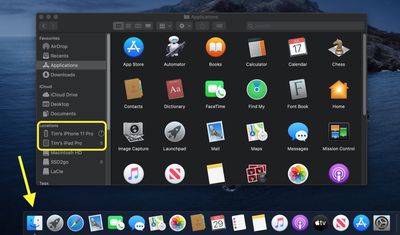
- Open a Finder window by clicking the Finder icon in the Dock.
- Click your iOS device's name in the sidebar.

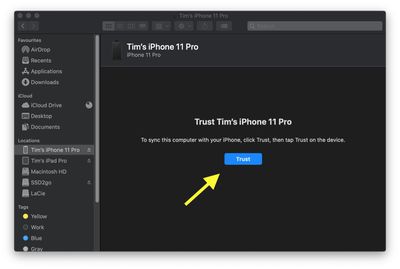
- If this is the first time connecting your device to your Mac, click Trust in the Finder window.
- Tap Trust on your device when prompted, then enter your passcode to confirm.
- In the General tab, click the circle next to where it says Back up all of the data on your [iPhone/iPad/iPod touch] to this Mac.
- If you don't want to create an encrypted backup, or you've already set up encrypted backups, click Back Up Now at the bottom of the General tab.
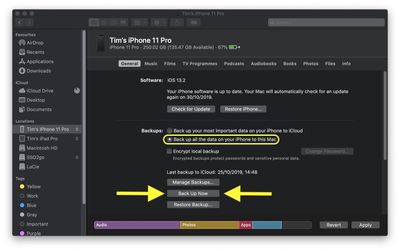
When the backup is finished, you can find the date and time of the last backup in the General tab, just above the Manage Backups button.
How to Install iOS 16 and iPadOS 16 Developer Betas
To download and install the iOS 16 developer beta, you need to have a developer account, which is a paid membership. If you don't have one yet, you can sign up here.
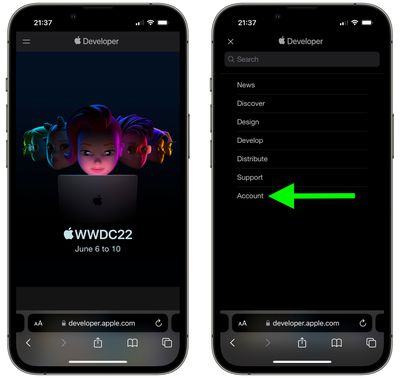
- On your iPhone or iPad, head to Apple's Developer Program enrollment website.
- Tap the two-line icon in the top-left corner of the page and select Account to sign in.
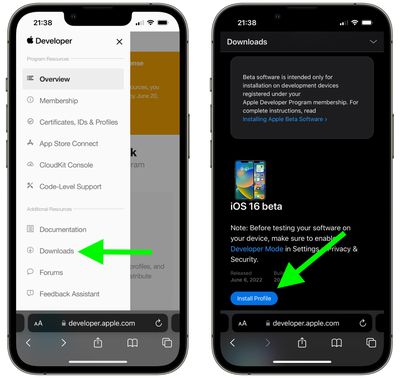
- Once you're signed in, tap the two-line icon again and select Downloads.
- Swipe down and tap Install Profile under iOS 16 beta or iPadOS 16 beta.
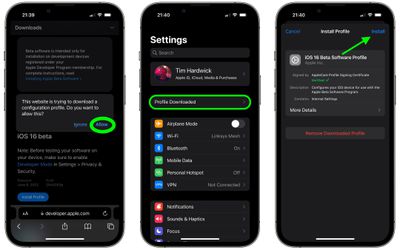
- Tap Allow to download the profile, then tap Close.
- Launch the Settings app on your iOS device and tap Profile Downloaded, which should appear under your Apple ID banner.
- Tap Install in the top-right corner of the screen.
- Enter your passcode.
- Tap Install in the top-right corner to agree to the consent text, then tap Install again when prompted.
- Tap Done, then tap General in the top-left corner of the screen.
- Tap Software Update.
- Tap Download and Install.
- Tap Install Now.
The update is about 5GB in size, so you'll have to wait a while for it to download, but once it does, your device will restart and automatically install iOS 16 or iPadOS 16.
If you come across any issues installing the iOS 16 or iPadOS 16 Public Beta, it may help to clear any previous profiles lingering on your device. You can find these in the Settings app under General -> Profile.















