Install Mac Apps on External Storage in macOS Sequoia - MacRumorsOpen MenuShow RoundupsShow Forums menuVisit ForumsOpen Sidebar
Skip to Content

Install Mac Apps on External Storage in macOS Sequoia

by

If you're running out of space on your Mac's internal drive, macOS Sequoia 15.1 includes a handy new feature that lets you install large apps directly to external storage. Here's how to use it to preserve space on your boot drive.
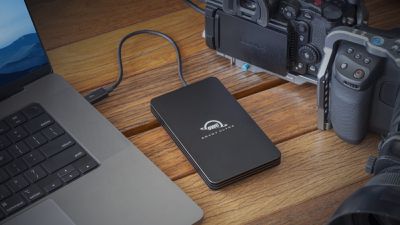
MacBook Pro OWC Envoy Ultra
Apple is known for charging customers a very high markup for additional storage when buying a new Mac. Given that internal storage usually can't be upgraded after purchase, it's no wonder that external drives are a popular solution for many Mac users who want the extra space but don't want to pay a premium for the privilege.

Until recently, macOS automatically installed new apps downloaded from the Mac App Store to a Mac's boot drive, which was not particularly helpful to users with dwindling internal storage. In macOS Sequoia 15.1, however, Apple has added a new option that lets you download and install apps that require more than 1GB of storage to an external drive. Anyone working with large apps like Final Cut Pro or Logic Pro, or gamers with space-consuming titles, will surely welcome this ability to download and install large apps to a separate disk.

Installing Mac Apps to External Storage

  1. Connect your external drive to your Mac.
  2. Open the App Store.
  3. Click App Store in the menu bar and select Settings....
  4. Check the box next to "Download and install large apps to a separate disk."
  5. Select your external drive from the dropdown menu.
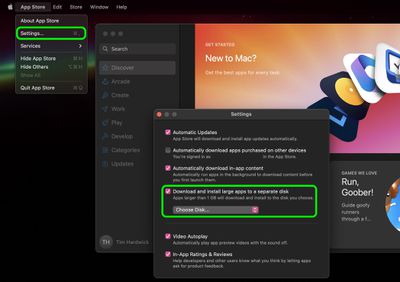
install apps external disk mac app store

Some considerations to keep in mind: The feature only works with apps larger than 1GB, and your external drive must be connected when enabling the setting. (Make sure the drive you connect is APFS formatted.) Additionally, while apps will install to your external drive, bear in mind that, depending on the app, some app data may still be stored on your main drive.

It's also worth noting that you can't choose installation locations using this method on a per-app basis – it's an all-or-nothing setting for qualifying apps. Lastly, for the best experience, use a fast external SSD (or an internal SSD in an external enclosure) to ensure optimal app performance.

Top Rated Comments

kirky29 Avatar
24 months ago
Once again, a very Apple way of doing this... :-/
Score: 12 Votes (Like | Disagree)
Slix Avatar
24 months ago
This is convenient! You could always move big apps after downloading them to the external disk, since day one essentially on the Mac. But having it automatically happen for big apps is a nice option.
Score: 12 Votes (Like | Disagree)
turbineseaplane Avatar
24 months ago
Anything other than "no longer charging extortion level SSD upgrade pricing", it would seem

:confused:
Score: 11 Votes (Like | Disagree)
24 months ago
Why would anyone need this? It's always been possible to have your apps on a separate drive. Just drag them over. LaunchServices will detect the apps in their new location and they'll just work. It's one of the best things about the Mac, and it's been that way basically since the beginning.
Score: 10 Votes (Like | Disagree)
fathergll Avatar
24 months ago

A tiny step in the right direction. I don't know why it had to be this limited.

This is an absolute requirement to even begin to be taken seriously for games. Steam has had very flexible support for multiple libraries on multiple disks in whatever subfolder you choose, for like ten years.
MacRumors content image
Score: 9 Votes (Like | Disagree)
Darmok N Jalad Avatar
24 months ago

Or you can move your Home folder to an external SSD - IF AND ONLY IF you plan to use the drive always connected.
You will however, always need to download the app and manually move it to the external drive.

I am using my Base M4 Mac mini like this with an external 4TB SSD
How well does the drive stay connected when the Mac idles/sleeps? Sometimes the biggest challenge to this approach is that the drive occasionally gets unmounted by the OS for some unknown reason, and then you have trouble until a reboot.
Score: 7 Votes (Like | Disagree)

Popular Stories

iOS 27 Next to iPhone

Here's When iOS 27 Rolls Out Today in Every Time Zone [Update: It's Out]

Sunday September 13, 2026 3:00 am PDT by
Update 10:04 a.m.: iOS 27 is rolling out now, though it may take a bit for all users to see it, so keep checking! Apple is about to release iOS 27, which will finally deliver more advanced Siri AI capabilities as well as a variety of other refinements, improvements, and new features to iPhones. It's Apple's biggest software update of the year, and Apple announced at Wednesday's iPhone event...
iOS 27 Icon iPhone

iOS 27 Available Now With These 8 New Features

Monday September 14, 2026 9:00 am PDT by
Update — 10 a.m. Pacific Time: Apple has released iOS 27. During its iPhone 18 Pro and iPhone Duo event last week, Apple announced that iOS 27 will be released widely on Monday, September 14. iOS 27 should be available around 10 a.m. Pacific Time / 1 p.m. Eastern Time today via the Settings app, under General → Software Update. Below, we have highlighted eight new features and...
Apple iCloud Plus expansion hero

iCloud+ Now Includes Apple TV, Apple Arcade, and Curated Apple Music Stations in Over 100 Countries

Tuesday September 15, 2026 1:43 am PDT by
Apple today announced a new subscription initiative that turns paid iCloud+ subscriptions into a broader services bundle in more than 100 countries. In select countries, Apple says every paid iCloud+ plan, including the cheapest 50GB tier, now includes Apple TV and Apple Arcade "at no additional cost," while family sharing extends the storage, TV and Arcade access to up to five people....