How to Use Instant Tuning in iOS 12 and Change Notification Behavior on the Fly - MacRumorsOpen MenuShow RoundupsShow Forums menuVisit ForumsOpen Sidebar
Skip to Content

How to Use Instant Tuning in iOS 12 and Change Notification Behavior on the Fly

by

As part of its digital health initiative in iOS 12, Apple has introduced some improvements to the way app notifications can be managed, enabling users to more easily reduce the number of daily distractions their iPhone or iPad throws their way.

One of these new features is called Instant Tuning, which allows you to quickly adjust the future behavior of app notifications whenever they appear in the Lock Screen or the Notifications Center. Here's how to make the most of it.

How to Use Instant Tuning in iOS 12

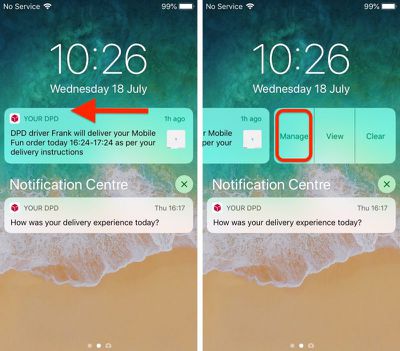
Next time an alert appears in your device's Notifications Center or on the Lock Screen, swipe left on it, then tap Manage. Alternatively, if your device supports 3D Touch, hard press on the alert and then tap the three dots in the upper right corner of the expanded notification.
ios 12 notifications instant tuning 1
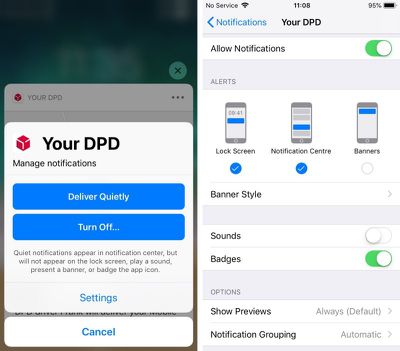
A Manage Notifications pop-up will appear on the screen featuring two blue button options. Deliver Quietly ensures future alerts from this app only appear in the Notification Center (accessed by swiping down from the top of your device's screen).

Note that selecting this option means alerts will no longer show in the Lock Screen and you won't see any banner notifications on any other screens. Deliver Quietly also turns off any sound or vibration alerts set for the associated app.

If you tap Deliver Quietly and then decide you'd rather not stick with the setting, open the Manage Notifications pop-up again in the same way and tap the Deliver Prominently button to reinstate the previous settings.
ios 12 fine tuning notifications 2
The second option, Turn Off..., completely disables all notifications for the related app. Tap this button and you will be prompted to confirm it's what you want.

Below the two large blue buttons is a less prominent Settings button that takes you to the individual app's various notification options, usually accessed via the main Settings app.

From here you can adjust where alerts should appear (if at all), enable or disable sounds and badges, select alert preview options (Always, When Unlocked, Never) and choose how notifications should be grouped (Automatic, By App, Off).


Related Forum: iOS 12

Top Rated Comments

mdelvecchio Avatar
103 months ago
Why on earth would you want quiet notifications?

The only difference between quiet notifications and no notifications is that quiet notifications adds them to a hidden app with no proper UI. The only time I ever open notification center is if I saw a banner that I was reading that hid itself too quickly. Without having it appear on the lock screen or as a banner, I'd never even know to open notification center to look for anything.
Is it really so hard to imagine? There are plenty of things that I'd like to know about but are not time sensitive and therefore do not wish to bother me with a chime or alert.
Score: 6 Votes (Like | Disagree)
jonnysods Avatar
103 months ago
I'm wondering when they are going to redesign iOS. Look at the DPD buttons. Two blue, two plain at the bottom. So much text. Sometimes it strikes me as odd.
Score: 5 Votes (Like | Disagree)
Mr Lizard Avatar
103 months ago
Why on earth would you want quiet notifications?

The only difference between quiet notifications and no notifications is that quiet notifications adds them to a hidden app with no proper UI. The only time I ever open notification center is if I saw a banner that I was reading that hid itself too quickly. Without having it appear on the lock screen or as a banner, I'd never even know to open notification center to look for anything.
Surprise! Different people use their phones in different ways.

I’m loving this feature in the beta. I’ve changed most of my notifications to Deliver Quietly. I’m definately less distracted as a result, and when I want to catch up on what I’ve missed I just swipe down to reveal Notification Center and everything is there in one place. I can then either tap to open the relevant app or just dismiss the notifications if they’re not worthy of my time.
Score: 3 Votes (Like | Disagree)
103 months ago
Yes, I get that you don't want to be bombarded with banners and sounds. In that case, you set the app to only display the badge on its icon, which Quiet Notifications disables.

With the badge, you know how many notifications you have waiting for you in the app, plus that little reminder that the app exists and has useful data. And then you launch it and it has a nice UI for showing you whatever it has.

With Notification Center, you don't know what's in there until you open it. You have no reminders that it exists or that it needs to be checked. And should you open it, the UI is garbage. Checking your email from a command line has a better UI than Notification Center.
So... don't use Quiet Notifications. Problem solved. I myself will probably for some things, but you are definitely not being forced to.
Score: 3 Votes (Like | Disagree)
JohnnyW2K1 Avatar
103 months ago
Nifty feature. Agree about the redesign. I’ve never liked the look of Jony Ive’s iOS, although it’s improved as time has passed.
Score: 3 Votes (Like | Disagree)
ArtOfWarfare Avatar
101 months ago
I agree, I think that the iOS settings need to have a UX makeover as they’re getting complicated and confusing regarding where everything is, as you mentioned.


Ie another case in point is that bedtime is in iOS settings but it’s also in the clock. Makes sense I guess but...

Also, for a few years now, it’s not been obvious if an app’s settings are in the app itself or in iOS settings.

Commonly system wide settings for the app are in iOS settings (notifications and privacy etc) whereas app specific settings are in the app itself - but sometimes they are all in iOS settings, depending on what the dev decides.

You try and explain all of that to your parents!
My parents aren't a problem. My dad is as up on this as I am, and my mom refuses to ever upgrade anything or use it to it's full potential.

It's my in-laws that are a problem. They want to upgrade and keep up with everything, but they don't do it on their own, so they ask me for assistance.
Score: 1 Votes (Like | Disagree)

Popular Stories

Aston Martin CarPlay Ultra Screen

Apple Says CarPlay Ultra is Coming to These Vehicle Brands

Thursday May 21, 2026 11:53 am PDT by
Last year, Apple launched CarPlay Ultra, the long-awaited next-generation version of its CarPlay software system for vehicles. Nearly a year later, CarPlay Ultra is still limited to Aston Martin's latest luxury vehicles, but that should change fairly soon. In May 2025, Apple said many other vehicle brands planned to offer CarPlay Ultra, including Hyundai, Kia, and Genesis. CarPlay Ultra...
iphone 18 pro blue%402x

iPhone 18 Pro: Dark Cherry, Light Blue, and Dark Gray Chassis Leaked [Update]

Thursday June 4, 2026 5:18 am PDT by
Update: Since publication, new information has come to light suggesting the images have been AI-manipulated and are not in fact iPhone 18 Pro chassis parts. The original article follows. The color options Apple is reportedly planning for the upcoming iPhone 18 Pro and ‌iPhone 18 Pro‌ Max have appeared online today in the form of images of chassis parts of unknown authenticity....
iOS 27 All the New App Features

iOS 27: All the Rumored App Features

Wednesday June 3, 2026 3:48 pm PDT by
Siri is getting a major overhaul in iOS 27, but Apple also has some big updates planned for apps like Camera, Photos, and Wallet. There are multiple new AI features in the works, plus some non-AI upgrades. Camera Apple is moving Visual Intelligence from the Camera Control button to the Camera app in iOS 27, according to Bloomberg. There will be a Siri mode that will be available alongside...