How to Use iOS 10's Redesigned Lock Screen - MacRumorsOpen MenuShow RoundupsShow Forums menuVisit ForumsOpen Sidebar
Skip to Content

How to Use iOS 10's Redesigned Lock Screen

by

With a brand-new iOS operating system now available, many users are excited to delve into iOS 10's biggest and boldest changes, like an overhauled Messages app and a more personal space in Photos to relive past vacations and family get-togethers. However, before you even get to all of iOS 10's new features, you'll have to get used to its new lock screen mechanisms, which completely change the way the iPhone is unlocked moving forward.

iOS 10 brings about the first major overhaul to the lock screen since the iPhone launched in 2007, ditching the popular "Slide to Unlock" instruction on the bottom of the screen for a collection of new prompts that make it easier than ever take advantage of the lock screen. Prior to iOS 10, iPhone 6s and 6s Plus users in particular experienced some frustrations with the traditional method of unlocking the phone, as the faster Touch ID system would unlock "too quickly," causing users to miss notifications that might have been on the lock screen.


While slightly complex until you get the hang of it, iOS 10 streamlines this process so that you can still have your thumb placed on Touch ID when the iPhone wakes up via a new Raise to Wake feature on the iPhone 6s, iPhone 6s Plus, and iPhone SE, without immediately jumping past the lock screen. For more details on how to navigate the lock screen, interact with notifications, and unlock your iPhone, follow each set of instructions below.

Navigating the iOS 10 Lock Screen

Before you even get past the lock screen, there are a few new additions to the front-end menus in iOS 10 that should be noted for anyone who likes to take a glimpse at their apps or snap a quick photo without unlocking their iPhone.
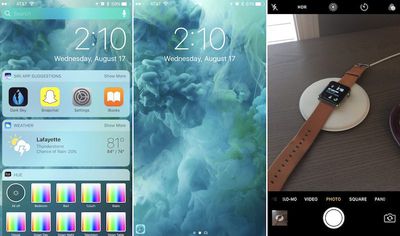
How To Lock Screen 1

  1. To start off, bring your iPhone up to eye level to activate Raise to Wake.
  2. Once the screen is awake, simply swipe right-to-left to bring up the iPhone camera.
  3. To go back to the main lock screen while still in camera, press the home button (trying to swipe back right will simply cycle through the camera's various photo and video modes).
  4. Swipe right from the main lock screen to access your widgets page, which contains a customizable array of widget-supported apps you have downloaded onto your iPhone.
  5. Scroll down to view more widgets.
  6. All the way at the bottom you will find an "Edit" button to rearrange, delete and add any new widgets onto your lock screen.
  7. If you decide to enter the edit menu, gently place your finger on the home button or enter your passcode when prompted.
  8. Tap "Done" when finished editing your widgets, or "Cancel" if you change your mind.
  9. Return to the central lock screen by swiping left.

Interacting With Notifications on the iOS 10 Lock Screen

Thanks to new rich notifications in iOS 10 on 3D Touch-enabled iPhones, you can also use quick actions to jump directly into your favorite apps. Apps currently have varying degrees of interactivity, with Apple's own apps unsurprisingly having the greatest functionality for the time being.

Apple's first-party Messages and Mail apps, for example, allow you to perform various actions directly from the lock screen, such as responding to messages, while most other third-party apps simply direct you to the app itself once your phone is open because developers need to specifically add support for rich notifications. As with the adoption of 3D Touch itself, these features are expected to grow in popularity as more developers embrace iOS 10.

Since any app that allows you to remain on the lock screen will be largely self-explanatory (like typing a text in Messages, as in the screenshot below), these steps will be for notifications that require you to dive past the lock screen.
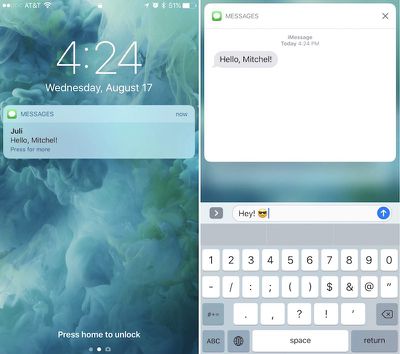
How To Lock Screen 4

  1. Whenever you have an incoming notification, tap and hold on the message to activate 3D Touch.
  2. The resulting dialog box prompts vary from app to app, but could include the option to place a bid on an ending auction (eBay), or view the post a friend recently liked (Instagram), among a variety of other options.
  3. If you choose to follow through with the 3D Touch pop-up dialogue box, enter your passcode or place a finger on the home button to activate Touch ID.
  4. The iPhone will then unlock and bring you to the app you were interacting with on the lock screen.
  5. If you change your mind following a 3D Touch press, tap anywhere else on the screen to return to the normal view.
  6. Note: Apps that don't support rich notifications on the lock screen will simply lack any interactive prompts after pressed upon.

Unlocking the iOS 10 Lock Screen

When you're finally ready to get into your iPhone, follow these steps to get past the security features of iOS 10.
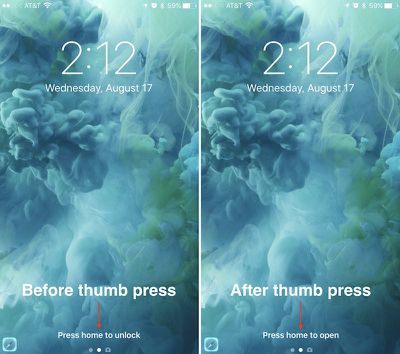
How To Lock Screen 3

  1. As with any interaction on the iOS 10 lock screen, wake up your iPhone by picking up the device using Raise to Wake. On an iPad, you'll need to quickly press the home or power button to activate the screen.
  2. Gently place a Touch ID-approved finger or thumb on the home button to "unlock" the iPhone (do not press the button down).
  3. Now you'll see "Press home to open" at the bottom of the screen.
  4. From here, you can browse notifications, and see widgets that require the iPhone to be unlocked before using (like Activity).
  5. When you're ready to enter your iPhone, simply press the Home button.
  6. Note: If Touch ID fails after three tries, the traditional number pad will prompt you for your iPhone passcode, which will open your iPhone immediately.

Although the new features of the lock screen let you peruse various notifications and widgets for as long as you want, the duality of Raise to Wake and Touch ID also let you enter an iPhone in one quick gesture, as long as you press the home button as soon as you wake up the screen. This method will provide an unlocking method closer to that of iOS 9.

It takes a little getting used to at first, but after a few tries the new unlocking method feels far easier and more convenient than the old mainstay of swiping to unlock. MacRumors will have plenty of other how-to guides coming out to help users get acquainted with iOS 10, so keep a watch out for those and visit the forums for more specific user-created topics focused on the iPhone 7 and iOS 10.


Related Forum: iOS 10

Top Rated Comments

kirky29 Avatar
133 months ago
I honestly hate using the 'press to unlock', I'd like an option to revert back to the 'slide to unlock' method.

Score: 12 Votes (Like | Disagree)
133 months ago
Apple got you covered - go to Accessibility -> home -> rest finger to open

First thing my users wanted to 'fix'
[doublepost=1473795899][/doublepost]
I honestly hate using the 'press to unlock', I'd like an option to revert back to the 'slide to unlock' method.
#5 ('https://forums.macrumors.com/threads/how-to-use-ios-10s-redesigned-lock-screen.1995284/#post-23418331')
Apple got you covered - go to Accessibility -> home -> rest finger to open

First thing my users wanted to 'fix'
Score: 5 Votes (Like | Disagree)
QCassidy352 Avatar
133 months ago
No finger print or password to confirm who you are before displaying info.
Well you can set stuff not to display on the lock screen. Not sure how they could have you enter a fingerprint or passcode to see the info on the *lock*screen, as those actions *unlock* the screen.

It's up to you to decide how much you want displayed prior to unlocking the phone.
Score: 4 Votes (Like | Disagree)
AllergyDoc Avatar
133 months ago
The Lock Screen changes are a significant improvement in usability for me. I prefer Touch to Unlock to Slide to Open, which didn't work well when your screen got greasy. I can check the weather, my schedule, to-do's, see where my wife has wandered off to, respond to texts, all without unlocking my phone.
Score: 3 Votes (Like | Disagree)
AllergyDoc Avatar
133 months ago

Apple got you covered - go to Accessibility -> home -> rest finger to open
That's still not "slide to open."
Score: 3 Votes (Like | Disagree)
tennisproha Avatar
133 months ago
I like home screen unlocking much better now TBH. it's much more functional while still offering you security. slide to unlock was just redundancy now with Touch ID.
Score: 2 Votes (Like | Disagree)

Popular Stories

apple pro tell logo

Apple Launching Five New Products Today

Thursday November 5, 2026 12:59 am PST by
Apple is launching five new products on Friday, November 6, following pre-orders that opened last week, including its first touchscreen MacBook Pro models. The following new products will be available from today: iPad mini with OLED display and A20 Pro chip iMac with M6 chip 14-inch MacBook Pro with M6 chip 14-inch MacBook Pro with OLED touchscreen 16-inch MacBook Pro with OLED...
duo aquarium

More Fun iPhone Duo Apps: 30 New Picks to Try

Friday November 6, 2026 3:27 pm PST by
When the iPhone Duo launched, we shared a list of some of the fun apps developers created for the new form factor. Two weeks out, developers are continuing to come up with fresh ideas, so we thought we'd share some of our favorites. Games Marbles Unhinged ($2.99) - Marbles Unhinged is a marble maze designed for the Duo. When you fold it, the floor turns into a ramp. If you stand the top...
silver iphone 18 pro

Apple Rumored to Drop the iPhone's Action Button Next Year

Friday November 6, 2026 6:07 am PST by
Apple plans to merge the iPhone's Action button with the Camera Control starting next year, according to the leaker known as "Instant Digital." In a new post on Weibo, the leaker claimed that a single press of the combined button would open the camera, while a long press would trigger the function assigned to the Action button. They explicitly clarified that the dedicated Action button would ...
Latest Stories
Apple Taking New Approach to Developing iOS 28 and macOS 28
31 minutes ago
Early Apple Black Friday Deals on Apple Watch, MacBook Air, and More
19 hours ago
'Backglow' Lets You Customize New MacBook Pro's Glowing Apple Logo
19 hours ago
Top Stories: Apple Product Launches, iOS 27.3 Beta, and More
1 day ago
More Fun iPhone Duo Apps: 30 New Picks to Try
2 days ago
Hands-On With Apple's New OLED Touchscreen MacBook Pro
2 days ago
Apple Store With All-New Design Opening Soon in Southern California
2 days ago
Control the Glowing Apple Logo on Your New MacBook Pro
2 days ago
Apple Shares New 'Apple Card: Apply and Use in Minutes' Ad
2 days ago
Apple Says More Than 100,000 Apps Optimized for iPhone Duo, Here's What's Still Missing
2 days ago
Early Black Friday Deals Kickoff With Steep Discounts on Apple Watch Ultras and More
2 days ago
The MacRumors Show: iOS 27.3 Looks Like a Huge Update
2 days ago
Best Buy's Black Friday Event Begins With Sitewide Savings on Apple, TVs, More
2 days ago
Apple Releasing Yet Another Two New Products Next Week
2 days ago
MacBook Air Drops to Lowest Price in Months With Amazon's $250 Discount
2 days ago
Apple Rumored to Drop the iPhone's Action Button Next Year
2 days ago
Apple's Extended Return Policy Now in Effect for 2026 Holiday Season
2 days ago
Apple Music Classical Updated With New Icon and Refreshed Design
2 days ago
OLED iPad Mini, M6 iMac, and New MacBook Pros Available From Today
2 days ago
Apple Surveys iPhone Duo Buyers About Crease and Camera
3 days ago
Apple's First Touchscreen Mac is Now Arriving to Customers
3 days ago
Claude Gets Personal Finance Feature With Bank Account Linking
3 days ago
Apple Arcade Adds Crossy Road Rush and NBA 2K27
3 days ago
Apple's New HomeView Smart Home Hub: Here's How Much RAM It Has
3 days ago
iPad Mini vs. iPad Air Buyer's Guide: Now Just $50 Apart
3 days ago
First iOS 27.3 and macOS Golden Gate 27.3 Public Betas Now Available
3 days ago
Apple Announces a New Mac Sales Record
3 days ago
Paid $200 for Logic Pro? Apple Says You Won't Get This New Feature
3 days ago
Instagram's Edits Video Editor is Now Available on Mac
3 days ago
Prevent Siri and Search From Accessing Specific iPhone Apps
3 days ago









































