How to Use Messages' Tapback, Screen Effects and Bubble Effects in iOS 10 - MacRumorsOpen MenuShow RoundupsShow Forums menuVisit ForumsOpen Sidebar
Skip to Content

How to Use Messages' Tapback, Screen Effects and Bubble Effects in iOS 10

by

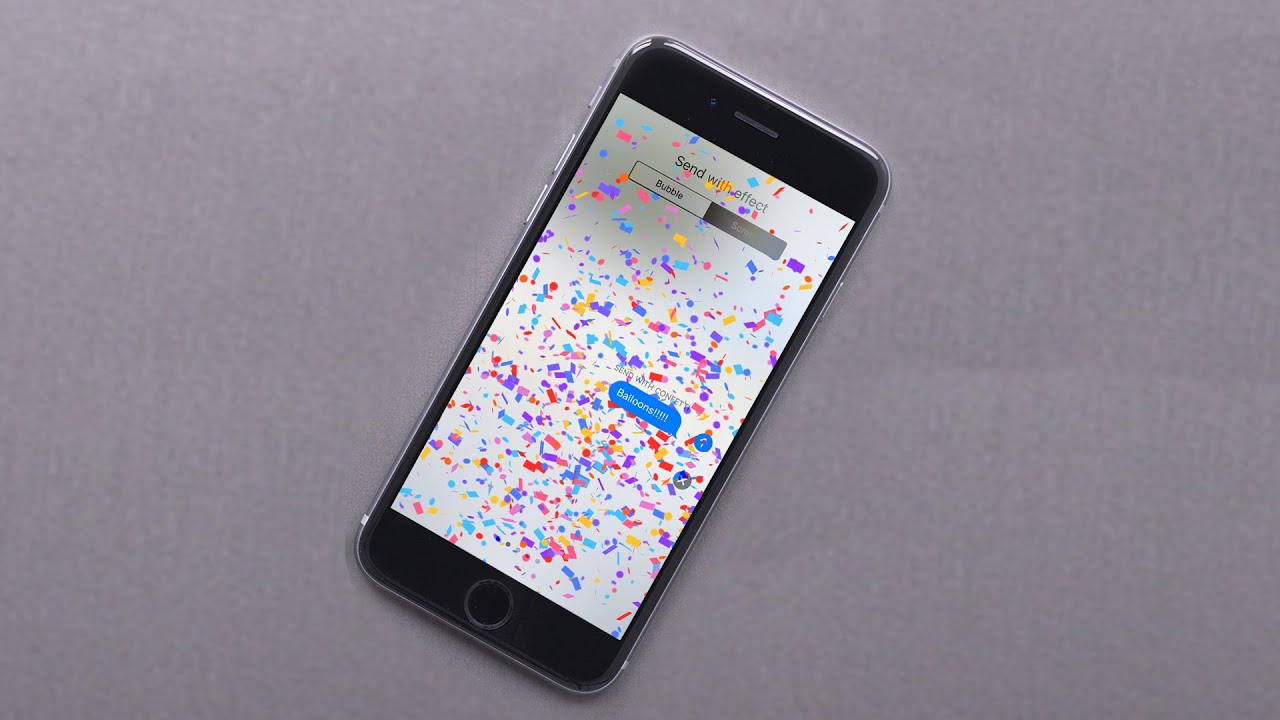
In iOS 10, Messages features creative tools to give users new ways to express themselves and communicate with friends and family. Additions include new bubble effects that change the way iMessage bubbles look, tapback reaction options for sending quick feedback on texts or photos, and screen effects that add fireworks, confetti, and more to the whole messages screen.

All of these tools are simple to use, but there are some hidden features and accessing them for the first time can be tricky, so make sure to check out our how-to for pointers.
Using Bubble Effects

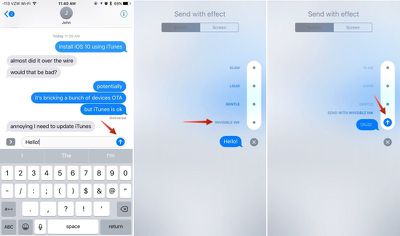
There are currently four kinds of bubble effects that can be added to chat bubbles to impact the mood of a message: Slam, Loud, Gentle, and Invisible Ink. Each one changes the way a chat bubble looks when it's delivered to a friend.

Slam, for example, expands the size of the chat bubble and slams it down onto the screen, while Loud enlarges the chat bubble and makes it shake for a few seconds before it settles down.

Gentle, meanwhile, makes the text within the chat bubble tiny for a few seconds before it expands in size, and Invisible Ink, the neatest effect, fully obscures the look of the text in the chat bubble until a finger is swiped over it to unveil it.
messagesbubbleeffects
Here's how to use Bubble Effects:

  1. Open the Messages app and select an existing conversation or start a new conversation.
  2. Type a message.
  3. On the iPhone 6s or 6s Plus, use a Force Press on the blue arrow next to the chat box to bring up the Bubble Effect options.
  4. On iPads or older iPhones, use a Long Press (press and hold for a few seconds) to bring up the Bubble Effect options.
  5. Select one of the Bubble Effect options to see a preview of what it will look like.
  6. Press the blue up arrow to send your message. It'll be delivered to the recipient with the effect.

Using Screen Effects

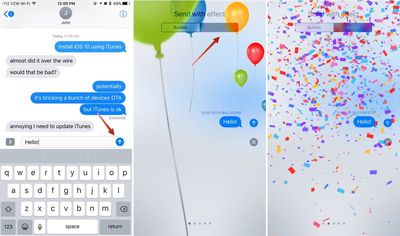
Bubble Effects change the look of the chat bubbles, but Screen Effects temporarily alter the look of the entire Messages display with full screen animations that play alongside text messages you send.
imessagescreeneffects

  1. Open the Messages app and select an existing conversation or start a new conversation.
  2. Type a message.
  3. On the iPhone 6s or 6s Plus, use a Force Press (use a long press on iPads and older iPhones) on the blue arrow next to the chat box to bring up the Bubble Effect and Screen Effect menu.
  4. The default option is Bubble Effects. Tap "Screen Effects" at the top of the display to change modes.
  5. Swipe left and right to cycle through all of the different options.
  6. When you've selected the desired effect, press the blue up arrow to send your message. It will be delivered to the recipient as a full screen animation.

Screen effects can be added to messages manually by following the above directions, but they're also an automatic effect that's activated by certain phrases. For example, if you text a friend "Happy Birthday!" your message will be sent with balloons. If you send a "Congratulations!" text, it'll be accompanied by confetti.

Using Tapback

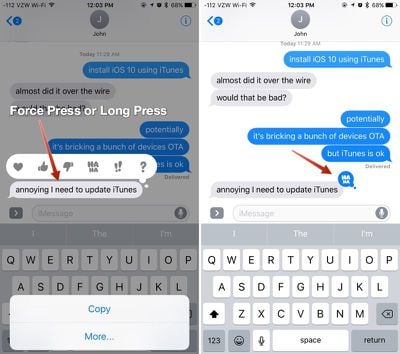
Tapback responses are little icons that can be added to any incoming message bubble, including texts, photos, GIFs, and more, allowing you to quickly share a reaction without having to type a full message. Tapback icons, when used, are added to the chat bubble that was selected and are visible to both you and the message recipient.

Tapback options include a heart, thumbs down symbol, thumbs up symbol, a "haha" icon, an exclamation point, and a question mark. Each symbol represents a different emotion or response, which is conveyed through both the icon and the accompanying notification.
tapbackresponses
Using a heart Tapback response means you "love" a photo or text message, for example, and when you send a heart response, your friend will see the message "Juli loved an image," if attached to a photo. Here's a full list of Tapback responses and the notification that accompanies them:

  • Heart - Juli loved an image
  • Thumbs up - Juli liked an image
  • Thumbs down - Juli disliked an image
  • Haha - Juli laughed at an image
  • Exclamation point - Juli emphasized an image
  • Question mark - Juli questioned an image

Here's how to respond to a message with Tapback:

  1. Open a conversation.
  2. Choose the message you want to respond to.
  3. Long press on the chat bubble. A selection of Tapback icons will be displayed.
  4. Choose the icon you want to respond with.
  5. The icon is attached to the chat bubble and sent to the message recipient.
  6. Want to remove or change a Tapback reaction? Press again and deselect the icon you chose the first time or choose a new one.

Troubleshooting

If you're having trouble getting Bubble Effects and Screen Effects to work, the Reduce Motion setting needs to be turned off if you've turned it on. The feature can be accessed in Settings --> General --> Accessibility --> Reduce Motion. Make sure it's toggled to off, aka not green.

With Reduce Motion turned on, Screen Effects and Bubble Effects do not work because they're motion-based. If you don't like Screen Effects and Bubble Effects, turning on Reduce Motion is a good way to disable them.

Bubble and Screen Effects are only displayed properly on iOS devices running iOS 10 and macOS Sierra.


Related Forum: iOS 10

Top Rated Comments

sudo1996 Avatar
133 months ago
I love how the example conversations are about iOS 10 bricking devices.

Score: 3 Votes (Like | Disagree)
133 months ago
Question:

My mother has an iPhone 6S and she recently updated to iOS 10. She can send messages using the effects and they work when I view them, but messages sent to her using the effects do not work. For instance, if she sends me a text on my phone using invisible ink the effect works on both phones, but if I send her a text from mine using invisible ink she only receives the text along with (sent using invisible ink). Any ideas on how to fix this?

I've made sure the "reduced motion" is off so that wasn't it.
Score: 3 Votes (Like | Disagree)
133 months ago
Is there anyway to turn off this? Also the drawing and App icon?

Prefer to not use these on iMessage
Score: 2 Votes (Like | Disagree)
133 months ago
If changing reduce motion isn't working, try settings>messages> turn iMessage off and back on.
Score: 2 Votes (Like | Disagree)
133 months ago
Ughhh. I wish reduce motion could be a feature by feature selection. Oh well. I'll put up with it now to have these additional message features. Also. It appears bubble and screen effects can only be selected in portrait mode. Kind of wack.
Score: 2 Votes (Like | Disagree)
132 months ago
I'm having trouble using force touch on my 7 plus Press on the blue arrow next to the chat box to bring up the Bubble Effect and Screen Effect menu... it does nothing even if I press really hard, I've adjusted force touch intensity on various levels and nothing.
Have you checked to make sure your reduce motion setting is disabled?
Score: 1 Votes (Like | Disagree)

Popular Stories

apple pro tell logo

Apple Launching Five New Products Today

Thursday November 5, 2026 12:59 am PST by
Apple is launching five new products on Friday, November 6, following pre-orders that opened last week, including its first touchscreen MacBook Pro models. The following new products will be available from today: iPad mini with OLED display and A20 Pro chip iMac with M6 chip 14-inch MacBook Pro with M6 chip 14-inch MacBook Pro with OLED touchscreen 16-inch MacBook Pro with OLED...
duo aquarium

More Fun iPhone Duo Apps: 30 New Picks to Try

Friday November 6, 2026 3:27 pm PST by
When the iPhone Duo launched, we shared a list of some of the fun apps developers created for the new form factor. Two weeks out, developers are continuing to come up with fresh ideas, so we thought we'd share some of our favorites. Games Marbles Unhinged ($2.99) - Marbles Unhinged is a marble maze designed for the Duo. When you fold it, the floor turns into a ramp. If you stand the top...
silver iphone 18 pro

Apple Rumored to Drop the iPhone's Action Button Next Year

Friday November 6, 2026 6:07 am PST by
Apple plans to merge the iPhone's Action button with the Camera Control starting next year, according to the leaker known as "Instant Digital." In a new post on Weibo, the leaker claimed that a single press of the combined button would open the camera, while a long press would trigger the function assigned to the Action button. They explicitly clarified that the dedicated Action button would ...
Latest Stories
Early Apple Black Friday Deals on Apple Watch, MacBook Air, and More
19 hours ago
'Backglow' Lets You Customize New MacBook Pro's Glowing Apple Logo
19 hours ago
Top Stories: Apple Product Launches, iOS 27.3 Beta, and More
1 day ago
More Fun iPhone Duo Apps: 30 New Picks to Try
2 days ago
Hands-On With Apple's New OLED Touchscreen MacBook Pro
2 days ago
Apple Store With All-New Design Opening Soon in Southern California
2 days ago
Control the Glowing Apple Logo on Your New MacBook Pro
2 days ago
Apple Shares New 'Apple Card: Apply and Use in Minutes' Ad
2 days ago
Apple Says More Than 100,000 Apps Optimized for iPhone Duo, Here's What's Still Missing
2 days ago
Early Black Friday Deals Kickoff With Steep Discounts on Apple Watch Ultras and More
2 days ago
The MacRumors Show: iOS 27.3 Looks Like a Huge Update
2 days ago
Best Buy's Black Friday Event Begins With Sitewide Savings on Apple, TVs, More
2 days ago
Apple Releasing Yet Another Two New Products Next Week
2 days ago
MacBook Air Drops to Lowest Price in Months With Amazon's $250 Discount
2 days ago
Apple Rumored to Drop the iPhone's Action Button Next Year
2 days ago
Apple's Extended Return Policy Now in Effect for 2026 Holiday Season
2 days ago
Apple Music Classical Updated With New Icon and Refreshed Design
2 days ago
OLED iPad Mini, M6 iMac, and New MacBook Pros Available From Today
2 days ago
Apple Surveys iPhone Duo Buyers About Crease and Camera
3 days ago
Apple's First Touchscreen Mac is Now Arriving to Customers
3 days ago
Claude Gets Personal Finance Feature With Bank Account Linking
3 days ago
Apple Arcade Adds Crossy Road Rush and NBA 2K27
3 days ago
Apple's New HomeView Smart Home Hub: Here's How Much RAM It Has
3 days ago
iPad Mini vs. iPad Air Buyer's Guide: Now Just $50 Apart
3 days ago
First iOS 27.3 and macOS Golden Gate 27.3 Public Betas Now Available
3 days ago
Apple Announces a New Mac Sales Record
3 days ago
Paid $200 for Logic Pro? Apple Says You Won't Get This New Feature
3 days ago
Instagram's Edits Video Editor is Now Available on Mac
3 days ago
Prevent Siri and Search From Accessing Specific iPhone Apps
3 days ago
Best Early Black Friday Deals on iPhone 18 Pro and iPhone Duo
3 days ago