

In iOS 26, Live Translation enables hands-free communication by allowing users who don't share the same language to speak naturally while wearing AirPods. For conversations with non-AirPods users, the iPhone can display live transcriptions horizontally, showing translations in the other person's preferred language. Keep reading to learn how to use it.
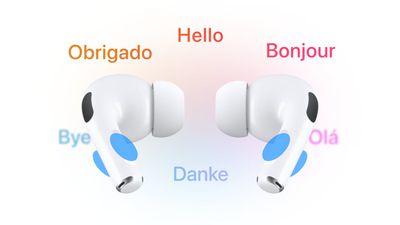
In iOS 26, Live Translation is integrated into Messages, FaceTime, and Phone to help users communicate across languages, translating text and audio on the fly.
However, the feature is at its most impressive when both conversation participants wear compatible AirPods with Live Translation enabled. Active Noise Cancellation automatically lowers the volume of the other speaker, helping users focus on translated audio while maintaining natural interaction flow.
Apple's Live Translation was a headline feature when it announced AirPods Pro 3, but it also works with older models running iOS 26, including AirPods 4 with Active Noise Cancellation and AirPods Pro 2.
What You'll Need
- AirPods 4 (ANC), AirPods Pro 2, or AirPods Pro 3.
- iPhone 15 Pro or later.
- iOS 26 or later.
- The Translate app downloaded.
- The latest AirPods firmware version.
Supported Languages
Live Translation supports real-time translation between English (UK and U.S.), French, German, Portuguese (Brazil), and Spanish. Apple plans to add Italian, Japanese, Korean, and Chinese (simplified) support later this year.
Before you can use Live Translation, you'll need to download the language the other person is speaking and the language you'd like to translate it to.
- Put your AirPods in your ears and make sure they're connected to your iPhone.
- Open Settings on your iPhone, then tap the name of your AirPods.
- Under "Translation," tap Languages, then select the languages you want to download.
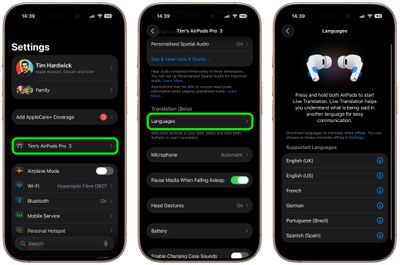
Start a Live Translation Conversation
- Wear your AirPods and connect them to your iPhone.
- Make sure Apple Intelligence is turned on (Settings ➝ Apple Intelligence & Siri).
- Open the Translate app, then tap Live.
- Select the language that the other person is speaking and the language that you want your AirPods to translate it to.
- Tap Start Translation.
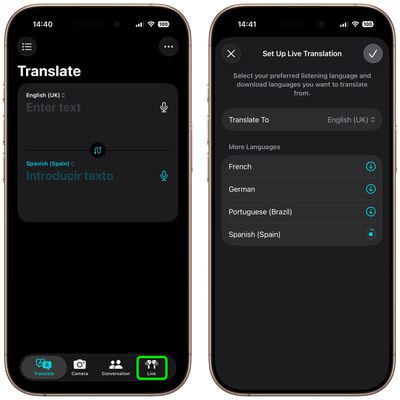
Once the other person speaks, your AirPods instantly translate their words into your chosen language. If you're in a noisy place, you can boost accuracy by letting your iPhone's microphones join in – just move your iPhone closer to the speaker.
When it's your turn, simply reply as you normally would. The Translate app's Live tab can display a transcript of your words on your iPhone screen, or you can tap the Play button to have your iPhone read the translation aloud.
If the person you're talking with also has supported AirPods set up with Live Translation, they'll be able to hear your response directly through their own AirPods. To stop Live Translation at any time, just tap the X button.
Other Ways to Use Live Translation

To start Live Translation at any time, open the Translate app on your iPhone, tap Live, and then tap Start Translation. You can also set the Action button on your iPhone to launch the Translate app, letting you jump straight into Live Translation while wearing your AirPods.
There are several other quick ways to begin. You can press and hold the stems on both AirPods at once, or ask Siri by saying something like "Start Live Translation." You can also swipe down from the top-right corner of your iPhone to open Control Center and tap Translate. (To add Translate to Control Center, long press on a space between the buttons, tap Add Control, then search for and select Translate.)


















Top Rated Comments
I guess it sort of does, now, except it also functions as headphones and isn't as slimy.