iOS 26 Screenshots: Turn Off Full-Screen Previews - MacRumorsOpen MenuShow RoundupsShow Forums menuVisit ForumsOpen Sidebar
Skip to Content

iOS 26 Screenshots: Turn Off Full-Screen Previews

by

Apple has modified the screenshot experience in iOS 26 to accommodate Visual Intelligence and its new Liquid Glass aesthetic. Taking a screenshot is still done by pressing the Side button and Volume Up button on your iPhone, but the interface has been redesigned, while there's another change that might slow down your workflow if you're used to the streamlined approach taken in iOS 18 and earlier.
iOS 26 Screenshots

Why You Might Want to Switch Back

If you regularly use Apple's screen capture tools in iOS 18, you'll know that screenshots appear as small thumbnails in the bottom-left corner that you can quickly tap to edit and save or ignore. This lets you continue using your iPhone without interruption, while still giving you the option to markup and/or share a screenshot when required.

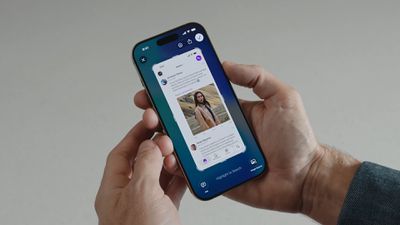
In contrast, the new full-screen preview mode in iOS 26 displays your screenshot across the entire display by default, complete with editing tools and Visual Intelligence options at the bottom. While this gives you immediate access to cropping, markup, and AI-powered features, it may feel intrusive compared to iOS 18's approach.

Disabling Full-Screen Previews

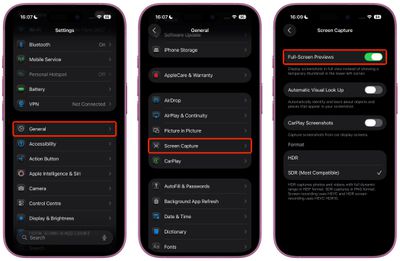
When you take your first screenshot after updating to iOS 26, you should see an on-screen prompt asking if you'd like to "Switch to Thumbnail View." If you missed this opportunity or accidentally tapped "Not Now," you can still revert to the old thumbnail approach, thanks to a new settings menu:

  1. Open Settings on your iPhone.
  2. Tap General.
  3. Select Screen Capture.
  4. Toggle off Full-Screen Previews.

settings

Once disabled, screenshots will revert to the familiar iOS 18 behavior, appearing as temporary thumbnails in the bottom-left corner. You can still access all editing features by tapping the thumbnail when you need them, or you can review the images later in the Photos app.

Additional Screenshot Options

While you're in Screen Capture settings, you'll also find new options for enabling HDR screenshots (saved in HEIF image format), a CarPlay Screenshots toggle for when your iPhone is connected to CarPlay, and Visual Lookup (iPhone 15 Pro and newer models only).

Top Rated Comments

15 months ago

It would be nice if Apple allowed the ability to take screenshots, but also have the option of NOT saving the screenshot to the photo library

This would be useful for when you’re looking to share information with friends or family, but not necessarily want to save that screenshot to your photo library
iOS 18 does have this option. After tapping 'Done' there is a 'Copy and Delete' option, which is perfect for your use case (which is also often a use case for me).
Score: 11 Votes (Like | Disagree)
jz0309 Avatar
15 months ago
Thank you1 I love these type of articles!
Score: 9 Votes (Like | Disagree)
Justin Cymbal Avatar
15 months ago

Additional Screenshot Options

While you're in Screen Capture settings, you'll also find new options for enabling HDR screenshots (saved in HEIF image format), a CarPlay Screenshots toggle for when your iPhone is connected to CarPlay, and Visual Lookup (iPhone 15 Pro and newer models only).
It would be nice if Apple allowed the ability to take screenshots, but also have the option of NOT saving the screenshot to the photo library

This would be useful for when you’re looking to share information with friends or family, but not necessarily want to save that screenshot to your photo library
Score: 6 Votes (Like | Disagree)
jayducharme Avatar
15 months ago

good grief, I just tell Siri to take a screenshot..
"Here's what I found for screenshots on the web."

I have a slightly different problem: I inadvertently take screenshots just by picking up the phone. I wish Apple had left the power button on the top of the device, rather than opposite the volume buttons (though I realize that's inconvenient with ginormous phones).
Score: 4 Votes (Like | Disagree)
Moonjumper Avatar
15 months ago
I'd like the option to just capture the screen and have no preview, going straight to saving to Photos, just like it used to be. I'd also like the same on Mac, which is where I notice the difference most. The click and carry on flow has gone. I'm not saying it should be the default, but it should be an option.
Score: 4 Votes (Like | Disagree)
15 months ago
I am a heavy screenshot user but it isn't obvious to me - just from reading - that the change needs to be undone. Always good to have a setting to turn it off and a tutorial on how to do that, but I will try the new default behavior first. I am not a dev so waiting for the public beta to drop.
Score: 4 Votes (Like | Disagree)

Popular Stories

iOS 27 Next to iPhone

Here's When iOS 27 Rolls Out Today in Every Time Zone [Update: It's Out]

Sunday September 13, 2026 3:00 am PDT by
Update 10:04 a.m.: iOS 27 is rolling out now, though it may take a bit for all users to see it, so keep checking! Apple is about to release iOS 27, which will finally deliver more advanced Siri AI capabilities as well as a variety of other refinements, improvements, and new features to iPhones. It's Apple's biggest software update of the year, and Apple announced at Wednesday's iPhone event...
iOS 27 Icon iPhone

iOS 27 Available Now With These 8 New Features

Monday September 14, 2026 9:00 am PDT by
Update — 10 a.m. Pacific Time: Apple has released iOS 27. During its iPhone 18 Pro and iPhone Duo event last week, Apple announced that iOS 27 will be released widely on Monday, September 14. iOS 27 should be available around 10 a.m. Pacific Time / 1 p.m. Eastern Time today via the Settings app, under General → Software Update. Below, we have highlighted eight new features and...
Apple iCloud Plus expansion hero

iCloud+ Now Includes Apple TV, Apple Arcade, and Curated Apple Music Stations in Over 100 Countries

Tuesday September 15, 2026 1:43 am PDT by
Apple today announced a new subscription initiative that turns paid iCloud+ subscriptions into a broader services bundle in more than 100 countries. In select countries, Apple says every paid iCloud+ plan, including the cheapest 50GB tier, now includes Apple TV and Apple Arcade "at no additional cost," while family sharing extends the storage, TV and Arcade access to up to five people....