

On iPhone 15, if you take a photo of a person, cat, or dog, the camera detects them in the frame and captures rich depth information automatically — allowing you to turn it into a stunning portrait right away or later on in the Photos app. Here's how it's done.
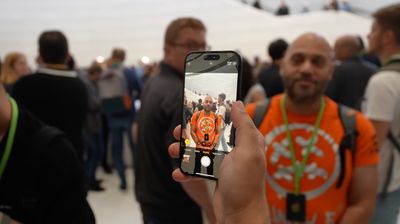
Apple's Portrait Mode has become a popular way of taking impressive shots using a depth-of-field effect known as bokeh, allowing iPhone users to shoot a photo that keeps the subject sharp with a blurred background.
On previous iPhones, Portrait photos mode used a more laborious system than regular photos in order to capture the depth map in the image, and this resulted in more shutter lag as well as a lack of support for Smart HDR.
On iPhone 15 models, however, Apple's new next-generation Portraits use the same Photonic engine pipeline as regular photos, so there's no compromise in quality or shutter lag in either mode. That means you can turn a photo of a subject into a Portrait long after shooting. All it takes is a few taps when editing. The following steps show you how.
Quickly Change a Photo to a Portrait
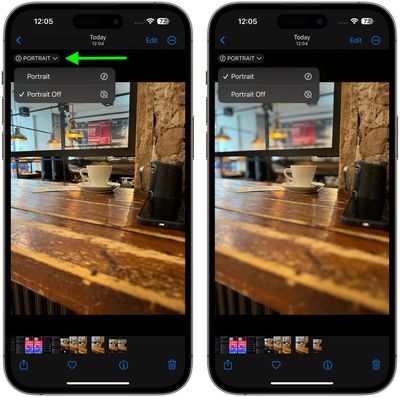
- In the Photos app, tap any photo taken in Photo mode to view it in fullscreen. If depth information is available for the photo, a Portrait button will appear in the top-left corner.
- Tap the Portrait button and select Portrait from the dropdown to enable the depth of field effect.
- If you're not happy with the effect, tap the Portrait button again and select Portrait Off to disable it.
Edit the Portrait Effect in Photos
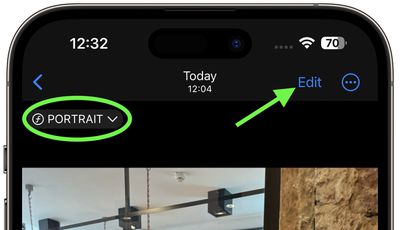
- In the Photos app, tap any photo taken in Photo mode to view it in fullscreen. If depth information is available for the photo, a Portrait indicator will appear in the top-left corner.
- Tap Edit.

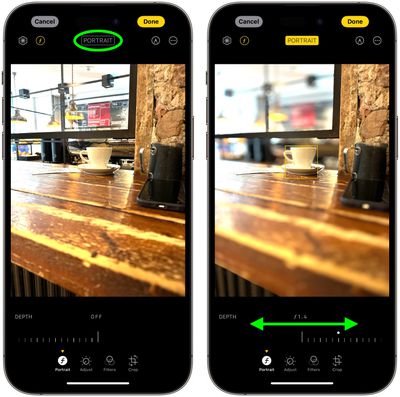
- Tap the Portrait button to enable the depth of field information.
- Use the Depth Control slider to increase or decrease the level of background blur in the portrait.
- To change the focal subject in the picture, simply tap the new subject, and the focus will switch to it.
- Tap Done to finish.
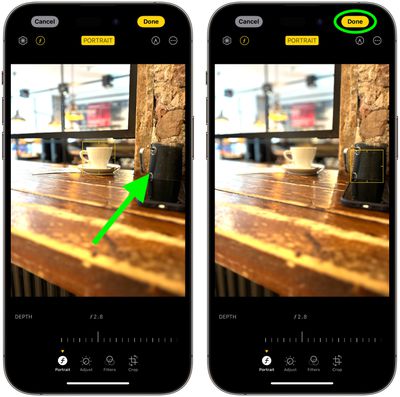
To undo all portrait effects, simply open the photo again, tap Edit, then tap Revert.
It's worth noting that when the portrait effect is applied to a Live Photo taken in Photo mode, the Live Photo effects aren't available. Tap Live to view the Live Photo or apply a Live Photo effect without the portrait effect applied.
Disable Auto Portrait Capture
If you want to save storage space, you can prevent the iPhone 15 camera from automatically capturing depth information in photos.
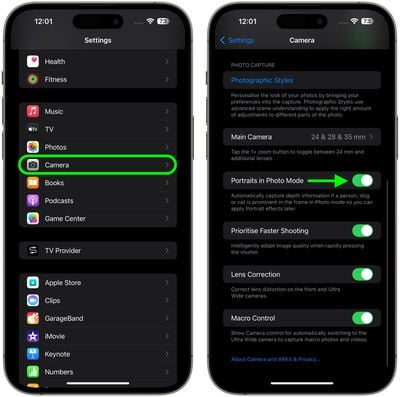
- Open the Settings app.
- Scroll down and tap Camera.
- Scroll down and toggle off the switch next to Portraits in Photo Mode.
To learn how to take photos in Portrait mode during shooting, check out our dedicated how-to article.















