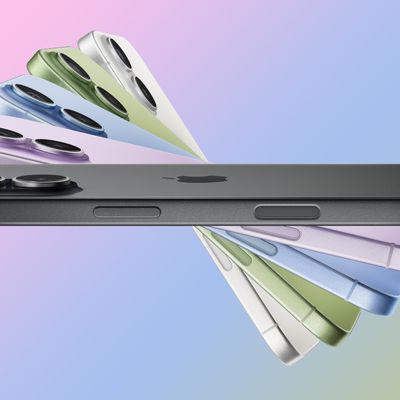
With the launch of the iPhone 16 series, Apple has brought the immensely detailed world of close-up macro photography to its entire iPhone lineup for the first time. Keep reading to learn how it works.
Macro mode was originally introduced with the iPhone 13 series, but it was limited to Apple's Pro models. That continued to be the case for the iPhone 14 series and iPhone 15 series, but with the iPhone 16 lineup, Apple has finally brought the feature to its standard iPhone 16 and iPhone 16 Plus models as well.
With Macro mode, you can take pictures or video of subjects that are as close as 2cm to your iPhone's camera lens, which means you can now take shots of flowers, textures, insects, or pretty much anything small or at close distance, with accurate focus, rich detail, and no blurring.
Here's how to use the Macro feature on iPhone 16, iPhone 16 Plus, iPhone 16 Pro, and iPhone 16 Pro Max.
- Open the Camera app on your iPhone.
- Move as close to your subject as possible until the Macro Control icon (the flower) appears in the viewfinder.
- If there is blurring, move away slightly from the subject until it's in focus, then take your picture using the shutter button. (If you're in Video mode, tap the shutter to start recording, then tap again to stop.)
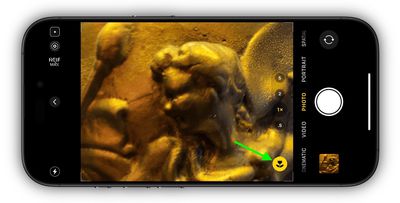
When Macro is enabled, the iPhone camera automatically switches from the Wide lens to the Ultra Wide lens when an object is placed within 5.5 inches of the rear camera. (The viewfinder still shows "1x" framing, but the camera relies on the Ultra Wide lens for autofocus.)
From the user's perspective, this results in the viewfinder jittering as it attempts to choose between a regular wide or wide-macro shot when the subject gets closer or further away. While this automatic camera switching is intentional to help users better capture close-up details, it can be annoying because it can be difficult to get a shot with the camera constantly swapping back and forth.
If you find this to be the case in your own experience, you can turn off Macro mode simply by tapping the flower icon in the viewfinder.