On iPhone 18 Pro and iPhone 18 Pro Max, Apple's new Pro controls in the Camera app allow you to adjust various aspects of the camera's settings, turning the app into a much more flexible photography tool. Here we explain how to adjust the shutter speed on the new iPhone 18 Pro models, and why you might want to do so.
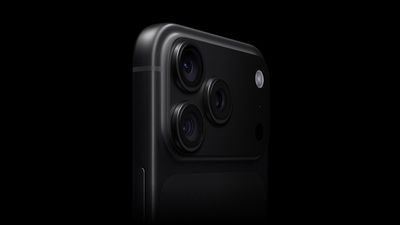
On iPhone 18 Pro, the new Pro Controls expand what you can adjust in the Camera app. They allow you to take greater control over aperture, shutter speed, and white balance, and even adjust the distribution of brightness via a histogram so that you can judge exposure, rather than you relying entirely on automatic decisions.
The new shutter speed control ranges from 1/1600 of a second to a full second. At 1/1600 second, the exposure is extremely brief. This freezes motion well and reduces blur from camera shake, but it lets in much less light. It's useful for moving subjects, bright scenes, or when you want a very crisp frame.
At the other end of the scale (1 second) the sensor gathers light for a full second. This lets in far more light, but anything moving during that second can blur. Bear in mind that hand movement can also soften the image, so a tripod or very steady support becomes more important at this setting.
In summary, faster speeds freeze motion but let in less light, while slower speeds gather more light at the expense of increased motion blur. Here's a general rule of thumb:
- 1/1600s: Allows in less light ➝ less motion blur.
- 1/250s: fairly fast ➝ useful for everyday movement.
- 1/60s: slower, more light ➝ some risk of blur.
- 1/4s: much more light ➝ obvious motion blur possible.
- 1s: very bright exposure in low light ➝ strong blur if anything moves.
Follow these steps to adjust the shutter speed on iPhone 18 Pro and iPhone 18 Pro Max:
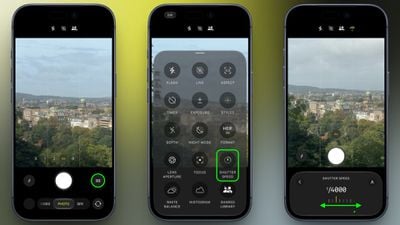
- In the Camera app, tap the button with six dots at the bottom-right of the interface.
- Select Shutter Speed from the control pane.
- Drag the shutter speed slider to adjust, from 1/1600 to 1 second. (Tap the A button at any point to return to Auto mode.)
- When you're happy with the white balance setting, tap the shutter button to take your photo.
Don't forget: the big upgrade this year is the new variable aperture on the Main camera. To learn how to manually adjust the aperture on iPhone 18 Pro, check out our dedicated how-to guide.