On iPhone 18 Pro and iPhone 18 Pro Max, Apple's new Pro controls in the Camera app allow you to adjust various aspects of the camera's settings, turning the app into a much more flexible photography tool. Here we explain how to use the live Histogram on the new iPhone 18 Pro models, and why you might want to do so.
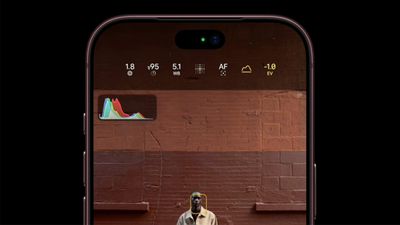
On iPhone 18 Pro models, you can check the exposure across the frame while you compose your shot in the Camera app. This is achieved with the new live Histogram, which gives you a quick visual guide to how bright or dark your photo is before you take it.
The left side of the Histogram represents shadows and the right side highlights, while the middle covers everything in between. By checking whether the graph is bunched up against either edge, you'll be able to spot areas that may be too dark or too bright and adjust the exposure before taking the shot.
You can view three different versions of the histogram: Luminance provides a simple overview of brightness, RGB Parade separates the red, green, and blue channels for closer inspection, while RGB Composite overlays all three so you can monitor exposure and color clipping at the same time.
Follow these steps to enable the live histogram on iPhone 18 Pro and iPhone 18 Pro Max:
- In the Camera app, tap the button with six dots at the bottom-right of the interface.
- Select Histogram from the control pane.
- Watch the histogram in the top-left corner of the viewfinder to help compose your shot. You can also tap the histogram to cycle between Luminance, RGB Parade, and RGB Composite views.
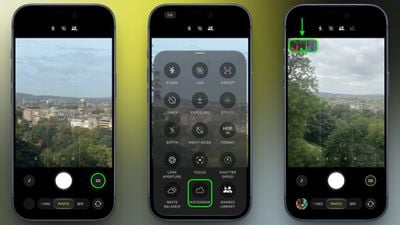
Note that you can customize the camera controls so that the Histogram button always appears above the camera frame for easy access. See our guide on customizing the camera tools to learn how.