With Apple's latest iPhone 18 Pro and iPhone 18 Pro Max models, you can adjust not only specific colors in certain parts of your photos, but also their texture and grain, thanks to the latest-generation Photographic Styles 3. Here's how to use them.
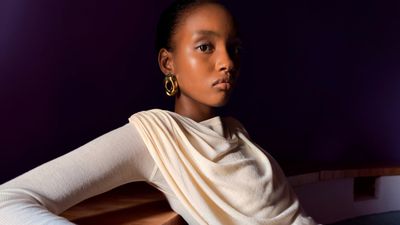
Photographic Styles are tone presets that adjust the color and warmth of a photo as it is captured, rather than as a filter applied afterward, while preserving skin tones. The new iPhone 18 Pro models feature a redesigned computational imaging pipeline for the 48-megapixel Fusion Main camera that Apple says produces sharper, more detailed shots. And the new texture and grain controls in Photographic Styles 3 build on that pipeline, allowing you to further dial in your desired appearance for more creative control over your photos.
Here's how to use the new controls in Photographic Styles on iPhone 18 Pro.
- In the Camera app, tap the button with six dots at the bottom-right of the interface.
- Select Styles from the control pane.
- Swipe to a style that you want to use, then tap the Customize button below it.
- Use the square palette to adjust tone and color simultaneously, or use the + and - dial below it to adjust the palette separately. When you're done, tap Texture.
- Select a texture from the list: Soft Skin, Glow, Film, and Grain.
- Adjust the Texture control to your liking using the square palette, then take your shot.
Note that the texture and grain effects are applied after you take the photo.
Did you know that you can also adjust the photographic style of a picture after it has been taken? Click the link to our dedicated how-to article to learn how.