

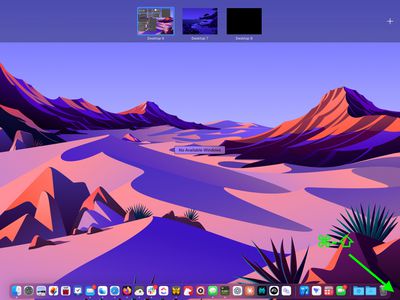
In macOS, the Hot Corners feature turns each of the four corners of your screen into a designated action, allowing you to quickly access certain functions built into the system, such as Mission Control, Notification Center, the Screen Saver, QuickNote, and more. Many Mac users would agree, there's something satisfying about bringing up these commonly used functions with a simple, swift cursor movement.
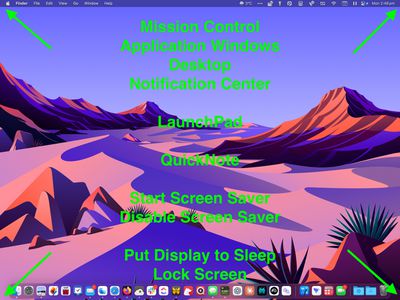
What isn't so satisfying, however, is accidentally triggering a Hot Corner, which can lead to all kinds of unintended desktop behavior - like application windows flying all over the place. This can happen when you lose track of the mouse cursor, or when you're working within the confines of a smaller MacBook screen. Thankfully, there's a way to tame wayward Hot Corners using modifier keys. Here's how.
How to Set Up Hot Corners With Modifier Keys
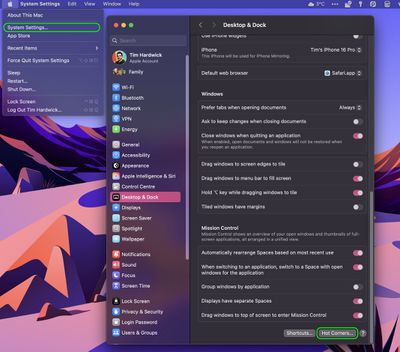
- Launch System Settings ( ➝ System Settings...).
- Click Desktop & Dock in the side column.
- Click the Hot Corners... button at the bottom of the menu.

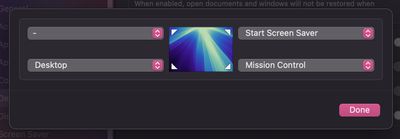
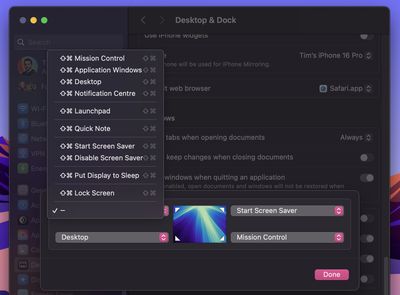
- In the dialog that appears, click the chevrons to open the dropdown menu corresponding to the screen corner that you want to use as a Hot Corner.
- Now, hold down a modifier key and select a function from the dropdown to assign to the Hot Corner. Note that you can use different modifier keys for different Hot Corners, and even key combinations if you prefer. We're using the Command and Shift keys in our example.
- Repeat the action for any additional Hot Corners you'd like to set.
- Click the OK button when you're done.
The next time you come to use a Hot Corner, hold down the modifier key(s) as you move the mouse cursor towards it, otherwise the action you assigned to that corner won't work by design.
If you want to change the modifier key associated with a Hot Corner, navigate back to the Hot Corners... menu, and tap the assigned modifier key to remove it, then hold down the new one you want to use as you click on the Hot Corner function.















