How to Perform a Clean Installation of macOS Sierra - MacRumorsOpen MenuShow RoundupsShow Forums menuVisit ForumsOpen Sidebar
Skip to Content

How to Perform a Clean Installation of macOS Sierra

by

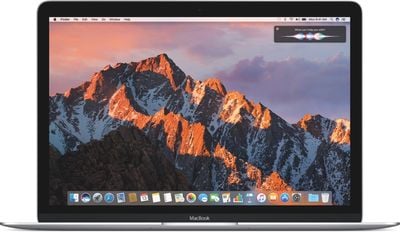
macOS Sierra is Apple's latest desktop operating system, which succeeds OS X El Capitan and adopts a new name to bring it in line with iOS, watchOS, and tvOS. The OS will come pre-installed on all new Macs once current stock is depleted and is a free download for existing Mac owners.
012-macos-sierra-970-80
The main new feature in macOS Sierra is deep Siri integration, bringing Apple's personal assistant to the Mac for the first time. It also adds new features to Photos and Messages, and includes Continuity smarts like Universal Clipboard and an Auto Unlock option for Apple Watch owners.

This tutorial explains how to download macOS Sierra and perform a clean install, which offers several benefits over the automatic upgrade process included in the installation package.

Benefits of a Clean Install

A clean install can remove annoying quirks and strange behaviors that your Mac may have inherited over time due to driver upgrades, wonky apps, and messy installation procedures. Performing a fresh install can also reclaim lost disk space caused by junk files left by third-party apps, and can generally make your Mac feel a lot snappier, enabling you to relive that feeling of booting it up for the first time.
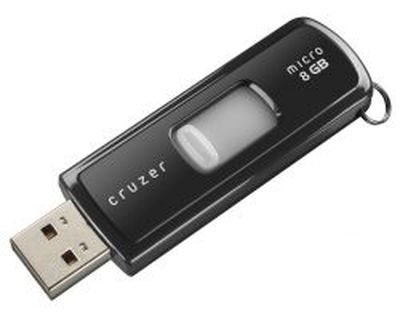
SanDisk USB Flash Drive (U3)To complete the clean install procedure described below, you'll need an 8GB or larger USB thumb drive and an hour or two to spare.

You should also perform a full backup of your Mac beforehand using Time Machine. That way you can restore your system from the Recovery partition if something goes wrong. Alternatively, save a bootable mirror image of your system to an external drive using a clone utility like SuperDuper! ($27.95) or Carbon Copy Cloner ($39.99).

Compatibility Check

Before you do anything, check that your Mac is compatible with Apple's new operating system. macOS Sierra supports the following:

  • iMac (Late 2009 or newer)
  • MacBook Air (2010 or newer)
  • MacBook (Late 2009 or newer)
  • Mac mini (2010 or newer)
  • MacBook Pro (2010 or newer)
  • Mac Pro (2010 or newer)

Another way of checking if your Mac is compatible is to open the Apple menu in the upper left corner of your Mac's screen and selecting About This Mac. Look just below the OS X version number in the Overview tab – if the Mac model name is the same or a later model year than the one shown in the compatibility list above, your Mac is compatible with Sierra.

Pre-Install Notes

If you want total control of what data gets transferred to the new OS, you can sidestep the Migration Assistant and manually copy any important files and folders on your existing system to an external drive instead. It's also worth taking a screenshot of your desktop, to serve as a record of how you like things set up.

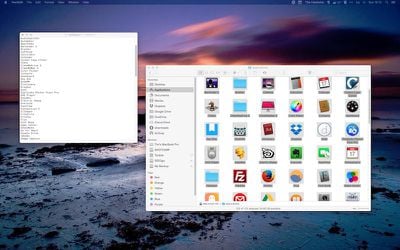
Some users may find it useful to make a note of the contents of their Applications folder for later reference. A screenshot may suffice (Command-Shift-4, then Space to capture the Finder window), but if not, the following steps describe a simple way to create a list of apps.
Finder & TextEdit

  1. Open the Applications folder and press Command+A to select all apps in the Finder window, then press Command+C.
  2. Now open up TextEdit, create a new document, select Format -> Make Plain Text from the menu bar, and press Command+V to paste a list of app names into the document.
  3. If necessary, add details of download locations for any non-Mac App Store apps you use, append any serial numbers you might need, and save the text document to an external drive.

Be sure to allow any cloud services you use to complete synchronization before continuing. It's also worth screen-grabbing or noting down any custom preferences, settings, Wi-Fi passwords, and app-specific profiles you use.

Lastly, de-authorize any services on your Mac, including your iTunes account (iTunes menu > Store > Deauthorize this Computer), since these are usually limited to a set number of systems.

Create a Bootable Installer

Download the macOS Sierra installation package from the Mac App Store. Once it has downloaded, follow these steps to create a USB bootable installer.

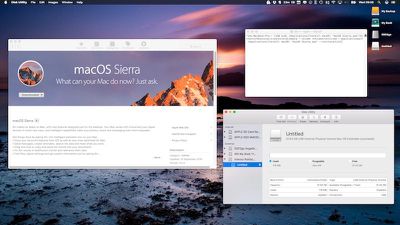
  1. Open Disk Utility (found in the Applications/Utilities folder), select the thumb drive in the sidebar and click the "Erase" button.
  2. Name the USB drive "Untitled" if it isn't already, choose the Format "OS X Extended (Journaled)", and click "Erase". Once your thumb drive is formatted and the macOS installation package has finished downloading, open up Terminal (found in Applications/Utilities).
  3. Now, ensure the USB drive is the only disk named "Untitled" connected to your Mac, and then paste the following command into the Terminal window, and press Enter: sudo /Applications/Install\ macOS\ Sierra.app/Contents/Resources/createinstallmedia --volume /Volumes/Untitled --applicationpath /Applications/Install\ macOS\ Sierra.app --nointeraction
  4. You should be prompted for your administrator password. Enter it, and the command will create a bootable Sierra installer on the USB drive. The process will take a few minutes to complete, so leave it running.
clean install Sierra

Restart and Install

Once the USB installer has been created, restart your Mac and hold down the Option key as soon as you hear the reboot tone. Then follow these steps:

  1. Use the mouse pointer or the arrow keys on your keyboard to select the disk called "Install macOS Sierra" in the drive list that appears on the screen.
  2. Once the USB drive has booted, select "Disk Utility" from the Utilities window, choose your Mac's startup drive from the list, and click "Erase".
  3. When your Mac's startup disk is formatted, return to the Utilities window and select "Install macOS", choose your freshly erased startup drive when asked where to install the OS, and follow the onscreen prompts to complete the installation.

Post-Install Steps

Once the clean installation of macOS Sierra is up and running on your Mac, you can either restore your data from a Time Machine backup using Migration Assistant (found in Applications/Utilities), or begin restoring your apps, files, and settings manually to get your Mac set up just the way you like it.

macossierraroundup

Tag: macOS
Related Forum: macOS Sierra

Top Rated Comments

philosopherdog Avatar
132 months ago
If you just go and restore from time machine you defeat the purpose of clean installing. You can do a selective restore, but don't restore your settings.
Score: 6 Votes (Like | Disagree)
maxsix Avatar
132 months ago
"Deep Siri Integration"

No Thanks Apple.
Score: 6 Votes (Like | Disagree)
132 months ago
Can you confirm this? Because on https://support.apple.com/en-us/HT204904, Apple writes that "This installs the OS X that came with your Mac when it was new" and that the new owner (or you) would need to upgrade via the App Store afterwards to get the latest.

Asking because I am not sure which is best as I am planning to give my old iMac away (waiting for the new Pro...)
Internet Recovery (command–option-R) ≠ Recovery (command–R). Recovery uses a local partition on your disk, whereas Internet Recovery loads an environment on-demand. The latter will always load one to install the original version of OS X, whereas the regular Recovery will always load the version that matches its own version.

Is this really worth doing? I have "dirty" upgraded since I got my MBP in 2011 and not noticed any issue so far.. :-/
No, it is not. I have been advocating against it. It is a waste of time for most users and provides no absolute benefits. I only recommend it if system configurations were changed (e.g. in /private/etc or /private/var), because this is something that a reinstallation will not fix reliably (given that it is expressly meant for configuration). Under normal circumstances, the user never changes anything of this manually.

Since El Capitan, Apple claims complete ownership over /System, /bin, /sbin and /usr. This makes it very difficult to even break anything beyond repair. Normally, a reinstallation is enough to fix such problems, because it is effectively an overwrite anyway.
Score: 5 Votes (Like | Disagree)
hortod1 Avatar
132 months ago
Agree fully. It is clear that Apple has been REMOVING features, not adding them.

Siri ? That's just a re-work of that invasive bloatware known as "Spotlight".

Keep it Apple, many of us are not interested.
Many of us are. Which is why you're given the OPTION to disable it. Don't like it, don't use it. Pretty straight forward.



Score: 5 Votes (Like | Disagree)
eeyoredragon Avatar
132 months ago
I don't know why everyone always suggests the USB install disk method to clean install a new OS. It's long, complicated, and requires buying a 16GB USB stick if you don't have one.
There's an easier way, particularly if you only have one computer you want to clean install:

When you boot from the recovery partition it allows you to erase the boot drive and reinstall the last installed version of macOS.

Now, at this stage you probably have El Capitan installed, so you need to download Sierra from the App Store and upgrade as usual. Then once it is installed, restart your computer and hold down command R at restart to boot from recovery partition.
Use disk utility to erase your boot disk then reinstall macOS.

Hope that helps!
This is typically what I do.

That being said, how is the USB method "long and complicated" compared to doing two installations of the operating system which you do via the recovery partition method?
Score: 4 Votes (Like | Disagree)
132 months ago
Thanks MR. I do love the feel of a fresh install, thankfully I don't have to do it very often anymore, unlike my WinXP days.

"Deep Siri Integration"

No Thanks Apple.
First thing I disabled.
Score: 4 Votes (Like | Disagree)

Popular Stories

apple pro tell logo

Apple Launching Five New Products Today

Thursday November 5, 2026 12:59 am PST by
Apple is launching five new products on Friday, November 6, following pre-orders that opened last week, including its first touchscreen MacBook Pro models. The following new products will be available from today: iPad mini with OLED display and A20 Pro chip iMac with M6 chip 14-inch MacBook Pro with M6 chip 14-inch MacBook Pro with OLED touchscreen 16-inch MacBook Pro with OLED...
duo aquarium

More Fun iPhone Duo Apps: 30 New Picks to Try

Friday November 6, 2026 3:27 pm PST by
When the iPhone Duo launched, we shared a list of some of the fun apps developers created for the new form factor. Two weeks out, developers are continuing to come up with fresh ideas, so we thought we'd share some of our favorites. Games Marbles Unhinged ($2.99) - Marbles Unhinged is a marble maze designed for the Duo. When you fold it, the floor turns into a ramp. If you stand the top...
silver iphone 18 pro

Apple Rumored to Drop the iPhone's Action Button Next Year

Friday November 6, 2026 6:07 am PST by
Apple plans to merge the iPhone's Action button with the Camera Control starting next year, according to the leaker known as "Instant Digital." In a new post on Weibo, the leaker claimed that a single press of the combined button would open the camera, while a long press would trigger the function assigned to the Action button. They explicitly clarified that the dedicated Action button would ...
Latest Stories
Siri AI Rumored to Become 'More Like an Agent' as Early as Next Year
4 hours ago
Apple Taking New Approach to Developing iOS 28 and macOS 28
6 hours ago
Early Apple Black Friday Deals on Apple Watch, MacBook Air, and More
1 day ago
'Backglow' Lets You Customize New MacBook Pro's Glowing Apple Logo
1 day ago
Top Stories: Apple Product Launches, iOS 27.3 Beta, and More
1 day ago
More Fun iPhone Duo Apps: 30 New Picks to Try
2 days ago
Hands-On With Apple's New OLED Touchscreen MacBook Pro
2 days ago
Apple Store With All-New Design Opening Soon in Southern California
2 days ago
Control the Glowing Apple Logo on Your New MacBook Pro
2 days ago
Apple Shares New 'Apple Card: Apply and Use in Minutes' Ad
2 days ago
Apple Says More Than 100,000 Apps Optimized for iPhone Duo, Here's What's Still Missing
2 days ago
Early Black Friday Deals Kickoff With Steep Discounts on Apple Watch Ultras and More
2 days ago
The MacRumors Show: iOS 27.3 Looks Like a Huge Update
2 days ago
Best Buy's Black Friday Event Begins With Sitewide Savings on Apple, TVs, More
2 days ago
Apple Releasing Yet Another Two New Products Next Week
2 days ago
MacBook Air Drops to Lowest Price in Months With Amazon's $250 Discount
2 days ago
Apple Rumored to Drop the iPhone's Action Button Next Year
2 days ago
Apple's Extended Return Policy Now in Effect for 2026 Holiday Season
2 days ago
Apple Music Classical Updated With New Icon and Refreshed Design
2 days ago
OLED iPad Mini, M6 iMac, and New MacBook Pros Available From Today
2 days ago
Apple Surveys iPhone Duo Buyers About Crease and Camera
3 days ago
Apple's First Touchscreen Mac is Now Arriving to Customers
3 days ago
Claude Gets Personal Finance Feature With Bank Account Linking
3 days ago
Apple Arcade Adds Crossy Road Rush and NBA 2K27
3 days ago
Apple's New HomeView Smart Home Hub: Here's How Much RAM It Has
3 days ago
iPad Mini vs. iPad Air Buyer's Guide: Now Just $50 Apart
3 days ago
First iOS 27.3 and macOS Golden Gate 27.3 Public Betas Now Available
3 days ago
Apple Announces a New Mac Sales Record
3 days ago
Paid $200 for Logic Pro? Apple Says You Won't Get This New Feature
3 days ago
Instagram's Edits Video Editor is Now Available on Mac
3 days ago








































