How to Make Your iPhone Display Dimmer Than Standard Brightness Controls Allow - MacRumorsOpen MenuShow RoundupsShow Forums menuVisit ForumsOpen Sidebar
Skip to Content

How to Make Your iPhone Display Dimmer Than Standard Brightness Controls Allow

by

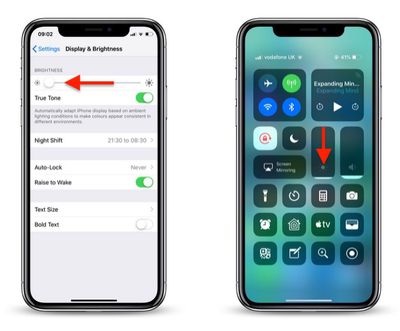
If the screen of your iPhone or iPad is too bright for comfort, the usual solution is to go to Settings -> Display & Brightness and drag the Brightness slider to the left, or open Control Center and adjust the corresponding setting from there.
how to reduce screen brightness further in iOS 1
However, if the lowest setting offered by the Brightness level just isn't dim enough for you, there are a couple of ways to make your screen even darker. One method we've covered previously is to adjust white point using the Accessibility Shortcut. Another way is to enable a low light filter, which you can do by following the steps below.

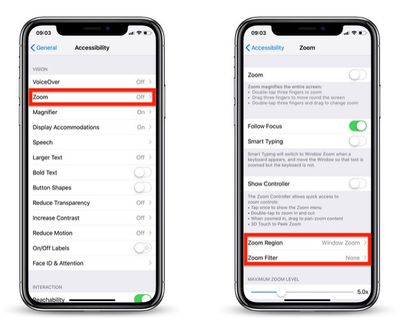
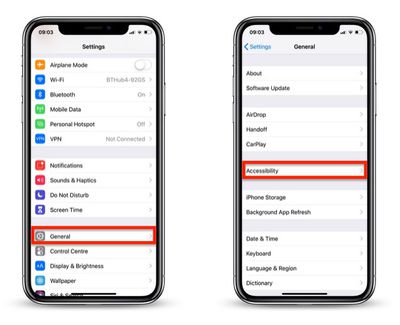
  1. Launch the Settings app on your iOS device.
  2. Tap General.
  3. Tap Accessibility.
    how to reduce screen brightness further in iOS 2

  4. Tap Zoom.
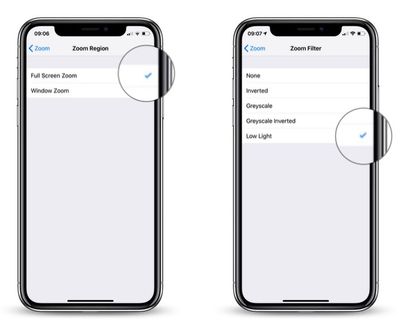
  5. Tap Zoom Region.
    how to reduce screen brightness further in iOS 3

  6. Select Full Screen Zoom and return to the main Zoom menu.
  7. Tap Zoom Filter.
  8. Select Low Light and return to the main Zoom menu.
    how to reduce screen brightness further in iOS 4

  9. Now, turn on Zoom by toggling the switch at the top of the Zoom menu.
  10. Double-tap the screen with three fingers to zoom out to fullscreen.
how to reduce iphone screen brightness5
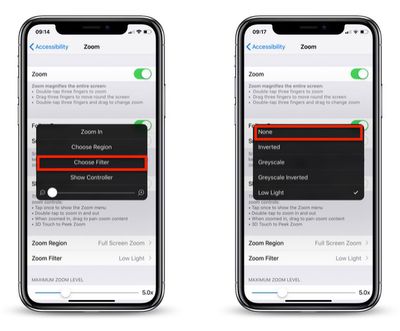
Your device's display brightness should now be extra dim. Note that you can disable the low light filter at any time: Simply triple-tap the screen with three fingers, tap Choose Filter from the overlay panel and then select None.


Top Rated Comments

McFreggle Avatar
97 months ago
Settings > General > Accessibility > Accessibility Shortcut > Reduce White Point.

Much simpler than the procedure described in this article. Triple-click on home button (or side button) for reducing the brightness. Triple-clicking again to increase it again.

You're welcome.
Score: 16 Votes (Like | Disagree)
Sovon Halder Avatar
97 months ago
Settings > General > Accessibility > Accessibility Shortcut > Reduce White Point.

Much simpler than the procedure described in this article. Triple-click on home button (or side button) for reducing the brightness. Triple-clicking again to increase it again.

You're welcome.
WARNING : This triple clicking home button accessibility feature brings a noticeable lag into double clicking function.
Score: 4 Votes (Like | Disagree)
jacjustjac Avatar
97 months ago
There’s an easier way to invoke this. At the bottom of the accessibility page, there’s one called “Accessibility Shortcut”. Select Zoom (and I also have Reduce White Point, which in my opinion is more effective). Now when you triple tap your home button (or the sleep wake button if you don’t have one), your screen can instantly dim. It’s that easy.

Lastly, I use Color Filters (Color Tint) found in Display Accomadations to make an extreme version of Night Shift, whereby my screen removes almost 99% of blue and green light, making my screen appear an ultra red. This in my opinion is more effective than lowering the brightness and Night Shift alone, because you can actually have your screen at a comfortable brightness to read black and white text, but still fall easily asleep.

I’d love to help write and article or video on this process, because I use it every night and have no problems falling asleep while using my phone, and I think others can benefit from it too.
Score: 3 Votes (Like | Disagree)
97 months ago
Settings > General > Accessibility > Accessibility Shortcut > Reduce White Point.

Much simpler than the procedure described in this article. Triple-click on home button (or side button) for reducing the brightness. Triple-clicking again to increase it again.

You're welcome.
Any difference between this and Reduce White Point?

Is it redundent to have both enabled?
I was just about to reply to this. The method macrumours shown is far too long-winded.
Yeah I was thinking the same when I read that post. Way too many steps.
Pretty sure Reduce White Point doesn't dim it as much as the Zoom Low Light filter does.
Exactly... sadly this zoom method has been doing the rounds in the last day or so and this is just 100% lazy copy and paste crap.
This method (as well as the Reduce White Point one) have been around for quite a while (at least a number of years and iOS versions).
[doublepost=1547767528][/doublepost]
Has anyone ever complained that their iPhone was too bright?
Sure, in various dark environments, for one.
Score: 2 Votes (Like | Disagree)
97 months ago
The battery
I’m not a fan of the minimum brightness in phones currently. It’s still way too bright if you’re in a dark room/half asleep
Score: 2 Votes (Like | Disagree)
ItzJordan Avatar
97 months ago
Theres probably a thread already, but does anyone else’s iPhone X/XS/XS Max experience the display to dim to a max brightness of 50% when it is quite warm (or doing instense work loads). Also the CPU and graphics seem to be throttled as everything lags while the device is warm to touch.

Experienced it heavily on the iPhone X and worked with Apple to try a resolve this with diagnostics. The performance throttling is less noticeable on the XS Max but the brightness being maxed at 50% is still noticeable...

Intensive usage needs to be occurring in order this to happen. Using Personal Hotspot (downloading/uploading files) while on a FaceTime call on the iPhone usually does the trick... also room temp needs to be around 20°c or warmer maybe. Only noticed in the summer time and noticing the past few days, as I’m over in Australia! :)
Score: 2 Votes (Like | Disagree)

Popular Stories

iCloud iPhone 17 Pro

iPhone Users Who Pay for iCloud Storage Get Two New Perks on iOS 27

Thursday July 2, 2026 6:10 am PDT by
If you pay for certain iCloud+ storage plans beyond the 5GB that Apple offers for free, you will receive two more perks on iOS 27 at no additional cost. A summary of the two new iCloud+ perks on iOS 27:Increased daily usage limits for some new Apple Intelligence features, including image generation in the revamped Image Playground app. HomeKit Secure Video cameras receive generated video...
iPhone 4 on Black Feature

Apple Facing One of Its Worst Leaks Since the iPhone 4

Thursday July 2, 2026 9:53 am PDT by
Apple supplier Tata Electronics recently suffered a cyberattack that resulted in thousands of confidential files being published on the dark web, and this reportedly included some photos and documents related to the upcoming iPhone 18 Pro. We have elected not to share any of the leaked photos in this story due to the illegal nature in which they were obtained, but they can easily be found...
American Express Gold Apple Pay Feature

American Express Announces New Apple Pay Feature

Tuesday June 30, 2026 10:27 am PDT by
American Express today announced that you can now redeem Membership Rewards points when checking out with Apple Pay on the web and in apps on the iPhone and iPad. When checking out with Apple Pay on iOS 18 or iPadOS 18 or later, tap on your eligible American Express card (Platinum, Gold, Green, and others) and select the Membership Rewards points option. You can use points to cover all or...