How to Turn a Photo Into an Apple Watch Face - MacRumorsOpen MenuShow RoundupsShow Forums menuVisit ForumsOpen Sidebar
Skip to Content

How to Turn a Photo Into an Apple Watch Face

by

With the launch of iOS 11 and watchOS 4, Apple made it easier than ever to turn your own personal photography into an Apple Watch face. As long as you're running iOS 11 or later and watchOS 4 or later on your iPhone and Apple Watch, follow these steps to quickly add one of your Camera Roll pictures onto the face of your Apple Watch, where you can even turn it into a kaleidoscope faces.

Turning a Camera Roll Photo Into a Photos Watch Face
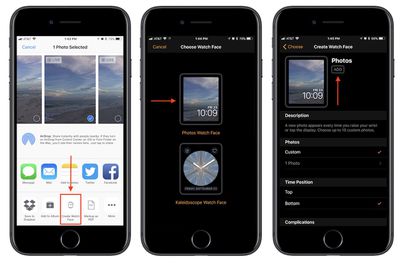
how to watch face 2

  1. Open Photos in iOS.
  2. If you only want one image on your Photos Watch face, simply navigate to it now and jump to step 5.
  3. If you want to make an album of images, tap "Select" in the top right corner of the Photos app.
  4. Scroll through your library and pick up to ten photos to include in your new Photos Watch Face.
  5. Tap the share sheet extension in the bottom left corner of the screen.
  6. At the very bottom of the screen, scroll until you find "Create Watch Face" and tap it.
  7. Choose "Photos Watch Face".
  8. Edit the Time Position and add up to two Complications.
  9. Tap "Add".

Turning a Camera Roll Photo Into a Kaleidoscope Watch Face
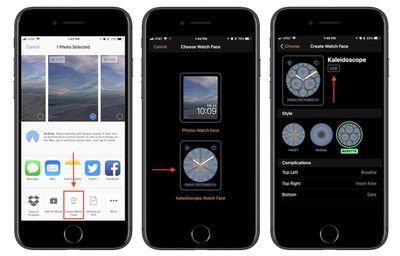
how to watch face 3

  1. Open Photos in iOS.
  2. Navigate to the image you want to turn into a Kaleidoscope Watch Face.
  3. Tap the share sheet extension in the bottom left corner of the screen.
  4. Tap "Create Watch Face."
  5. Choose "Kaleidoscope Watch Face."
  6. Pick between "Facet," "Radial," and "Rosette" designs for your Watch Face.
  7. Decide on adding up to three Complications.
  8. Tap "Add".

After following either of these guides, your all-new Apple Watch face will be waiting in "My Faces" within the Watch app on iOS. Once you find it in that list, you can tap on it, scroll down, and tap "Set as current Watch Face." If you have a Kaleidoscope Watch Face or decided on just one image for the Photos Watch Face, then that's what you'll see each time your wrist is raised. Anyone who has decided to add in multiple photos to their Photos Watch Face, however, will get a shuffled image with each wrist raise.

Related Roundup: Apple Watch 11
Buyer's Guide: Apple Watch (Caution)
Related Forum: iOS 11

Top Rated Comments

macs4nw Avatar
115 months ago
Another nice and very useful feature for personalizing one's Watch.
Score: 1 Votes (Like | Disagree)

Popular Stories

apple watch series 11 pink

Apple Starts Selling Refurbished Apple Watch Series 11, Ultra 3, and SE 3

Friday June 5, 2026 2:14 pm PDT by
Apple is now selling refurbished versions of the Apple Watch Series 11, Apple Watch Ultra 3, and Apple Watch SE 3 at discounted prices. This is the first time the Series 11, Ultra 3, and SE 3 have been available through Apple's online refurbished store since the devices launched last September. Refurbished pricing on the 46mm GPS Apple Watch Series 11 starts at $369, down from $429, while ...
Apple Watch Series 9 Pink Aluminum Feature

watchOS 27 Drops Support for Apple Watch Series 8, Ultra 1, SE 2, and Older

Monday June 8, 2026 11:37 am PDT by
Apple today confirmed that watchOS 27 will not support the Apple Watch Series 8, Apple Watch Ultra (first generation), or Apple Watch SE (second generation), effectively drawing a line at devices equipped with the S9 or S10 chip. The only Apple Watch models compatible with watchOS 27 are the Apple Watch Series 9, Series 10, Series 11, Ultra 2, Ultra 3, and SE 3. The cuts are the biggest...
Apple Watch Series 9

Apple Watch Series 9 Mistakenly Left Off watchOS 27 Compatibility List

Monday June 8, 2026 4:17 pm PDT by
Apple today confirmed that the Apple Watch Series 9 is compatible with watchOS 27, after the device was mistakenly omitted from the software's official compatibility page. Apple updated its website immediately following its WWDC 2026 keynote, and the watchOS 27 page listed a shorter compatibility list than many users expected: the Apple Watch SE 3, Series 10, Series 11, Ultra 2, and Ultra 3. ...