 In macOS, Safari's pinned tabs feature lets you better organize your tabs, especially if find you have too many open at the same time. It's particularly useful if you have certain websites that you tend to visit frequently throughout the day.
The neat thing about pinned tabs is that they stay in place, even when you open a new Safari window or quit and reopen Safari. And when you click a link to another website from a pinned tab, the other website opens in a new tab, ensuring your pinned tab always shows the website you pinned.
Keep reading to learn all you need to know about using pinned tabs in Safari.
How to Pin Tabs in Safari
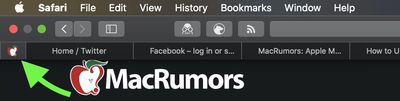
- In the Safari app on your Mac, drag the tab of the website you want to pin to the leftmost side of the tab bar.

- When the tab shrinks to show just the website's favicon, drop it in place.
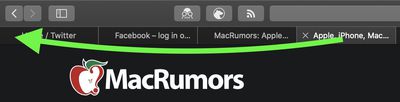
You can also select Window -> Pin Tab from the menu bar, or right-click (Ctrl-click) a tab, then choose Pin Tab from the contextual menu.
How to Rearrange Pinned Tabs in Safari
Pinned tabs aren't fixed in place. If you have multiple pinned tabs, you can rearrange them in the Tabs bar as you please.
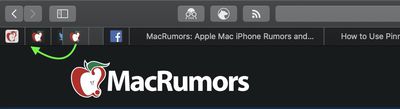
To do so, simply drag a pinned tab before or after another pinned tab in the tab bar.
How to Unpin a Tab in Safari
To unpin a website tab, just drag the pinned tab to the right side of the tab bar and it will expand to become a normal tab.
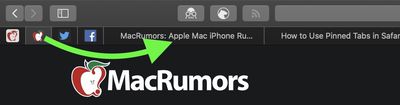
You can also select Window -> Unpin Tab from the menu bar, or right-click (Ctrl-click) a pinned site, then choose Unpin Tab from the contextual menu.
How to Duplicate a Pinned Tab in Safari
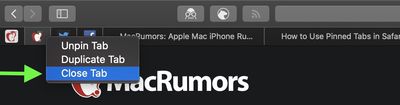
To duplicate one of your pinned tabs, right-click (or Ctrl-click) it, then choose Duplicate Tab from the contextual menu.
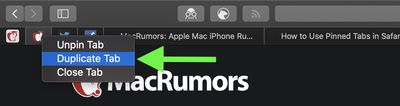
The pinned site will open in a separate tab.
How to Close a Pinned Tab in Safari
To close a pinned tab, simply right-click (or Ctrl-click) the tab, then choose Close Tab.