

 If you recently made the switch from Windows to Mac, you may be wondering how to take screenshots in Apple's operating system. There are several ways you can take screenshots on a Mac. You can capture all of your screen – the equivalent of Print Screen on a PC – or you can capture just a part of it with a few keystrokes. This article explains how to do both.
How to Take a Print Screen-Style Screenshot on Mac
In macOS, you can take a screenshot by hitting the Shift-Command-3 keys in combination. By default, screenshots are saved on your Mac's desktop in PNG format. If you have additional displays connected to your Mac, these screens will be captured at the same time as separate individual images.
How to Capture a Selection of the Screen on Mac
If you want to capture just part of the screen, you can use the Shift-Command-4 key combination. This turns the cursor into a crosshair selection tool which you can then drag out with a left click to select what you want to capture. Simply let go of the left mouse button or the trackpad on a Mac notebook to take the shot.
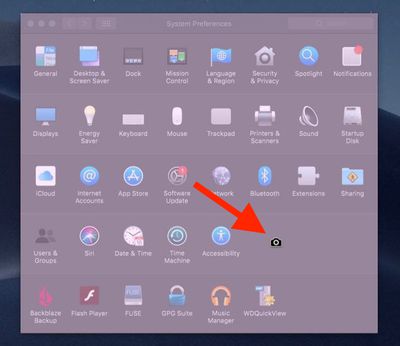
If you just want to capture the contents of a specific window that's open on your desktop, hover the cursor over the window in question and tap the spacebar. The crosshair will turn into a camera and the window will turn a shade of blue. Click the left mouse button or the trackpad to take the shot.
Tip: If you tack the Control key onto either of the shortcuts described above, macOS copies the captured image to the clipboard, which is useful if you want to paste it into an application that can edit or view images. Otherwise, screenshots taken using key shortcuts are saved straight to your desktop.
Ready for more? Then be sure to check out our more extensive screenshots guide for Mac, which explains how to change the file format and save location of screenshots, and includes additional tips on controlling the behavior of selection screenshots.
In addition, Apple also provides a screen capture interface in macOS Mojave and later that unifies the screenshot and screen recording features on Mac, making accessing them easier from one place. You can launch it using the Shift-Command-5 keyboard combination. Read our special guide to learn how it works.















