How to Protect Your Apple ID With Security Keys - MacRumorsOpen MenuShow RoundupsShow Forums menuVisit ForumsOpen Sidebar
Skip to Content

How to Protect Your Apple ID With Security Keys

by

Apple has introduced security keys as an additional step to help users protect their Apple ID accounts. Keep reading to learn why the alternative authentication method is the most secure method available and what you need to do to set it up.
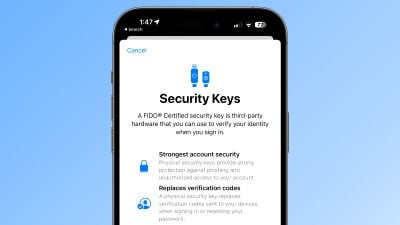
ios 16 3 security keys info

What Are Security Keys?

With the release of iOS 16.3, iPadOS 16.3, and macOS Ventura 13.2, Apple introduced support for security keys, or physical devices that can verify your ‌Apple ID‌ instead of a passcode.

Apple designed the feature for people who require additional protection from targeted attacks, such as phishing or social engineering scams.

The extra protection that security keys provide means that if someone had your ‌Apple ID‌ and your password, they still would not be able to access your account without your physical security key, which replaces the traditional verification code provided by two-factor authentication.

How Do Security Keys Work?

With a security key enabled, signing into an ‌Apple ID‌ requires entering your account's password and then using a security key to complete the two-factor authentication process, instead of the traditional six-digit verification code that is sent to another Apple device signed into the same account.

Why It's Worth Using Security Keys

It's worth noting from the outset that using physical security keys puts the onus on you to be careful not to lose them, otherwise you could permanently lose access to your Apple account. This is why Apple requires users to set up at least two security keys, and supports up to six in total.
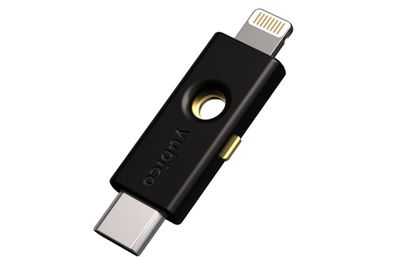
security keys
Having two physical security keys set up means you can keep them in more than one safe place. For example, you could keep one at home and one in your workplace, or you could keep one with you when traveling while the other one remains safe at home.

Once you have security keys set up, you can use them to sign in with your ‌Apple ID‌ on a new device or on the web, reset your ‌Apple ID‌ password, and add additional security keys or remove them from your account.

What You Can't Do With Security Keys

There are a few things worth noting that you can't do with security keys.

  • You can't use them to sign in to iCloud for Windows.
  • You can't sign in to older devices that can't be updated to a software version that supports security keys.
  • Security keys don't support child accounts and Managed Apple IDs.
  • Apple Watches that are paired with a family member's iPhone aren't supported.

Security Keys Worth Considering

Most security keys look similar to a typical USB thumb drive, with some options available with NFC for wireless use and others equipped with Lightning, USB-C, and/or USB-A ports for direct connectivity with iPhones, iPads, and Macs.

There are many options on the market when buying security keys, but the main things to consider when choosing one are that it is FIDO Certified and that it has a connector that works with your Apple devices. Some options recommended by Apple include:

Visit the FIDO Showcase website for a complete list of keys certified by the FIDO Alliance.

How to Enable Security Keys on iPhone and iPad

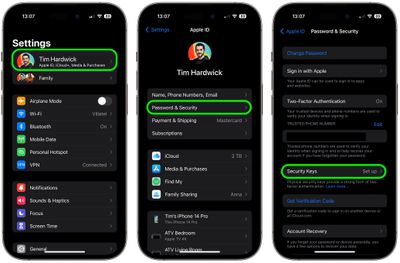
  1. Launch the Settings app on your iOS device.
  2. Tap your name in the ‌Apple ID‌ banner.
  3. Tap Password & Security.
  4. Tap Security Keys.
  5. Tap the blue Add Security Keys button and follow the on-screen instructions.
settings

You can remove security keys at any time by repeating the steps outlined above and tapping or clicking on Remove All Security Keys. Doing so causes your ‌Apple ID‌ to revert to using a traditional six-digit verification code for two-factor authentication.

How to Enable Security Keys on Mac

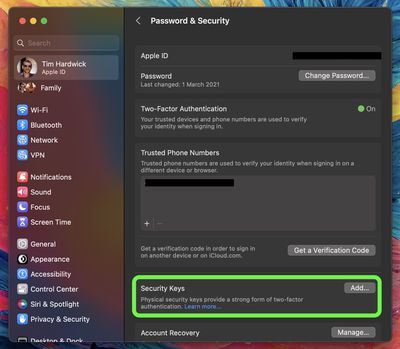
  1. Click the Apple symbol () in your Mac's menu bar and choose System Settings….
  2. Click your name at the top of the sidebar.
    settings

  3. Click Password & Security.
  4. In the "Security Keys" menu section, click Add…, then follow the onscreen instructions.
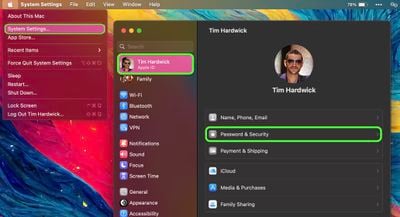
    settings

After following the above steps you will be given the opportunity to review the devices linked to your ‌Apple ID‌, with options to stay signed in to or log out of any associated Apple devices.

You can stop using security keys on your Mac by going to System Settings -> [your name] -> Password & Security. Click Security Keys, then click Remove All Security Keys. Doing so causes your ‌Apple ID‌ to revert to using a traditional six-digit verification code for two-factor authentication.

Top Rated Comments

F23 Avatar
46 months ago
Introducing the Apple Security Key for $199, we think you're going to love it.
Score: 17 Votes (Like | Disagree)
TheYayAreaLiving 🎗️ Avatar
46 months ago

Introducing the Apple Security Key for $199, we think you're going to love it.
I'm afraid it will be subscription-based :(. Apple's main focus is to generate money through Services nowadays :(
Score: 15 Votes (Like | Disagree)
antiprotest Avatar
46 months ago
Everything looks good until we find out Apple lets thieves use "shake to undo" to reset and switch to their own key.

And then everybody will have to use a screen time code to plug that hole too.
Score: 11 Votes (Like | Disagree)
centauratlas Avatar
46 months ago

I cannot tell you how many flash drives I have misplaced over the years, so I fear losing my security key and then I'm really screwed without anyone having to steal my device.

Am I missing something with this approach? How do the thieves bypass my second screen time pin without trying to crack the 4-digit pin? Is there a back door? I realize that it could take time to methodically run through the 10,000 combinations. Not the most secure I agree, but if it slows them down long enough for me to take action, then it's better than no security key and no password.

I'm just asking because I want to learn and know what I am up against.
Someone already answered this, but Apple needs additional steps to protect the AppleID. Some possibilities. Some/all could be optional:

1. 72 hour delay period before you are locked out - so you could back out of it from a different Apple Device, e.g. iPad.
2. Require FaceID/TouchID in addition to the password to reset it. And/or require the old password be entered to reset it.
3. Require confirmation on a different logged in Apple device, so it can't be done from the stolen device.
4. Sign phone out of iCloud for the paired iPhone from the Watch.
5. Or allow you to lock the paired phone from the Watch so that it needs a password AND confirmation from a different Apple device before they can do anything.

:-)
Score: 9 Votes (Like | Disagree)
Mr. Dee Avatar
46 months ago
Sorry, I’ll take my chances and just avoid using my passcode in public places.
Score: 9 Votes (Like | Disagree)
Apple_Robert Avatar
46 months ago
The security keys don't fully protect your Apple ID account. The keys are useless in protecting your Apple ID account if someone knows your phone passcode and takes control of your phone.
Score: 9 Votes (Like | Disagree)

Popular Stories

duo aquarium

More Fun iPhone Duo Apps: 30 New Picks to Try

Friday November 6, 2026 3:27 pm PST by
When the iPhone Duo launched, we shared a list of some of the fun apps developers created for the new form factor. Two weeks out, developers are continuing to come up with fresh ideas, so we thought we'd share some of our favorites. Games Marbles Unhinged ($2.99) - Marbles Unhinged is a marble maze designed for the Duo. When you fold it, the floor turns into a ramp. If you stand the top...
apple pro tell logo

Apple Launching Five New Products Today

Thursday November 5, 2026 12:59 am PST by
Apple is launching five new products on Friday, November 6, following pre-orders that opened last week, including its first touchscreen MacBook Pro models. The following new products will be available from today: iPad mini with OLED display and A20 Pro chip iMac with M6 chip 14-inch MacBook Pro with M6 chip 14-inch MacBook Pro with OLED touchscreen 16-inch MacBook Pro with OLED...
iOS 28 AI

Apple Taking New Approach to Developing iOS 28 and macOS 28

Sunday November 8, 2026 7:42 am PST by
Apple has made a change to its development process for iOS 28, macOS 28, and corresponding software updates, according to Bloomberg's Mark Gurman. In his Power On newsletter today, he said Apple separates development of each year's new operating systems into three major stages. Typically, he said each stage consists of four weeks of coding followed by a four-week "convergence" period where...


Latest Stories
Apple Store Subscription Sign-Up Controversy Exposed
1 hour ago
Siri AI Rumored to Become 'More Like an Agent' as Early as Next Year
11 hours ago
Apple Taking New Approach to Developing iOS 28 and macOS 28
13 hours ago
Early Apple Black Friday Deals on Apple Watch, MacBook Air, and More
1 day ago
'Backglow' Lets You Customize New MacBook Pro's Glowing Apple Logo
1 day ago
Top Stories: Apple Product Launches, iOS 27.3 Beta, and More
2 days ago
More Fun iPhone Duo Apps: 30 New Picks to Try
2 days ago
Hands-On With Apple's New OLED Touchscreen MacBook Pro
2 days ago
Apple Store With All-New Design Opening Soon in Southern California
2 days ago
Control the Glowing Apple Logo on Your New MacBook Pro
2 days ago
Apple Shares New 'Apple Card: Apply and Use in Minutes' Ad
2 days ago
Apple Says More Than 100,000 Apps Optimized for iPhone Duo, Here's What's Still Missing
2 days ago
Early Black Friday Deals Kickoff With Steep Discounts on Apple Watch Ultras and More
3 days ago
The MacRumors Show: iOS 27.3 Looks Like a Huge Update
3 days ago
Best Buy's Black Friday Event Begins With Sitewide Savings on Apple, TVs, More
3 days ago
Apple Releasing Yet Another Two New Products Next Week
3 days ago
MacBook Air Drops to Lowest Price in Months With Amazon's $250 Discount
3 days ago
Apple Rumored to Drop the iPhone's Action Button Next Year
3 days ago
Apple's Extended Return Policy Now in Effect for 2026 Holiday Season
3 days ago
Apple Music Classical Updated With New Icon and Refreshed Design
3 days ago
OLED iPad Mini, M6 iMac, and New MacBook Pros Available From Today
3 days ago
Apple Surveys iPhone Duo Buyers About Crease and Camera
3 days ago
Apple's First Touchscreen Mac is Now Arriving to Customers
3 days ago
Claude Gets Personal Finance Feature With Bank Account Linking
3 days ago
Apple Arcade Adds Crossy Road Rush and NBA 2K27
3 days ago
Apple's New HomeView Smart Home Hub: Here's How Much RAM It Has
3 days ago
iPad Mini vs. iPad Air Buyer's Guide: Now Just $50 Apart
3 days ago
First iOS 27.3 and macOS Golden Gate 27.3 Public Betas Now Available
3 days ago
Apple Announces a New Mac Sales Record
3 days ago
Paid $200 for Logic Pro? Apple Says You Won't Get This New Feature
3 days ago