How to Add, Remove, and Rearrange Menu Bar Icons in macOS Mojave - MacRumorsOpen MenuShow RoundupsShow Forums menuVisit ForumsOpen Sidebar
Skip to Content

How to Add, Remove, and Rearrange Menu Bar Icons in macOS Mojave

by

The macOS menu bar is a great place for quickly accessing system and application functions using menu extras or "menulets", but it can get cluttered pretty quickly as more and more icons vie for a space there.

If the corner of your Mac's screen is fast becoming an eyesore, here are some quick and simple actions you can perform to bring order to the chaos, plus a few additional tips for making the most of Apple's menu bar extras.

How to Rearrange Icons in the Menu Bar

Plenty of menu bar icons offer useful shortcuts to app and system functions, and may take up permanent residence on your screen. But left to their own devices, the arrangement of said icons is likely to become haphazard. Fortunately, re-organizing them is simple, once you know how to do it.

  1. Hold down the Command (⌘) key.

  2. Hover your mouse cursor over the icon you want to move.

  3. Holding down the left mouse button, drag the icon into your preferred position on the menu bar. Other icons will step aside to make space for it.

  4. Let go of the left mouse button.

move menu bar icon
Note that the Notifications icon in macOS is designed to sit in the far right corner of the menu bar and cannot be moved elsewhere.

How to Remove System Icons From the Menu Bar

Icons linked to system controls can be easily removed from the menu bar in the following way:

  1. Hold down the Command (⌘) key.

  2. Hover your mouse cursor over the icon you want to remove.

  3. Holding down the left mouse button, drag the icon out of the menu bar and onto the desktop.

  4. Let go of the left mouse button.

remove menu bar icon
If the icon doesn't vanish with a "whoosh" sound, then it was likely put there by a third-party app you or another user installed. In that case, look for an option in the associated app's settings such as "Show in Menu Bar" and uncheck it.

How to Add System Icons to the Menu Bar

If you removed a system icon from the menu bar and would like it back, or if you'd like to add a fresh one, you can find options in the associated preference panes. For example, to reinstate the AirPlay icon in the menu bar:

  1. Click the apple symbol in the far left of the menu bar and select System Preferences....
  2. Select the Display preference pane.
  3. At the bottom of the pane, check the box to "Show mirroring options in the menu bar when available".
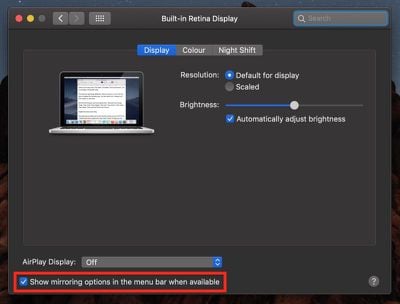
rearrange menu bar icons how to
Similar menu bar options relating to Sound volume, Bluetooth, Siri, Time Machine, and Accessibility status can be found in their respective preference panes. In addition to Wi-Fi status (listed below), the Network pane will also offer "menulet" options for things like modems and VPNs if you have them set up, while menu bar icons related to keyboard, battery, user account, and date/time are located less obviously in the following preference pane menus and tabs:

  • Keyboard -> Input Sources -> Show Input menu in menu bar.
  • Energy Saver -> Show battery status in menu bar.
  • Network -> Wi-Fi -> Show Wi-Fi status in menu bar.
  • Users & Groups -> Login Options -> Show fast user switching menu as Full Name / Account Name / Icon.
  • Date & Time -> Clock -> Show date and time in menu bar.

Menu Bar Extras

For one reason or another, some menulet options remain hidden in System Preferences by default. Interested users can find the full collection in the System folder: Open a Finder window, from the menu bar select Go -> Go to Folder..., and then navigate to /System/Library/CoreServices/Menu Extras.

Some of the extras in this folder are pretty obscure, but one or two might come in handy – like Eject if you use an optical drive, or Ink if you connect a graphics tablet to your Mac, for example. Just double-click any that look useful and they'll be added to the menu bar. They can be removed just as easily using the Command (⌘) key method described above.

Finally, users looking for a more comprehensive method of managing menu bar icons should consider third-party app Bartender 3 ($15).


Top Rated Comments

Westside guy Avatar
114 months ago
So, I already knew this - but... I wanted to say "Thank you!" to the author for writing a succinct, informative tutorial rather than an recording an eight-minute-long YouTube video!

Seriously, I get so tired of searching for information on some subject where the answer could be presented in 50 words of prose, but instead the search results page is littered with ridiculously long YouTube videos. The most ludicrous one I ever came across was a several-minute-long video that consisted of a live screen capture of some dude typing at the bash prompt! WHAT IS WRONG WITH THESE PEOPLE?
Score: 14 Votes (Like | Disagree)
MacDawg Avatar
114 months ago
Nice article, but I'm not sure people are wanting to move them as much as maybe remove them - I'm looking at you Creative Cloud
Why anyone would want to move them
I want to do both... move them and remove some of them (and hide others on a separate bar)
I just like things organized the way I want them and not the way the system organizes them

I use Bartender 3 now to have better control and accomplish what I want
Score: 8 Votes (Like | Disagree)
Schranke Avatar
114 months ago
Damm I have been using mac for many years now and I did not know this:eek:
Well it sure is helpful!
The more you know:apple:
Score: 6 Votes (Like | Disagree)
114 months ago
Nice article, but I'm not sure people are wanting to move them as much as maybe remove them - I'm looking at you Creative Cloud
Open Creative Cloud.
Click on those vertical dots (3 of them) on the icon in the Menu Bar - Prefferences
De-Select Launch at Login.

Do you mean this? If so - I hope it helps.
Score: 4 Votes (Like | Disagree)
maflynn Avatar
114 months ago
Nice article, but I'm not sure people are wanting to move them as much as maybe remove them - I'm looking at you Creative Cloud
Score: 4 Votes (Like | Disagree)
114 months ago
This has been around since OS X 10.2. BTW it doesn't work for all menu items so many will be frustrated when this doesn't work.
Allmost all of them work as of Sierra. Apple added this behaviour to third-party apps.
Score: 3 Votes (Like | Disagree)

Popular Stories

apple pro tell logo

Apple Launching Five New Products Today

Thursday November 5, 2026 12:59 am PST by
Apple is launching five new products on Friday, November 6, following pre-orders that opened last week, including its first touchscreen MacBook Pro models. The following new products will be available from today: iPad mini with OLED display and A20 Pro chip iMac with M6 chip 14-inch MacBook Pro with M6 chip 14-inch MacBook Pro with OLED touchscreen 16-inch MacBook Pro with OLED...
duo aquarium

More Fun iPhone Duo Apps: 30 New Picks to Try

Friday November 6, 2026 3:27 pm PST by
When the iPhone Duo launched, we shared a list of some of the fun apps developers created for the new form factor. Two weeks out, developers are continuing to come up with fresh ideas, so we thought we'd share some of our favorites. Games Marbles Unhinged ($2.99) - Marbles Unhinged is a marble maze designed for the Duo. When you fold it, the floor turns into a ramp. If you stand the top...
silver iphone 18 pro

Apple Rumored to Drop the iPhone's Action Button Next Year

Friday November 6, 2026 6:07 am PST by
Apple plans to merge the iPhone's Action button with the Camera Control starting next year, according to the leaker known as "Instant Digital." In a new post on Weibo, the leaker claimed that a single press of the combined button would open the camera, while a long press would trigger the function assigned to the Action button. They explicitly clarified that the dedicated Action button would ...
Latest Stories
Siri AI Rumored to Become 'More Like an Agent' as Early as Next Year
2 hours ago
Apple Taking New Approach to Developing iOS 28 and macOS 28
4 hours ago
Early Apple Black Friday Deals on Apple Watch, MacBook Air, and More
22 hours ago
'Backglow' Lets You Customize New MacBook Pro's Glowing Apple Logo
23 hours ago
Top Stories: Apple Product Launches, iOS 27.3 Beta, and More
1 day ago
More Fun iPhone Duo Apps: 30 New Picks to Try
2 days ago
Hands-On With Apple's New OLED Touchscreen MacBook Pro
2 days ago
Apple Store With All-New Design Opening Soon in Southern California
2 days ago
Control the Glowing Apple Logo on Your New MacBook Pro
2 days ago
Apple Shares New 'Apple Card: Apply and Use in Minutes' Ad
2 days ago
Apple Says More Than 100,000 Apps Optimized for iPhone Duo, Here's What's Still Missing
2 days ago
Early Black Friday Deals Kickoff With Steep Discounts on Apple Watch Ultras and More
2 days ago
The MacRumors Show: iOS 27.3 Looks Like a Huge Update
2 days ago
Best Buy's Black Friday Event Begins With Sitewide Savings on Apple, TVs, More
2 days ago
Apple Releasing Yet Another Two New Products Next Week
2 days ago
MacBook Air Drops to Lowest Price in Months With Amazon's $250 Discount
2 days ago
Apple Rumored to Drop the iPhone's Action Button Next Year
2 days ago
Apple's Extended Return Policy Now in Effect for 2026 Holiday Season
2 days ago
Apple Music Classical Updated With New Icon and Refreshed Design
2 days ago
OLED iPad Mini, M6 iMac, and New MacBook Pros Available From Today
2 days ago
Apple Surveys iPhone Duo Buyers About Crease and Camera
3 days ago
Apple's First Touchscreen Mac is Now Arriving to Customers
3 days ago
Claude Gets Personal Finance Feature With Bank Account Linking
3 days ago
Apple Arcade Adds Crossy Road Rush and NBA 2K27
3 days ago
Apple's New HomeView Smart Home Hub: Here's How Much RAM It Has
3 days ago
iPad Mini vs. iPad Air Buyer's Guide: Now Just $50 Apart
3 days ago
First iOS 27.3 and macOS Golden Gate 27.3 Public Betas Now Available
3 days ago
Apple Announces a New Mac Sales Record
3 days ago
Paid $200 for Logic Pro? Apple Says You Won't Get This New Feature
3 days ago
Instagram's Edits Video Editor is Now Available on Mac
3 days ago