How to Screen Record Your iPhone or iPad - MacRumorsOpen MenuShow RoundupsShow Forums menuVisit ForumsOpen Sidebar
Skip to Content

How to Screen Record Your iPhone or iPad

by

iOS comes with a handy new Control Center function that allows you to record what you're doing on your screen. It's great if you want to capture gameplay, walk someone through a tutorial in an app, demonstrate a bug, and more, and it's available on both iPhones and iPads.


Enabling Screen Recording Button

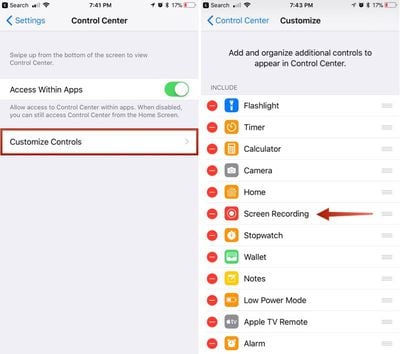
If you don't have the screen recording icon in Control Center, you can add it in the Settings app.

  1. Open the Settings app.
  2. Choose Control Center.
  3. Select "Customize Controls." ios11enablingscreenrecording
  4. Tap the + button next to "Screen Recording" to add it to the "Include" section.

How to Record Your Screen

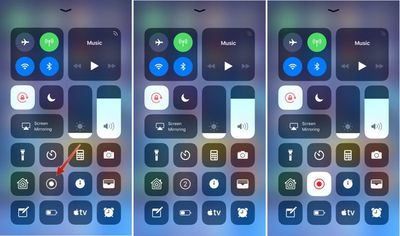
  1. Bring up the Control Center.
  2. Tap the icon for screen recording. It's two nested circles. ios11screenrecording
  3. Your iPhone or iPad will start recording video of your screen automatically following a three second countdown.
While screen recording is turned on, a red bar is plastered across the top of the display so it's clear when you're recording and when you're not.
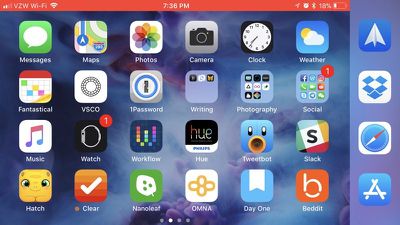
ios11screenrecordingredbanner

Ending a Recording

To stop recording the screen, you can go back to Control Center and toggle the screen recording icon, or your can tap the red bar at the top of the screen and confirm you want to end the recording. The video you made is then saved to the Photos app.
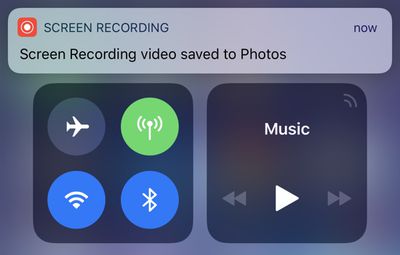
screenrecordingsavedios11

Screen Recording Options

There are a few options that are available when making a screen recording, which can be accessed directly in the Control Center. To bring up these options, simply 3D Touch on the screen recording icon.
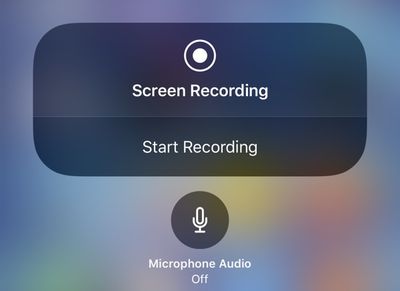
ios11screenrecording3dtouch
From this menu, you can start a screen recording and toggle microphone audio on or off. These are the only options that are available for the feature -- it's fairly basic.


Related Forum: iOS 11

Top Rated Comments

trusso Avatar
113 months ago
I get that exact same option on my iPhone 6+ by just tapping and holding on the screen recording icon.

Really haven't felt I've been missing out on anything over the past several years by not having 3D touch on my iPhone.
You're not. I upgraded to a 6S last year for the larger internal storage, and I've forgotten 3D touch was even a thing. I never use it.
Score: 2 Votes (Like | Disagree)
rob.james.arias Avatar
113 months ago
Aka “How to record those Snaps”
Score: 2 Votes (Like | Disagree)
kdarling Avatar
113 months ago
Starting a Recording
[LIST=1]
* Bring up the Control Center.
* Tap the icon for screen recording. It's two nested circles.

Dear UI vetters at Apple (if you even exist any more):

Please add labels to all your icons, so that people who don't memorize them, and/or older people like my Mom, can figure out what the heck each icon does.

Thank you. Oh, and don't let Ive design any part of an UI any more, please.
Score: 1 Votes (Like | Disagree)
Glassed Silver Avatar
113 months ago
I get that exact same option on my iPhone 6+ by just tapping and holding on the screen recording icon.

Really haven't felt I've been missing out on anything over the past several years by not having 3D touch on my iPhone.
Contextual previews (linked webpages or maps for example) are a Godsent.

I used to be pretty indifferent about them, thinking it might be a cool feature, but ever since I got my 6S Plus I can honestly say it made iOS a lot more convenient to me.

My iPad Air feels outright awkward without it.

Glassed Silver:win
Score: 1 Votes (Like | Disagree)
aircanman Avatar
113 months ago
I’d like to see an option where it highlights where on the screen you press. This would make it easier for creating tutorial videos.
Score: 1 Votes (Like | Disagree)
ArtOfWarfare Avatar
113 months ago
Accessing Screen Recording Options

There are a few options that are available when making a screen recording, which can be accessed directly in the Control Center. To bring up these options, simply 3D Touch on the screen recording icon.

MacRumors content image

From this menu, you can start a screen recording and toggle microphone audio on or off. These are the only options that are available for the feature -- it's fairly basic.

I get that exact same option on my iPhone 6+ by just tapping and holding on the screen recording icon.

Really haven't felt I've been missing out on anything over the past several years by not having 3D touch on my iPhone.
Score: 1 Votes (Like | Disagree)

Popular Stories

Apple Card iPhone 16 Pro Feature

Apple Card Promo to Offer Free AirPods Pro 3

Friday May 15, 2026 8:59 am PDT by
Starting as early as next week, customers who sign up for an Apple Card at Apple's retail stores in the U.S. will receive $249 cash back when they purchase AirPods Pro 3, according to Bloomberg's Mark Gurman. The promotion has yet to be officially announced by Apple, so exact terms and conditions are not available at this time. AirPods Pro 3 are priced at $249 in the U.S., so customers who...
Apple WWDC25 iOS 26 CarPlay Light mode 250609

Six Popular iPhone Apps Now Available on CarPlay

Thursday May 14, 2026 9:10 am PDT by
Apple's CarPlay system for accessing iPhone apps on a vehicle's dashboard screen has received six popular apps in recent weeks: ChatGPT, Perplexity, Grok, Google Meet, WhatsApp, and the indie artist streaming platform Audiomack. Make sure you have the latest version of each app and they will automatically appear on CarPlay. ChatGPT Starting with iOS 26.4, CarPlay supports voice-based...
ipad mini 7 blue

OLED iPad Mini: Release Date, Pricing, and What to Expect

Thursday May 14, 2026 5:08 am PDT by
According to the latest rumors, Apple is close to launching its next-generation iPad mini. So what should we expect from the successor to the iPad mini 7 that Apple released over a year ago? Read on to find out. Processor and Performance Apple is working on a next-generation version of the iPad mini (codename J510/J511) that features the A19 Pro chip, according to information found in code...