

In macOS Ventura, Apple can deliver security updates to Macs without having to update the entire operating system. If you're experiencing issues with your Mac after having installed a security update, keep reading to learn how to remove it.

In the past, some of Apple's most important point releases of its macOS operating system have been linked to critical security updates that are designed to keep you and your private data safe and secure online.
When a user opts to install them, the entire operating system must be updated and restarted, which is why in macOS Ventura Apple introduced Rapid Security Response updates. These smaller updates get important security improvements to your Mac even faster, often without you even having to restart, but Apple recognizes that there may be rare occasions when an unexpected issue is experienced after the update, which is why it also provides a way to remove them.
You can follow the steps below to remove a Rapid Security Response from your Mac, after which you can reinstall the update at a later date, or wait for it to be installed permanently as part of a standard software update.
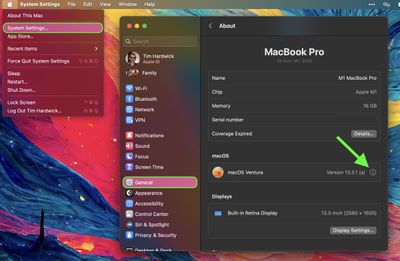
- Click the Apple logo () in your Mac's menu bar and select System Settings....
- Click General in the sidebar.
- Click About.
- Under "macOS," click the info button (the encircled "i") next to the OS version.

- In the "Last Security Response," section, click the Remove & Restart button.
- Click Remove Response and Restart in the confirmation prompt.
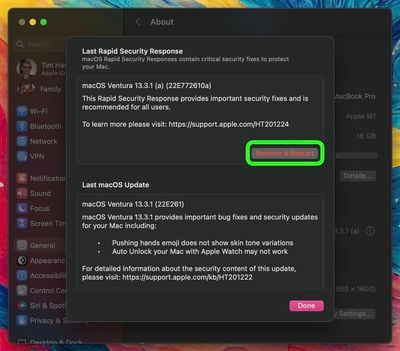
The Rapid Security Response update will now be automatically removed from your Mac. Bear in mind that your Mac will now be potentially vulnerable to whatever exploit or security issue the update was designed to fix, so it's best practice to use this as an opportunity to research and resolve the problem that began when you originally installed it. When you have done so, you'll be able to install the update again to ensure your computer is protected.


















