

When using macOS Finder in List view, you'll see the sizes of individual files – but not folders.
Instead, folders show a pair of dashes (--) in the Size column. macOS skips calculating folder sizes by default to keep List view performance fast, especially in directories with many nested files. But if you want to keep an eye on folder sizes in certain locations, or even globally, there are a few ways to do it. Here's how.
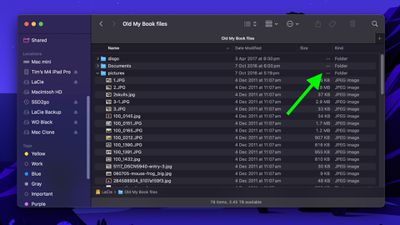
What if you want to use List view and still keep an eye on the size of a handful of folders in a specific location – in Documents, for instance, or in a directory synced to a cloud storage service? Or what if you have a super-fast SSD that can handle the pressure of calculating the size of lots of folders on the fly? Thankfully, there are several ways to make Finder show folder sizes, even in List view.
Enable Calculate All Sizes
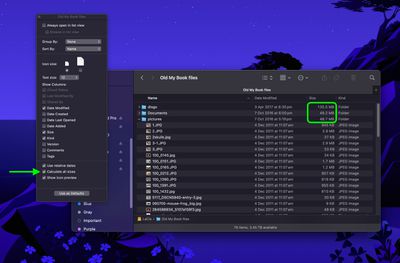
Open the folder in question, select View ➝ Show View Options from the menu bar or press the keys Command+J, and check Calculate All Sizes. Finder will now remember your viewing preference for that particular location only.
Turn On Preview Panel
If you're looking for a more global solution for keeping tabs on folder sizes that will work in any Finder view mode, you might consider enabling the Preview panel. To do this, open a Finder window and select the menu bar option View ➝ Show Preview, or press the keys Shift+Command+P.
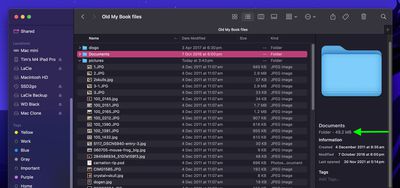
In the Preview panel, the size of the selected folder always appears immediately below the folder name. If this is the only folder information you want to see in the Preview panel, you can select the menu bar option View ➝ Show Preview Options and uncheck all other metadata options.
Use Get Info
Of course, you may find that relying on the Preview panel to keep a check on individual folder sizes isn't an ideal use of Finder window space. This is where the menu bar option File ➝ Get Info (or key combo Command+I) can come in helpful. Opening a separate Get Info panel lets you see the size of the item in question, regardless of whether it's a file or a folder.
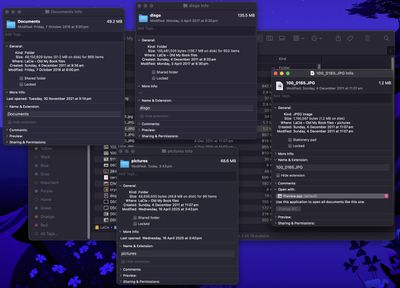
The downside? Each Get Info panel is static and specific to the item selected. Opening several at once can clutter your desktop, since each new window stays open until manually closed.
Use Inspector for Live Folder Info
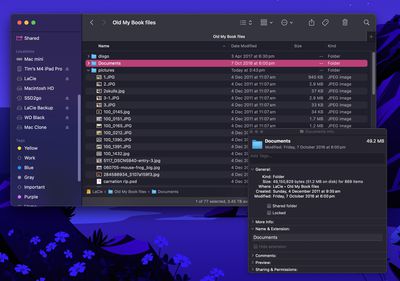
Fortunately, this inconvenience can be easily solved: Click File in the menu bar and hold the Option key, and Get Info will turn into Show Inspector. Unlike a Get Info panel, the Inspector panel is dynamically updated and will always display information for the active Finder window's currently selected file or folder – including, of course, its size.
In summary, for casual folder-size checking, use the Preview panel. For detailed or multiple folders, enable Calculate All Sizes in View Options. And if you need real-time updates without clutter, use Show Inspector.
















Top Rated Comments
Prepare to have your mind blown my friend…
CMD+Option+i
:)
Now whatever finder items you select, single or multiple, it will show you all the info in total without having windows. As you select or deselect items… the info window changes dynamically.
When you change something inside a folder, the Finder has to recalculate the contents, but in the meantime is still showing the "old" value.
Finder usually indicates an "outdated" folder size by using a grey font (instead of black), but you can't rely on that either.
Recalculating can take a long time, especially if you have thousands of files nested inside folder. ( = your home directory.)
TL;DR:
Even if the folder says "0 KB", it is not guaranteed that it is really empty!
If you absolutely need reliable real-time info, use the Inspector instead.
Please also share the tip to show hidden files (command + shift + period), this will help so many people!