 In macOS, the library folder is used to store user account settings, preference files, app support files, caches, and other important data that allows your Mac to function as it should.
Making haphazard changes to the library folder can cause damage to your system, which is why Apple hides the folder by default. However, sometimes troubleshooting solutions require that you have access to the library folder. Read on to find out how to reveal it on your Mac.
Locating your Library Folder
There are actually three library folders on a Mac. The library folder in the root directory of your system drive (usually called Macintosh HD) contains data accessible to all users, but only administrators have write access to the files.
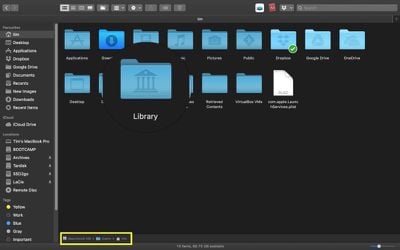
Then there's the Library folder in System, which contains the main macOS system files. However, the hidden user library we want to reveal for troubleshooting purposes can be found at Macintosh HD/Users/[username]/Library. Here are some ways you can unhide it.
- Open a Finder window.
- Select Go from the menu bar at the top of the screen.

- Hold down the Option key to reveal the Library folder option in the dropdown menu.
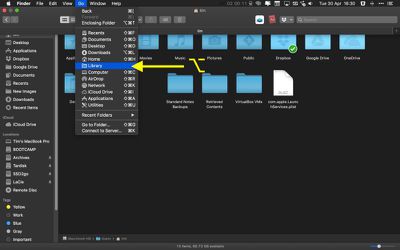
Alternatively, you can try this method:
- Open a Finder window.
- Select Go -> Go to Folder... in the menu bar.
- Type ~/Library in the input field and click Go.

How to Keep the Library Folder Visible
The two methods above reveal the library folder in a Finder window, but once you close that window, the folder is hidden again. You can keep it visible on your Mac by following these steps.
- Open a Finder window.
- Select Go -> Go to Folder... in the menu bar.
- Type /Users in the input field and click Go.
- Using your mouse, drag the home user icon with your name into the Favorites section of the Finder window's sidebar.
- Next, select the home user icon in the sidebar.
- Select View -> Show View Options in the menu bar at the top of the screen.
- In the panel that appears, tick the checkbox next to Show Library Folder.
- Click the red traffic light to close the View Options panel.


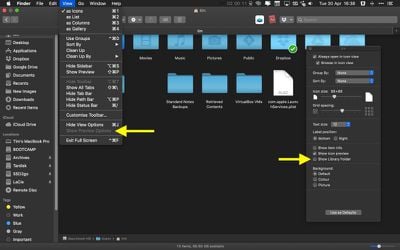
The library folder will now remain visible in your Mac's directory structure, even after a restart, until you uncheck the view option described above. Want to make all files and folders visible on your Mac? Click here to learn how.