Save Time Resizing Images on Mac With a Quick Action - MacRumorsOpen MenuShow RoundupsShow Forums menuVisit ForumsOpen Sidebar
Skip to Content

Save Time Resizing Images on Mac With a Quick Action

by

Resizing images in macOS is easily done in the Preview app, but if your daily workflow requires you to scale images to a specific size – for uploading to a blog, for example – then using an image resize Quick Action is a much faster way of getting the job done.
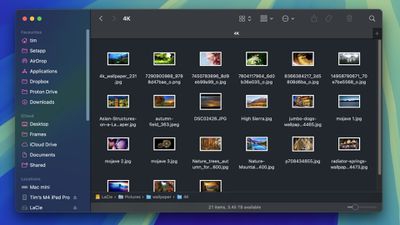
finder images folder
In this article, we'll show you how to use the Automator app to create a simple Quick Action that, once saved, will have you resizing images in just a couple of clicks, without even going near an image editing app. Keep reading to learn how it's done.

Create a Resize Image Quick Action

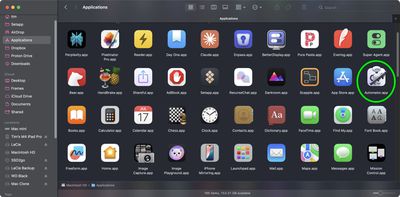
  1. Launch Automator from the Applications folder.
    finder automator

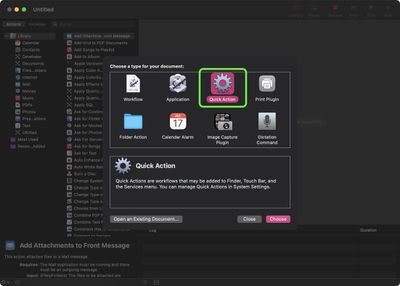
  2. Click New Document, then choose Quick Action as the type of your document.
    automator

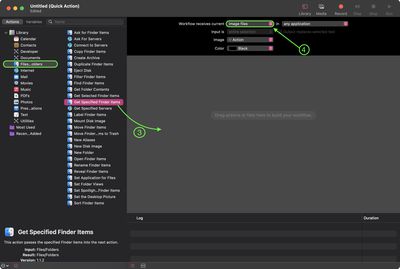
  3. Select Files and Folders in the Actions sidebar, then drag Get Specified Finder Items to the workflow area.
  4. Click the Workflow received current dropdown at the top and select image files from the menu.
    automator

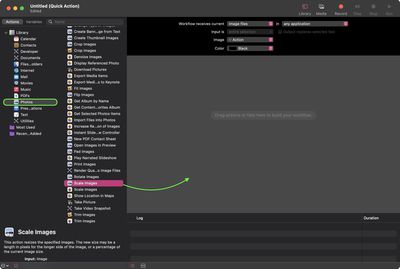
  5. Select Photos in the Actions sidebar, then drag Scale Images to the workflow area.
    automator

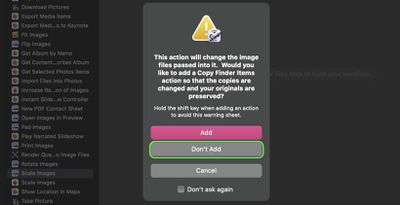
  6. Automator will prompt you to add a Copy Finder Items Action to save the original files in a separate folder. We're sticking to a simple workflow of resizing images here, so we click Don't Add.
    automator

  7. In the Scale Images action panel, type the width that you want to resize your images to. We're going to use 1200 pixels.
    automator

  8. In the Automator menu bar, select File ➝ Save..., call your new Quick Action "Resize Image", then click Save.
Use Your New Quick Action

Next time you want to resize an image, simply right-click (or Ctrl-click) the item in Finder and select Quick Actions ➝ Resize Image from the contextual dropdown menu. You can also drag a selection box over several images and resize them all in one go using the Quick Action.
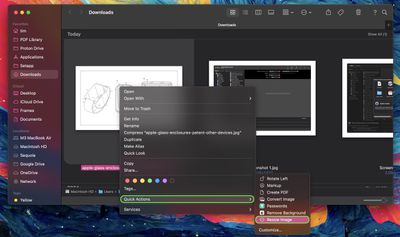
automator

Add a Keyboard Shortcut

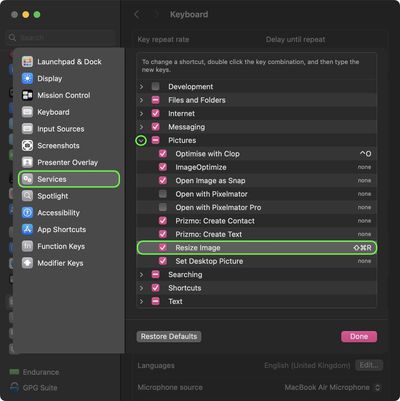
Why not assign a key shortcut to your image resize Quick Action to speed up the process? To do so, launch System Settings, select Keyboard in the sidebar, then click the Keyboard Shortcuts... button.
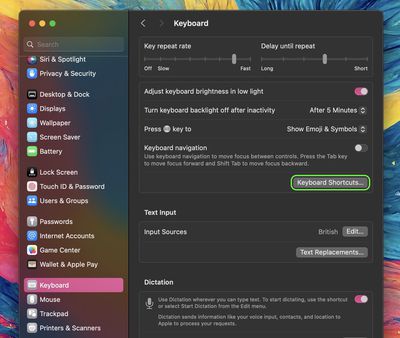
automator
Select Services from the sidebar, expand the "Pictures" checklist, and you should find Resize Image near the bottom of the list. Double-click the line item where it says "none", then enter your custom key combination. Click Done when you're finished.
settings
By integrating this Quick Action into your macOS workflow, you should be able to efficiently resize images with just a few clicks, saving you time and enhancing your productivity.


Top Rated Comments

16 months ago
this is the contents we would like to see. not kuo/gurman advertisements.
Score: 25 Votes (Like | Disagree)
16 months ago
Love these kind of articles on MR! 👍
Score: 16 Votes (Like | Disagree)
neotint Avatar
16 months ago
More recipes and playbooks like this, thanks. Great reminders. Btw are these saved to iCloud and part of one's account, or just part of current OS install and would need to be redone over and over with each machine? Is there way to save them for reimport use on other/new machines?
Score: 5 Votes (Like | Disagree)
mrnoark Avatar
16 months ago

Articles like this are really useful but, we’ve had Shortcuts app on the Mac for several years already… why are we still relying on Automator? I’m just genuinely curious. What can Automator do that Shortcuts can’t?
Automator has way more functions, like AppleScript, Watch Me Do (action recording) and Folder Actions.

Here’s a MacRumors article ('https://www.macrumors.com/how-to/turn-macos-folder-into-image-converter-how/') to achieve similar functions with Folder Actions.
Score: 4 Votes (Like | Disagree)
16 months ago
A bit saddened from seeing how few Mac users don't know what the Mac can do.
Score: 3 Votes (Like | Disagree)
16 months ago

Very useful. For example, 2048px is supposed to be best size to preserve quality for Facebook.
Anything you upload to Facebook is good for Facebook.
Score: 2 Votes (Like | Disagree)

Popular Stories

macOS 27 on MacBook Pro

Apple Says macOS 27 Won't Be Compatible With These Macs

Wednesday June 3, 2026 8:29 am PDT by
During WWDC 2025, Apple revealed that macOS 26 Tahoe would be the final major macOS version for Intel-based Macs. macOS 27 will be compatible with Apple silicon Macs only, meaning that you will need a Mac with an M-series chip or a MacBook Neo with an A18 Pro chip in order to install the software update. Apple will unveil macOS 27 during its WWDC 2026 keynote this Monday, June 8, and the...
MacBook Neo on Yellow Feature

MacBook Neo is So Popular That Apple Reportedly Doubled Production

Wednesday June 3, 2026 9:24 am PDT by
On an earnings call in late April, Apple's CEO Tim Cook said that customer response to the MacBook Neo was "off the charts," and the popularity of the laptop has reportedly led the company to significantly boost production. Apple supply chain analyst Ming-Chi Kuo this week said he believes that MacBook Neo shipments to Apple were doubled from an initial target of 5 million units to 10...
iphone 18 pro blue%402x

iPhone 18 Pro: Dark Cherry, Light Blue, and Dark Gray Chassis Leaked [Update]

Thursday June 4, 2026 5:18 am PDT by
Update: Since publication, new information has come to light suggesting the images have been AI-manipulated and are not in fact iPhone 18 Pro chassis parts. The original article follows. The color options Apple is reportedly planning for the upcoming iPhone 18 Pro and ‌iPhone 18 Pro‌ Max have appeared online today in the form of images of chassis parts of unknown authenticity....