

How to Scan Codes With Your iPhone Camera - MacRumorsOpen MenuShow RoundupsShow Forums menuVisit ForumsOpen Sidebar
Skip to Content

How to Scan Codes With Your iPhone Camera

by

The native camera app on iPhone includes functionality that allows you to scan QR codes and access QR code content like URLs without having to download a third-party app.
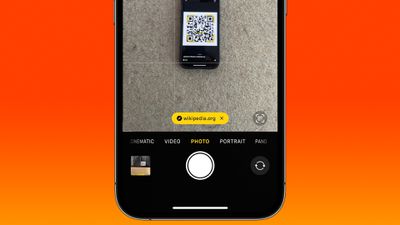
qr code ios 17
QR codes can include contact information, calendar events, website links, phone numbers, email addresses, Wi-Fi information, and more, so they can be pretty handy. Here's how to scan a QR code when you run into one:

  1. Open the Camera app on the iPhone or iPad.
  2. Make sure you have adequate lighting so the camera can pick up the QR code.
  3. Align the camera with the QR code.
  4. Tap the yellow link that appears at the bottom of the viewfinder.

That's all there is to it. From there, your iPhone will open the app needed to view the information associated with the code (in most cases, your default browser will open and load a webpage).

Apple first introduced iPhone Camera app support for QR code scanning in iOS 11. Back then, the URL link that the QR code generated would appear as though it was a push notification at the top of the screen.

Perhaps because this implementation was inelegant or confusing for some users, Apple in iOS 13 decided to redesign QR code scanning so that the link appeared as a yellow button within the camera viewfinder itself. However, in doing so, it created a new problem: The button would rove around in the viewfinder if the camera lens was also in motion, which made tapping it even more tricky than before.

Thankfully, in iOS 17 and later, Apple includes a change that improves the situation immeasurably. Now when you scan a QR code, the link button automatically appears at the bottom of the Camera interface. So instead of chasing the dancing link around the viewfinder, you can simply tap its fixed location above the shutter button.


Popular Stories

macOS 27 on MacBook Pro

Apple Says macOS 27 Won't Be Compatible With These Macs

Wednesday June 3, 2026 8:29 am PDT by
During WWDC 2025, Apple revealed that macOS 26 Tahoe would be the final major macOS version for Intel-based Macs. macOS 27 will be compatible with Apple silicon Macs only, meaning that you will need a Mac with an M-series chip or a MacBook Neo with an A18 Pro chip in order to install the software update. Apple will unveil macOS 27 during its WWDC 2026 keynote this Monday, June 8, and the...
MacBook Neo on Yellow Feature

MacBook Neo is So Popular That Apple Reportedly Doubled Production

Wednesday June 3, 2026 9:24 am PDT by
On an earnings call in late April, Apple's CEO Tim Cook said that customer response to the MacBook Neo was "off the charts," and the popularity of the laptop has reportedly led the company to significantly boost production. Apple supply chain analyst Ming-Chi Kuo this week said he believes that MacBook Neo shipments to Apple were doubled from an initial target of 5 million units to 10...
iphone 18 pro blue%402x

iPhone 18 Pro: Dark Cherry, Light Blue, and Dark Gray Chassis Leaked [Update]

Thursday June 4, 2026 5:18 am PDT by
Update: Since publication, new information has come to light suggesting the images have been AI-manipulated and are not in fact iPhone 18 Pro chassis parts. The original article follows. The color options Apple is reportedly planning for the upcoming iPhone 18 Pro and ‌iPhone 18 Pro‌ Max have appeared online today in the form of images of chassis parts of unknown authenticity....













